

Advanced Materials
Interactive Section
Fake Section Material
File: VR_UE_Materials_SectionMaterial
Objectives
- Learn about complex materials
- Learn how to create interactive sections
- Improve your capabilities when creating materials in Unreal Engine
Assumptions
- User will be using Unreal Engine 4 (version 16, 17, 18 or higher)
- User knows how to create basic materials in Unreal Engine
- User knows how to use the most recurring functions in the Material Editor
Introduction
This guideline is about creating a material that allows us to show a fake section in Unreal Engine. This lets us create interactive sections fully controllable from Unreal Engine.
In other software, we usually use geometry to create sections (like section box in Revit, clipping planes in Rhinoceros or slice modifier in 3ds Max). But in Unreal we have to deal with materials maths to achieve our purpose. Our goal is to see part of our geometry and hide the rest, so we should work with the opacity of our material, let’s see how.
Procedure
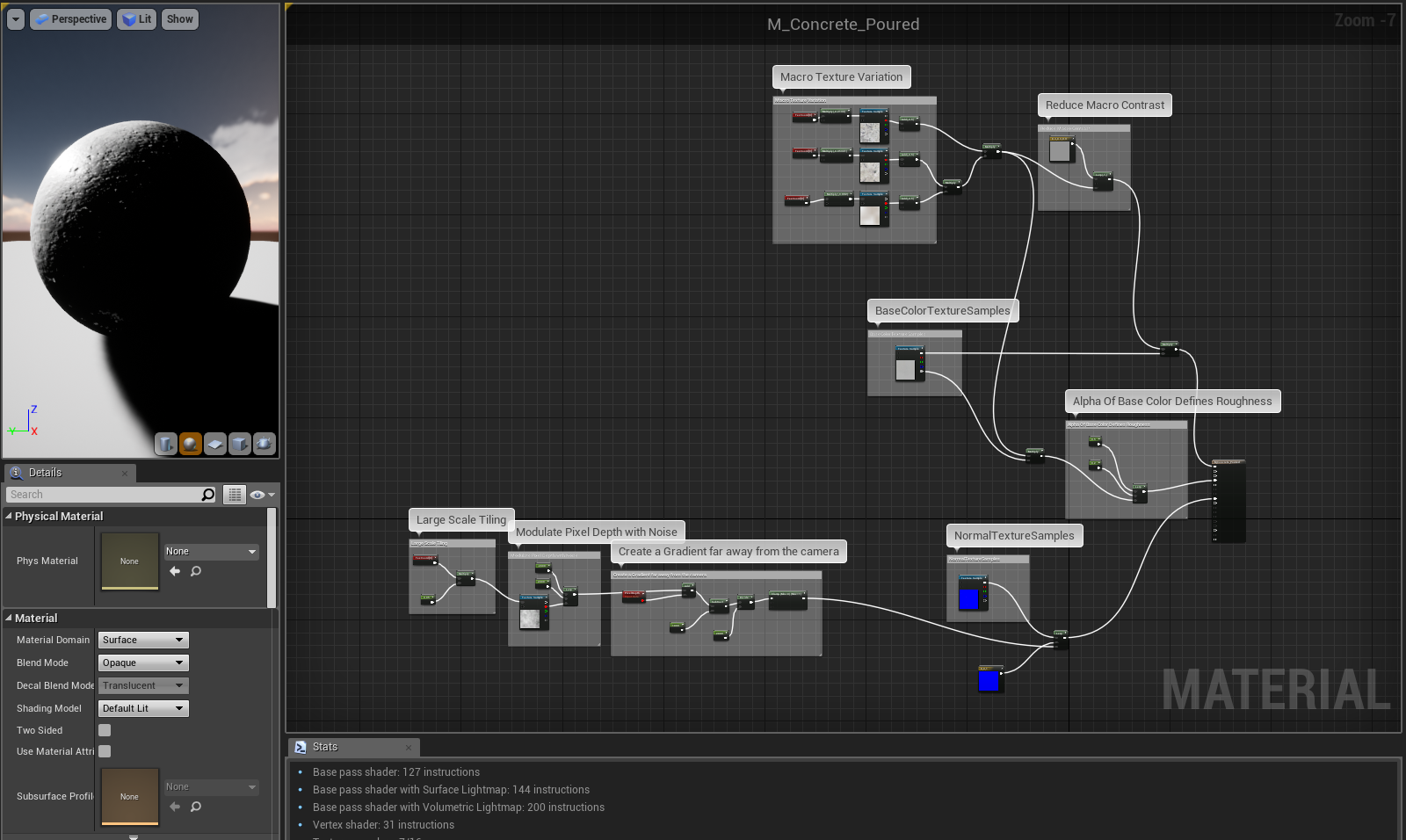
We can create a section material with any type of Material Domain that Unreal Engine allows us to create. However for this guideline we have chosen a material from the Starter Content, so you can easily follow the instructions. The material chosen is “M_Concrete_Poured”.
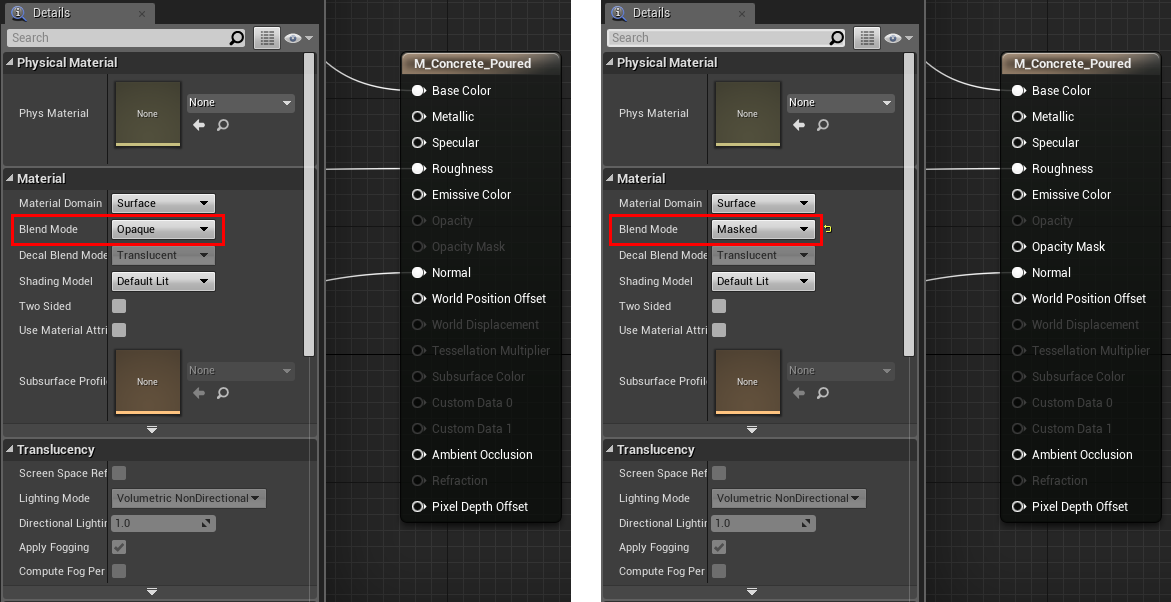
First of all, we have to set our material as a Masked one, because it allows us to edit the opacity mask attribute:
Then we need some information about Coordinates, for example where are located our objects, or where we will set our section.
Starting from our objects, we need the material to give us information about the position of each pixel of all of of the objects that have applied that material in the world space. If we used that information as color input we would get this:
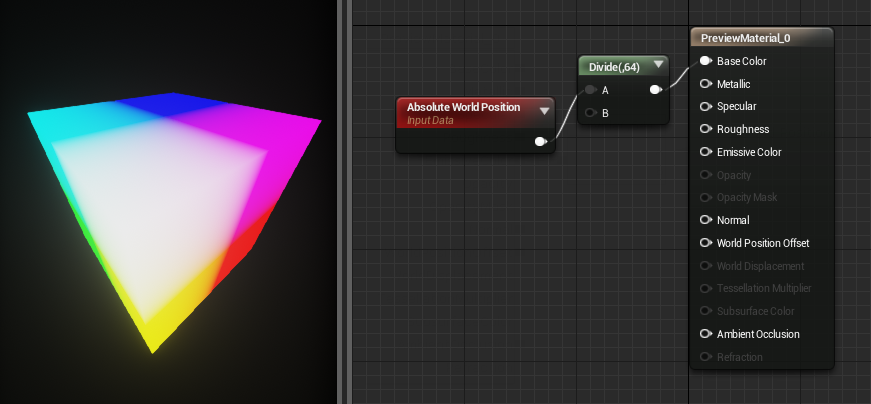
When using “Absolute World Position” function we get the information about the coordinates of each pixel of the objects that have applied our material. “Absolute World Position” function lets us control the whole information of the coordinates of just a part of it. For instance, we can choose if we need to read the information about X, Y or Z coordinates.
Depending on our purpose we can use the whole information or just a part. For this example we are using just X coordinate, but material editor works with vectors (X, Y, Z) like color (R,G,B), so we need to use Mask component and select only Red channel. As we mentioned before, if we uses “Absolute World Position” as color input, we would get this:
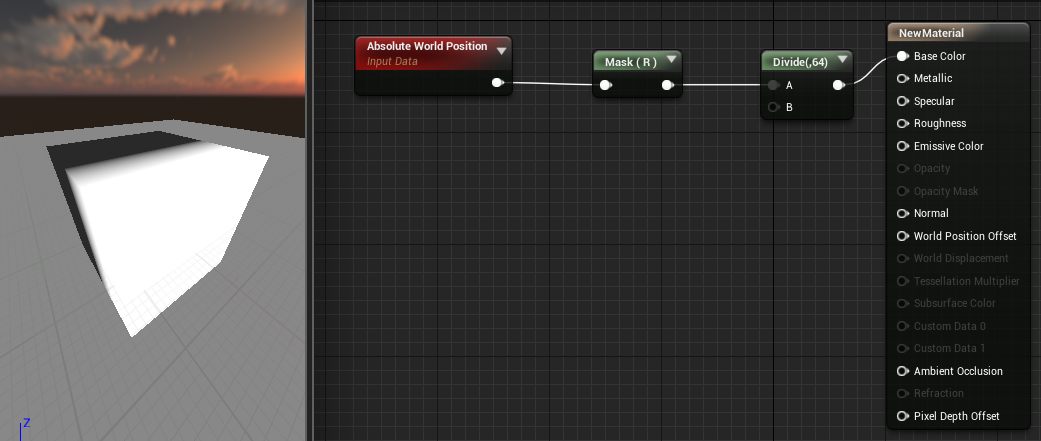
White part of the cube has positive coordinates X > 0 while black pixels has negative coordinates X < 0.
We can use that information directly in the Opacity Mask of our material but our section will be set in X = 0, so now we need to work with that.
In addition we need to solve another problem. In the previous image, we can see that there is a part that has grey gradient, that part is where pixel coordinates are between X = 0 and X = 1. Our solution is to use a conditional component (If), where A will be the position of the pixels and B the X coordinate of the section. Also we have to provide what happens when A>B (0 as transparent) and A<B (1 as opaque):
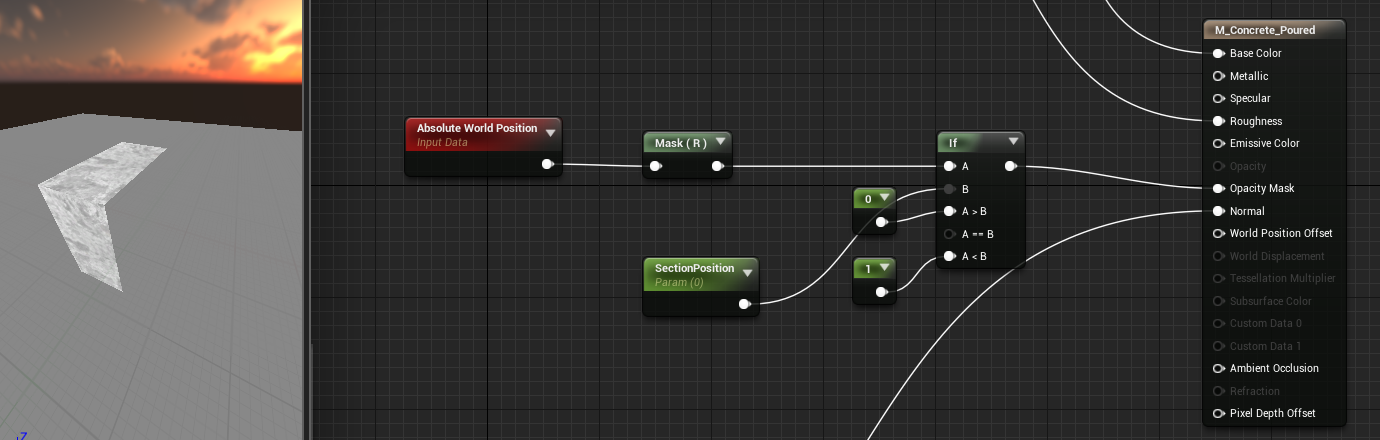
As we can see in the previous image, the interior geometry is “transparent”. This is not exactly correct, in fact, backface are culled by default, we can select, in our material, to be “Two Sided”:
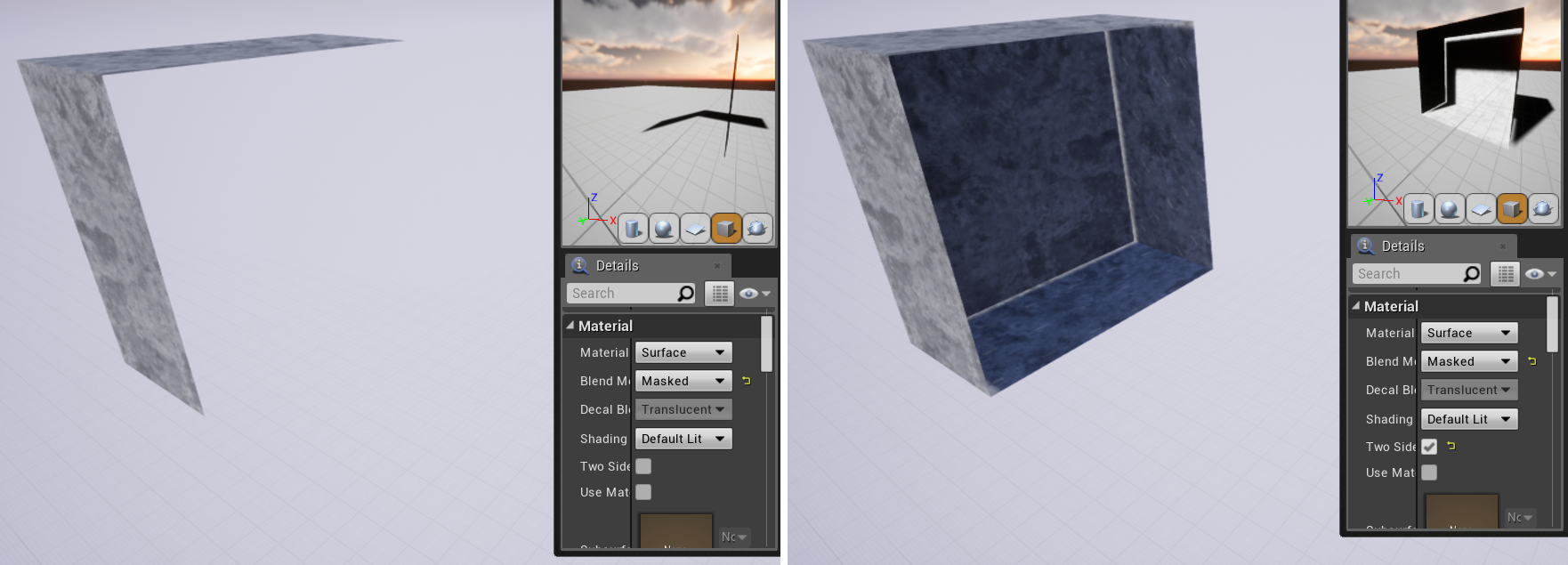
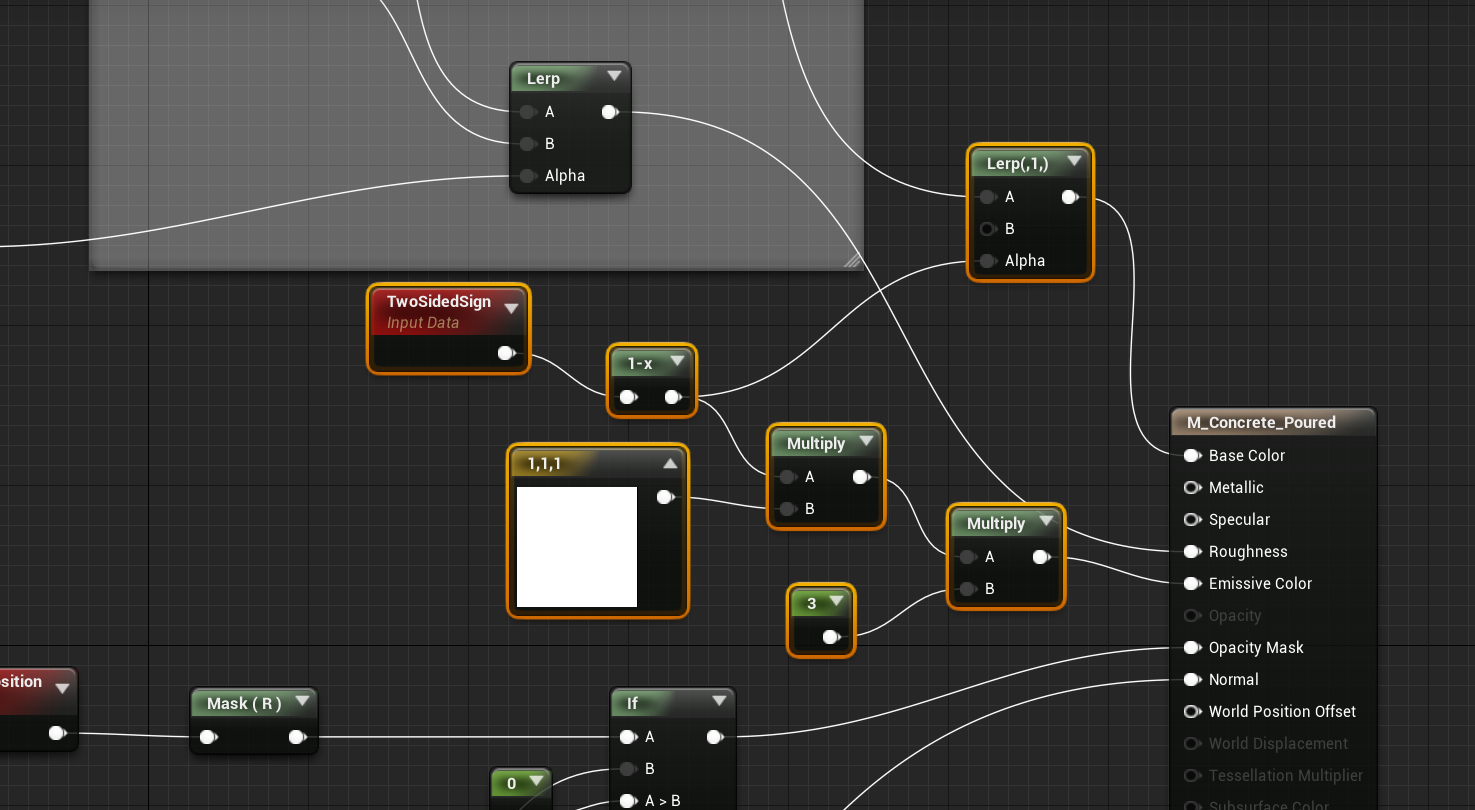
This option allows us to see the interior of our geometry but not as a solid, this is the tricky part. To fill in the interior we need to use an emissive color, this avoid showing shadows and edges. The main problem of this is to differentiate between what is interior and what is exterior of our geometry, and for this we will use the sign of the Normals:
Finally, we can apply our material to our complex geometries:
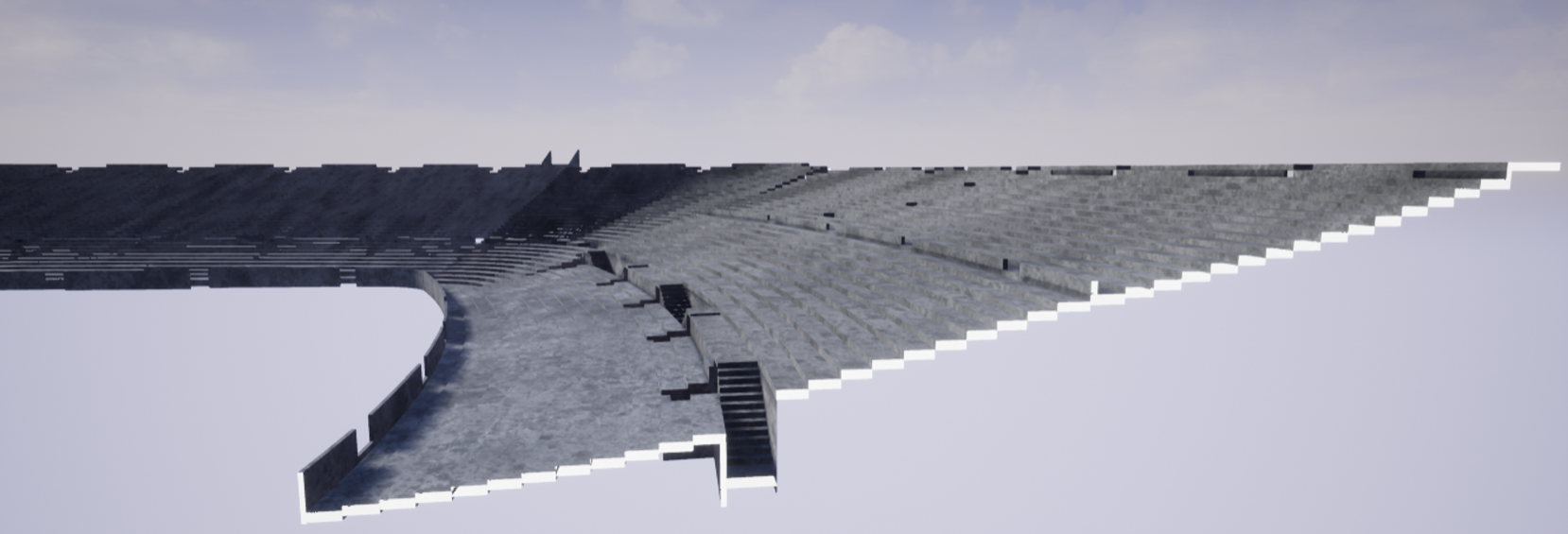
As we have set the position of the section with a scalar parameter, we can move it dynamically with a material instance and see the result in real time.