

Exporting a multi-site model to IFC
Case study: Exporting a multi-site model to IFC
Objective
In this post we share the workflow that we at Modelical have devised to easily export a federated model with several linked files and multiple positions. An export flow from Revit to IFC. This case is a very common scenario in the real estate sector.
Our proposal includes best practice methods during the model federation strategy and a Dynamo definition to automate the export process.
Introduction
Exporting models to IFC format is needed to consume them outside the Revit environment. IFC models are commonly used for clash detection, design and coordination reviews, area control or QTO. These reasons lead real estate developers to include them as mandatory project BIM deliverables.
When designing a single-family housing project, working with repeating typologies is very common. If Revit is the software chosen to develop the project, we will usually create each house typology in a different model.
Each of these models will be linked and copied into a federated model, the site model, as many times as the typology is repeated in our project. This procedure allows us to implement all design changes in a more agile way. Each link will be exported as a different IFC model that we can later federate.
Before explaining the two possible export strategies, we will recall how to work in Revit with repeated link instances hosted the same model.
Setting up repeated links in the same model
These are the steps to follow:
- Create the site model and set up the project shared coordinates. We can acquire the actual coordinates from a topographic CAD file or type them manually.
- Once the shared coordinates have been set up, link each typology model to the site model.
- Copy each typology, as many times as it is repeated, in the right plot positions.
- Name each housing instance according to its position and set up its shared location:
- Select the desired linked instance and open the Shared site menu from the properties menu.
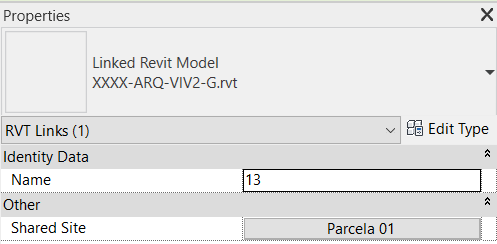
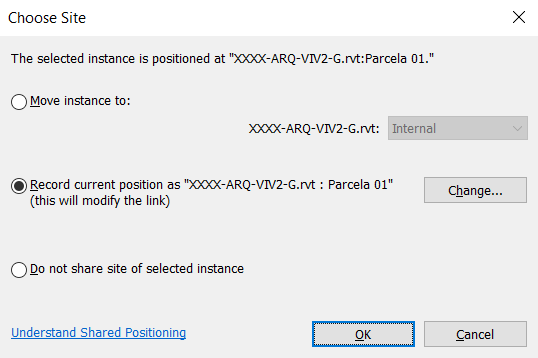
- To record the current position, change and duplicate the Internal position that appears by default, by the right position according to the plot. We will name them: Parcela 01, Parcela 04, etc.
- Once all positions have been set up, synchronize and save the file.
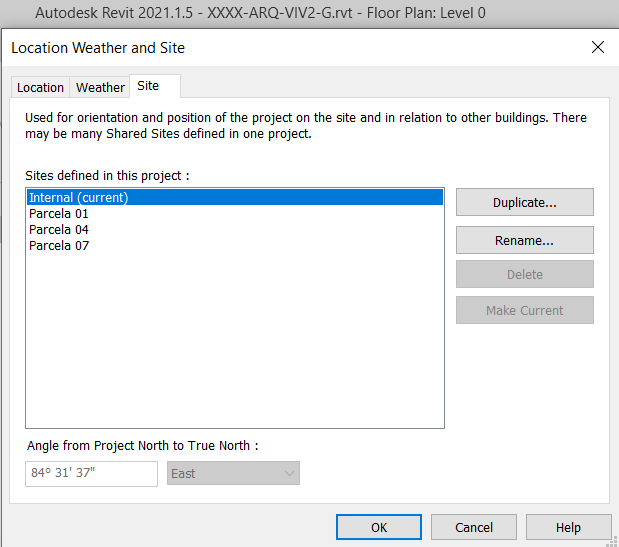
If we open one of the housing typology models and check the Shared site we will see that all positions set up previously in the site model have been saved individually.
Example given:
Let’s imagine a project of 9 single-family houses with 3 different typologies (VIV1, VIV2 and VIV3). Each typology is repeated 3 times and the plots are sorted from 1 to 9, from left to right, as it is shown in the image below.
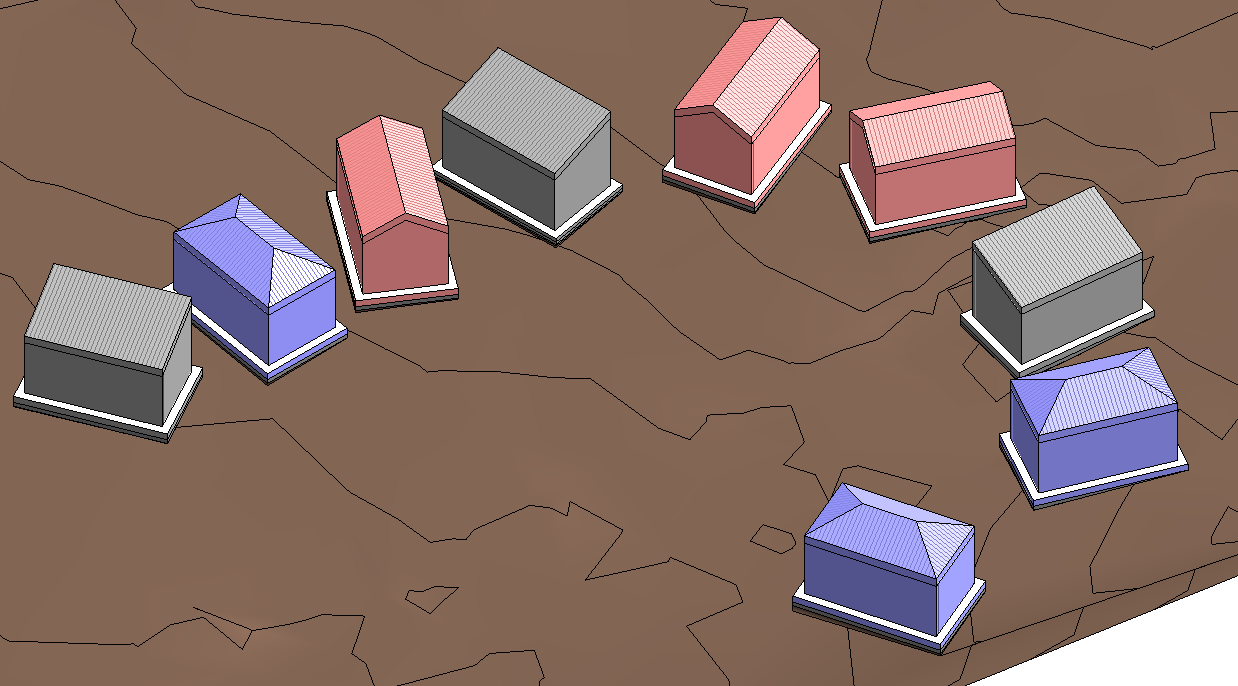
VIV2 typology house is placed in 01, 04 and 07 plots. If you open the housing typology model (XXXX-ARQ-VIV2-G.rvt), you will see these positions from the location menu, Site tab.
Export strategy
To export from Revit to IFC we can follow two different strategies.
Exporting from the site model
This first strategy allows us to export everything from one single source. However, it has significant disadvantages that are aggravated by the higher the number of links:
- High time consumption during the export. All instances of each discipline and typology linked to the site model will be exported. It is very common to create separated architectural, structural and MEP models, so we will usually have three models for each housing unit.
- Errors or program crashes during the export. Revit can not finish it or stop when trying to export a specific element.
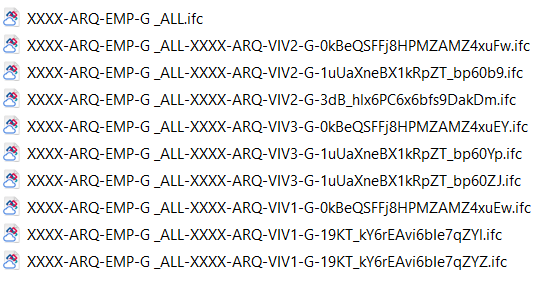
- After exporting, the IFC models are hard to identify by the file name (model name from which it is exported + link model name + random combination of numbers and letters if the link has several copied instances). This implies manual work after each export, to rename all the exported models, tagging them with the location or plot/housing number.
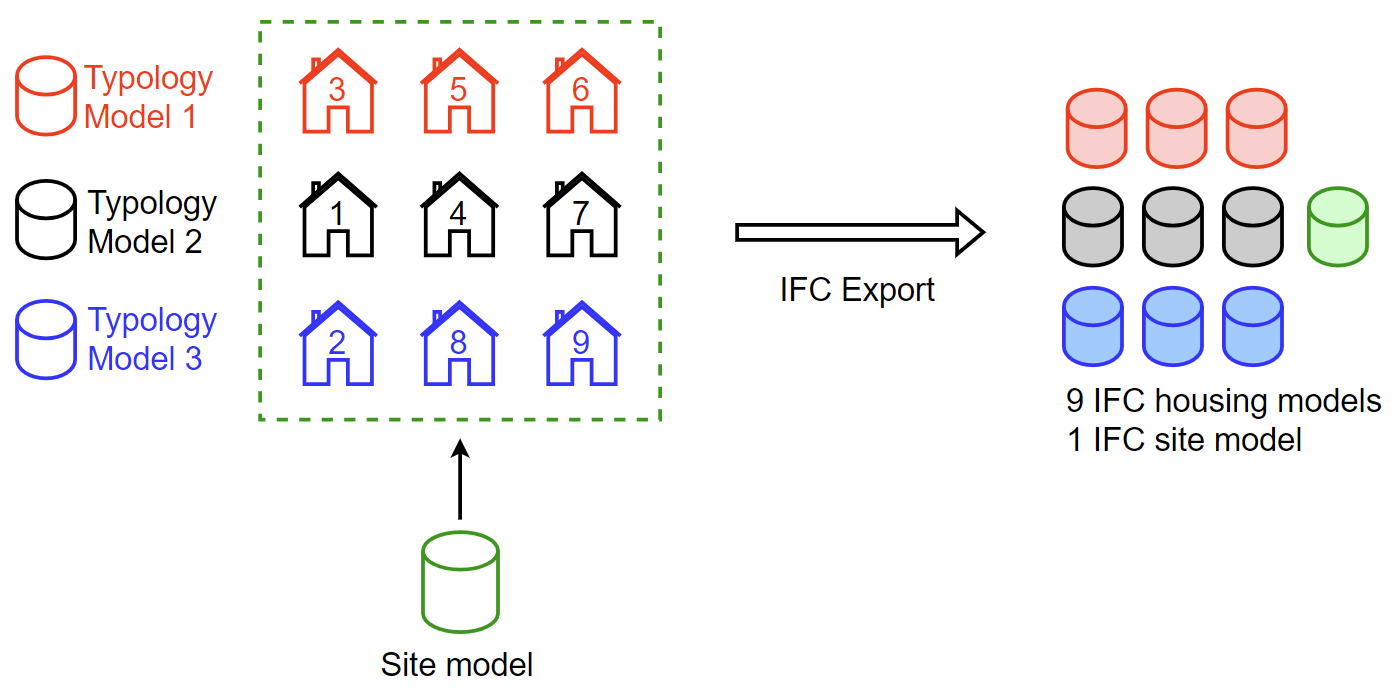
This is how the export of the example above would look like following this strategy.
Exporting from each typology model
This option allows us to considerably reduce the time spent during the export, since we are dealing with smaller and simpler models. However, we must have previously set up all different model sites (as explained above) and manually choose in which position (plot) we want to export. We have to do it as many times as saved locations each model has, and this process needs to be repeated for each of the project housing typologies. In addition, the site model will need to be exported separately.
In many cases, this strategy is the only feasible solution, due to the fact that exporting from the site model is too heavy to be executed correctly.
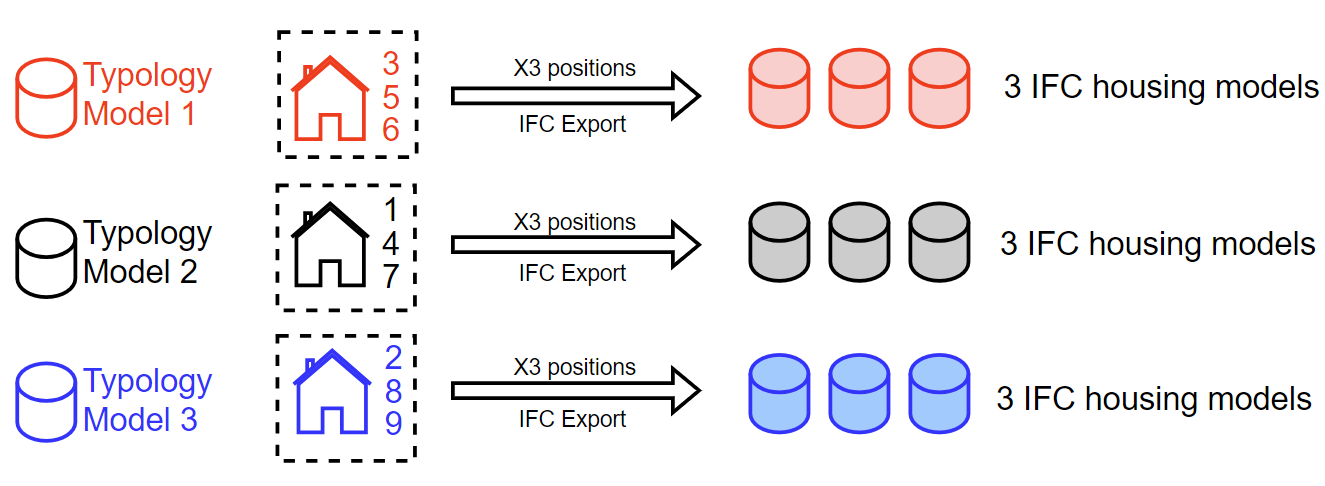
Naturally, the higher the number of locations and housing typologies in the project, the more laborious the process is. For this reason, at Modelical we have developed an automation that simplifies the process, which we explain below.
Process Automation: Dynamo Definition
Automating the second strategy avoids the problems already mentioned, and of course, saves a significant amount of time, assuming that all typology models are set up as described above, and therefore, all plot locations are correctly saved.
We use a Dynamo definition to automate the process, however, we must clarify that this definition is actually a Python script, since the conventional Dynamo nodes do not meet our needs. You can download the definition from the “Related links” section below.
Script creation
This script mainly resolves three tasks explained below.
Export options configuration
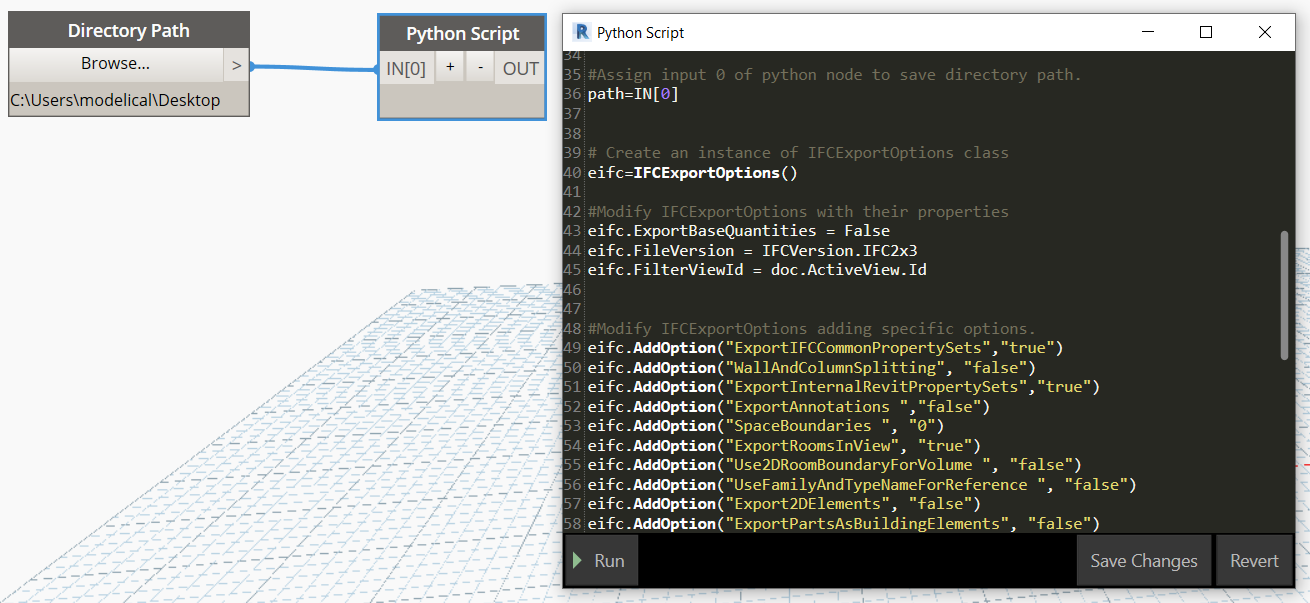
The export will require setting up several options. For this, we generate an instance of the “IFCExportOptions” class, named as “eifc”.

Among other preferences, we can configure the IFC version we want to export and from which Revit view:
eifc.FileVersion = IFCVersion.IFC2x3
eifc.FilterViewID = doc.ActiveView.Id
Additionally, if there are other configurations needed that are not set by default, we can use the "AddOption" method. Some examples:
eifc.AddOption("ExportIFCCommonPropertySets","true")
eifc.AddOption("WallAndColumnSplitting", "false")
eifc.AddOption("ExportInternalRevitPropertySets","true")
eifc.AddOption("ExportAnnotations ","false")
eifc.AddOption("SpaceBoundaries ", "0")
eifc.AddOption("ExportRoomsInView", "true")
[…]
IFC export
To carry it out, there is a method ("Export") of the "Document" class that asks for the following arguments:
- Folder path where we want to save the export files
- File name
- Class instance “IFCExportOptions”

The folder path is entered with the "Directory Path" Dynamo node. For the file name (we have called the variable "newName") we use a combination of the document name plus the location name. For this, we can use the "Title" property on the "Document" class and the "Name" property on the "ProjectLocation" class, that we have also obtained from the "Document" class using the "ActiveProjectLocation" property. The instance of "IFCExportOptions" is the one we have set up in the previous section.
Process iteration for different locations:
Once an export has been performed, the project location must be moved to another one before performing the next export. To do so, we extract all the possible model locations through the "ProjectLocations" property of the "Document" class and iterate the process for each one of them, through the association of the possible locations with the "ActiveProjectLocation" property of the "Document" class.

Script execution
As explained previously, the definition must be run from each existing typology model and, if we have different models for each typology discipline, we will need to run it once again for each of them. The only input to be entered in Dynamo is the destination folder where IFCs will be saved.
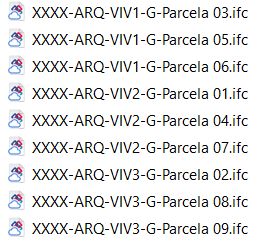
Following the example before, IFC exports performed through the Dynamo definition will be renamed this way, keeping the right coordinates. Note that file naming will be adapted to the location name we have set up previously in Revit.
Conclusions
By simply "running" the Dynamo definition, we achieve to export all houses of the same typology in IFC format. This saves us a lot of time. During the design phase, the projects are alive and the housing typologies are probably going to be modified, which will surely force us to make more than one export to IFC. If we also have several projects with this casuistry, the time savings are even greater. It is worth investing our effort in creating the Dynamo definition so we can economize our mechanical work time for future projects.