

Materials Browser
Materials Library
MaterialBrowser
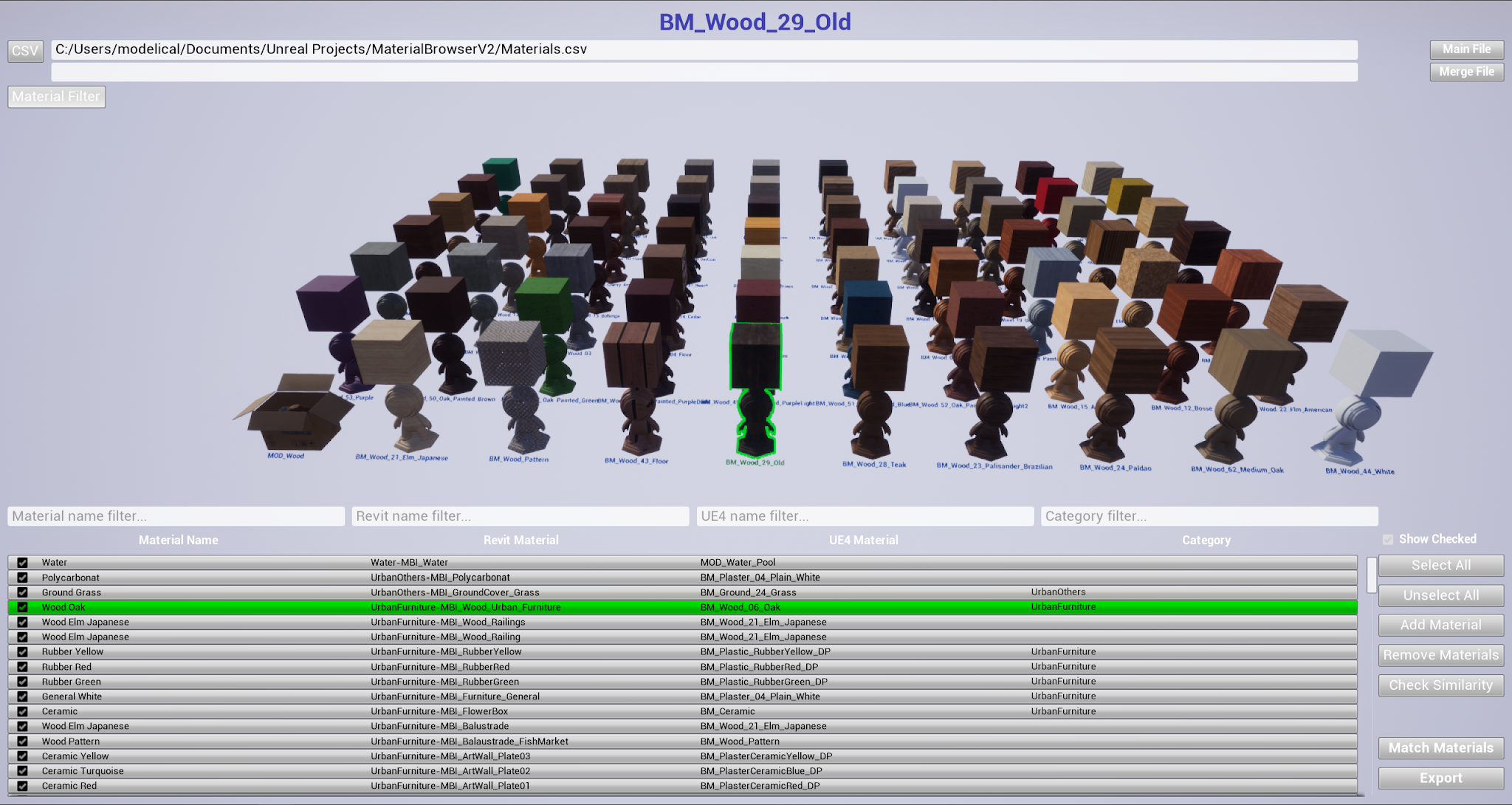
Objectives
- Manage our Unreal Material Library
- Match Revit Materials with Unreal Materials quick, graphical and dynamically
Brief explanation
This Unreal project allows us to easily manage our material library.
The main functionality is to match a list of Revit Materials created externally with our UE material library, in order to change them in other projects using blutilities.
Procedure
First of all, we need a .csv file with the list of materials from Revit formatted in the following way:

*That format follows the needed format to import .csv files in Unreal and transform them to DataTables.
The .csv file can be created manually, using tools like Command Prompt or even easily, using a blutility like this:

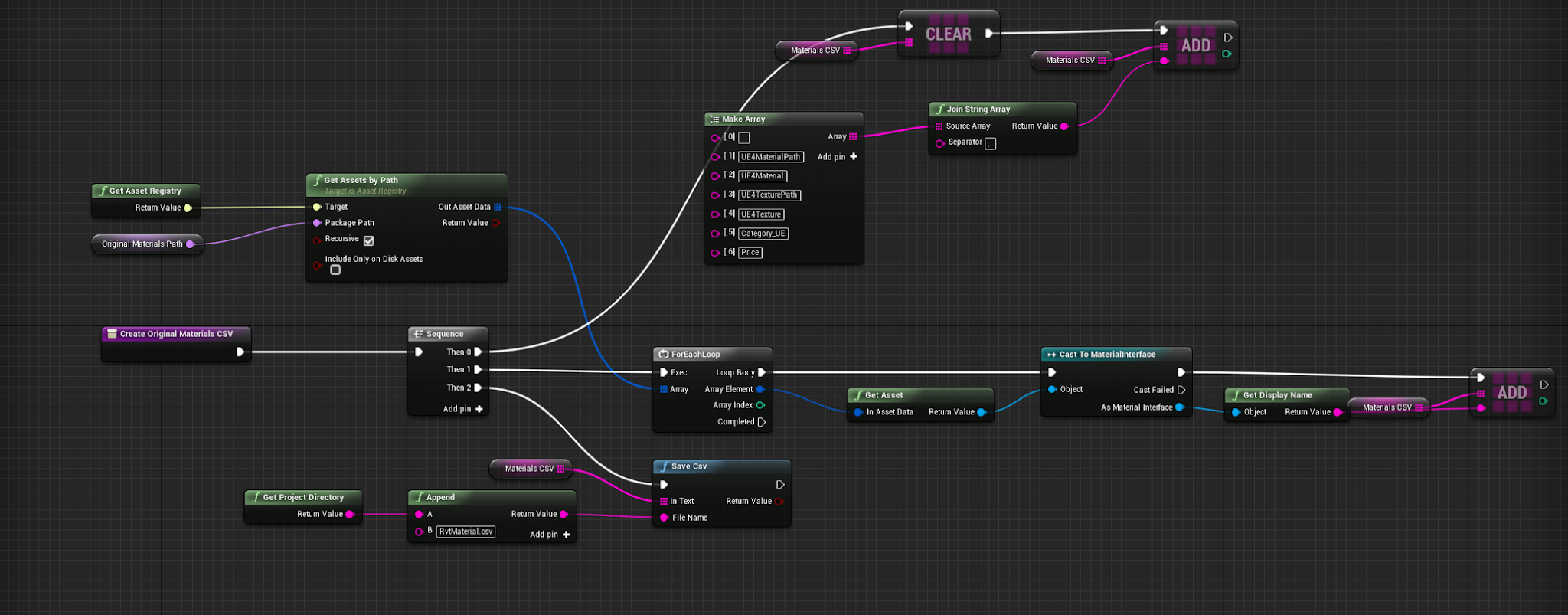
See blueprint in detail
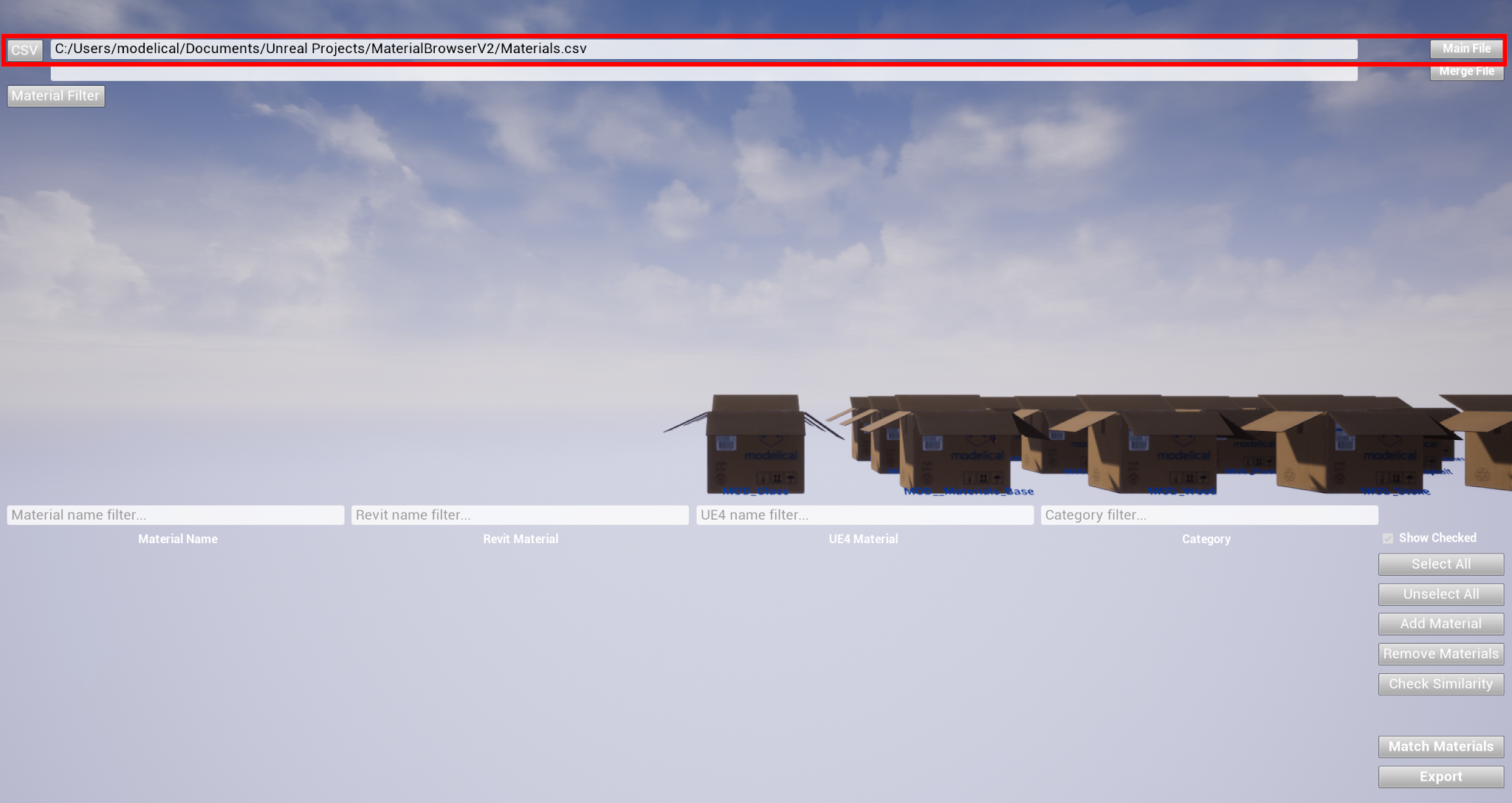
Next step is to set the path of the file, including name and extension into the text box and press read file button, by default is used a file located in project root folder:
This generates the list of materials from Revit:
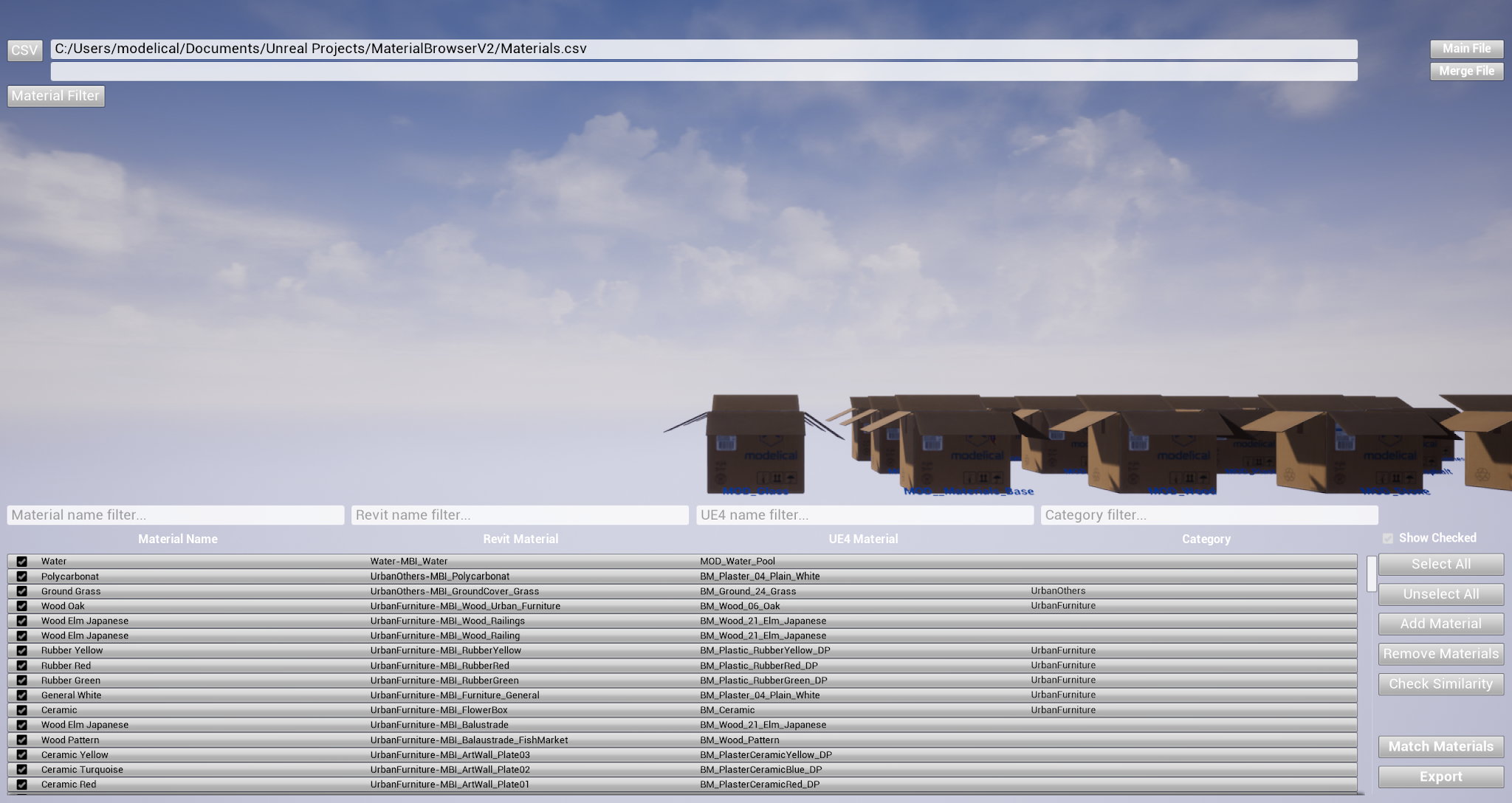
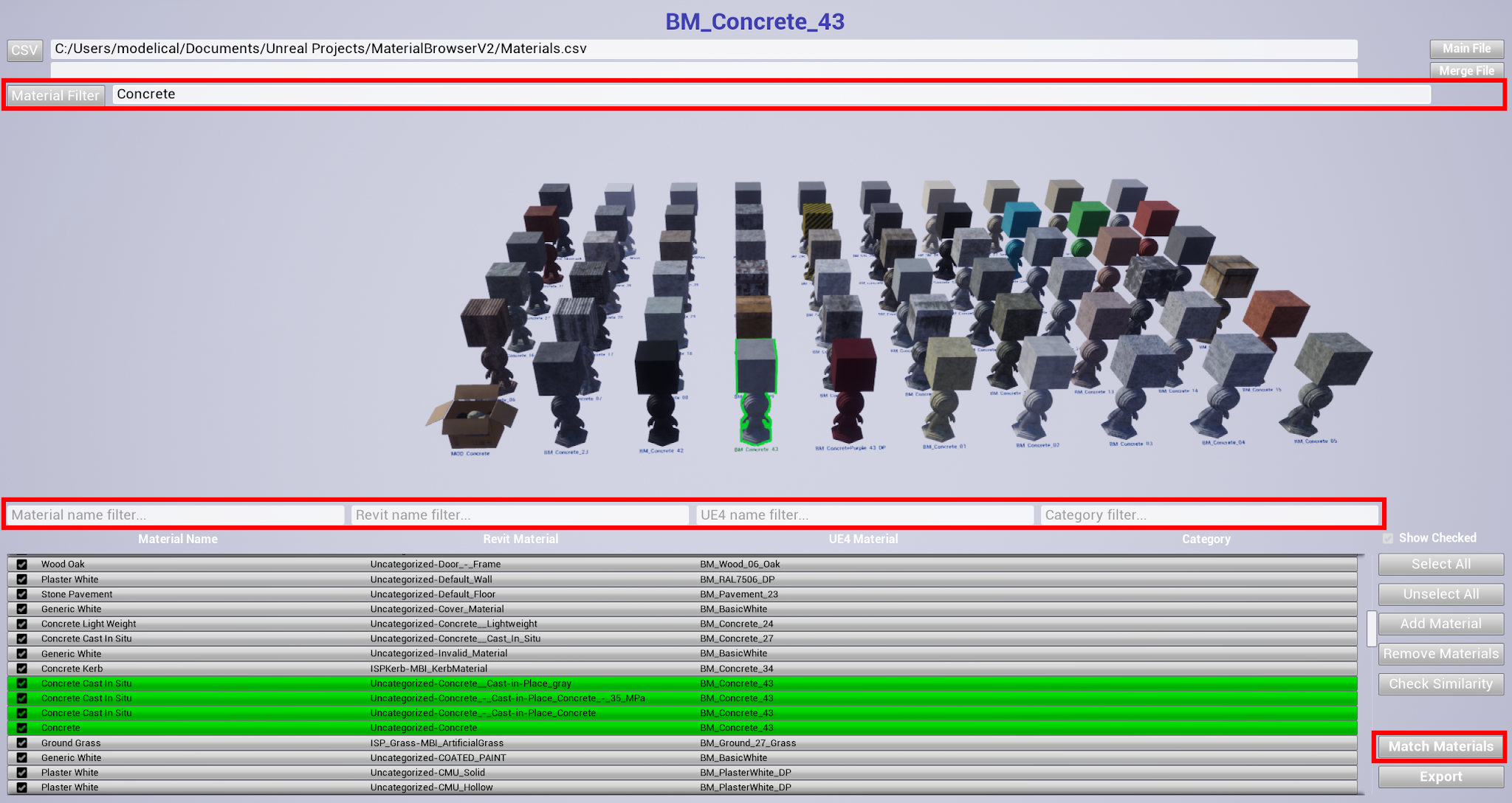
Then, the user can select those materials from the list that would have the same Unreal material and select the Unreal material to match them. To select the Unreal material, user can navigate through boxes as folder and clicking on the dummies, or user can filter materials to show in the top text box shown when clicking Material filter button.
To help users to find materials easily, they can use filters in the table fields.
When both are selected, elements on the list and Unreal material, just click on Match Materials button and it will assign the selected Unreal material to the elements of the list.
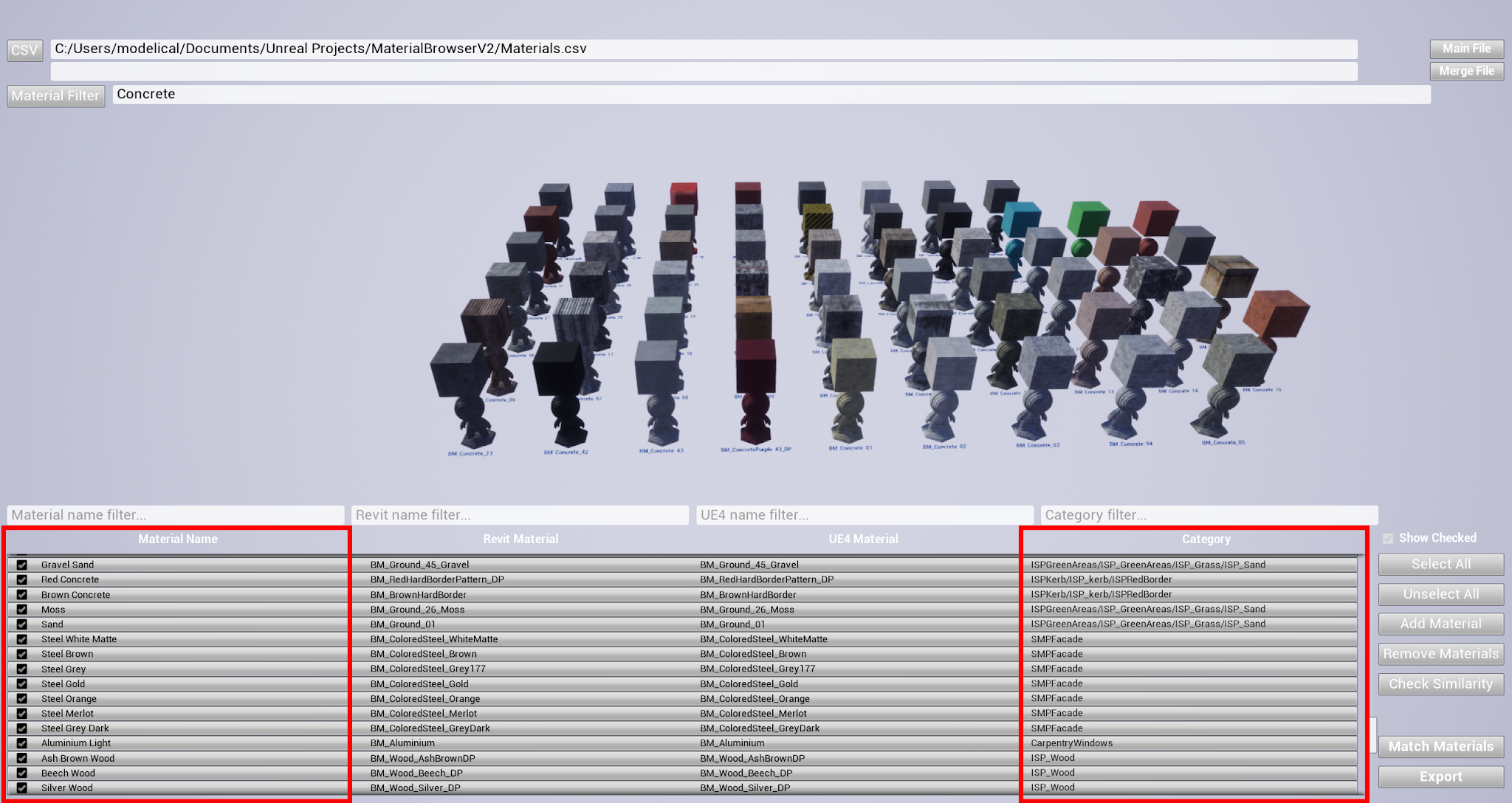
In some projects, materials are used not just as realistic visualization, but gives information and can be changed following some restrictions like category, for example, all materials with category “Facade” can be changed between them. To achieve this, category field needs to be filled with the proper information and the material Name field too, in order to show a “user friendly” name:
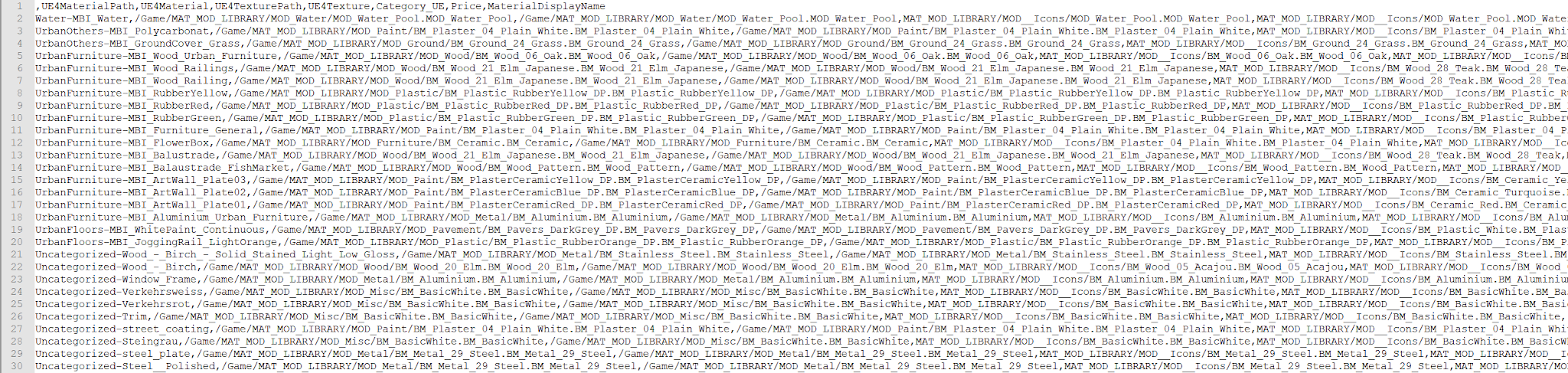
Last step is to export the list by clicking on the export button and it will generate a .csv file following the same structure than the input but completing the information of the Unreal material:
Finally, the user just have to import this .csv into a Data Table in the project that is working and apply the material blutility, then, all the materials of the project will be updated.
To use the material in a different project, it is recommended to import the .csv file into the material browser project, to generate a Data Table with the references to all the materials used in the csv .file, then, migrate that Data Table to the new project and it will migrate just the necessary assets.
Conclusion
This workflow has helped Modelical increase efficiency, allowing to work in parallel, developing Revit projects, while creating amazing materials. After import the Revit model in Unreal, realistic materials are applied by just clicking a button.

I would love to try this tool out on one of my projects. Is it available for use anywhere?
Hello Jordan,
This is an internal tool we developed for our own projects before Datasmith plugin were launched. Nowadays, we use it in parallel with Datasmith Datapreps