

Materials I
PBR materials, inputs & material editor within UE
MATERIALS I
File: VR_UE_Materials_I
PBR Materials
Unreal Engine uses a physically based materials (PBR) system.
Physically based shading means we approximate what light actually does as opposed to approximating what we intuitively think it should do. The end result is more accurate and typically more natural looking. Physically based Materials will work equally well in all lighting environments.
For these reasons and more, Unreal Engine 4 has adopted a new physically based Material and shading model.
PBR Concepts
Albedo
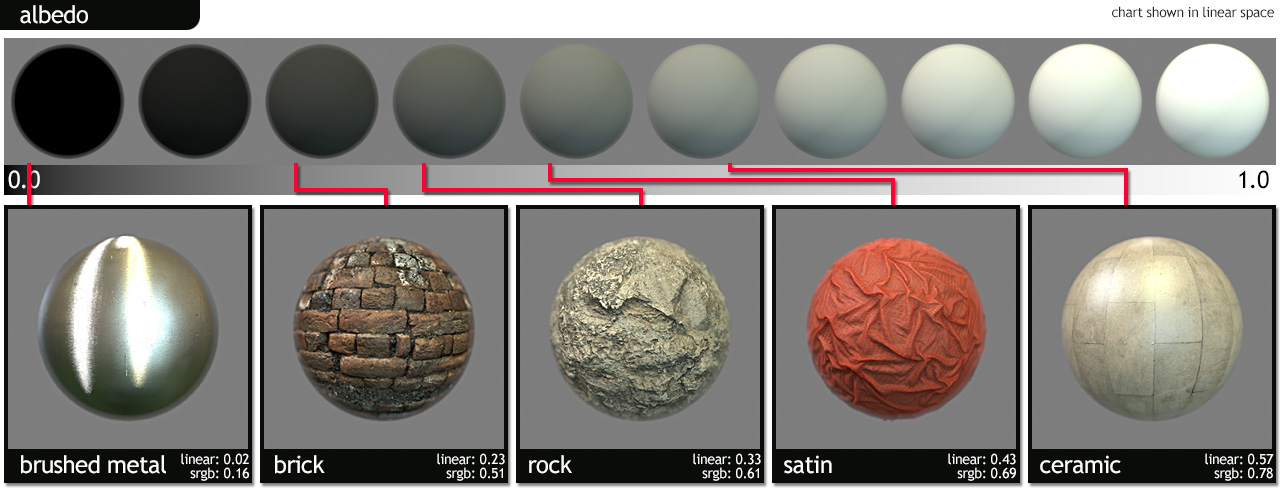
Albedo is the base color input, commonly known as a diffuse map.
(Image by marmoset.co)
An albedo map defines the color of diffused light. One of the biggest differences between an albedo map in a PBR system and a traditional diffuse map is the lack of directional light or ambient occlusion. Directional light will look incorrect in certain lighting conditions, and ambient occlusion should be added in the separate AO slot.
Microsurface
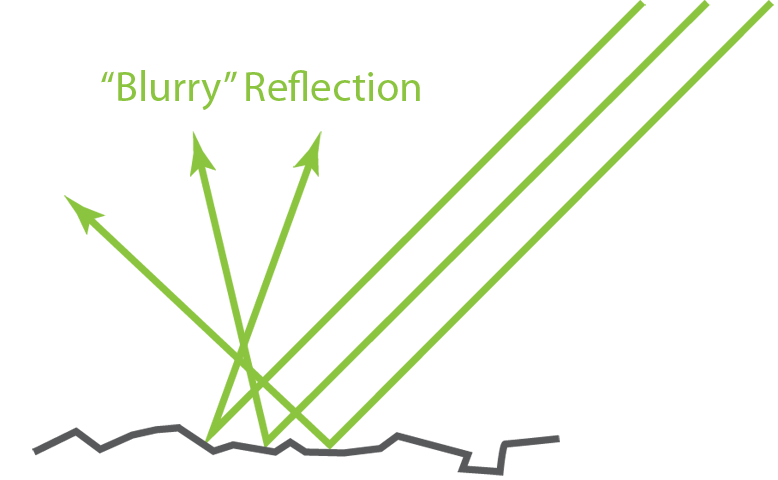
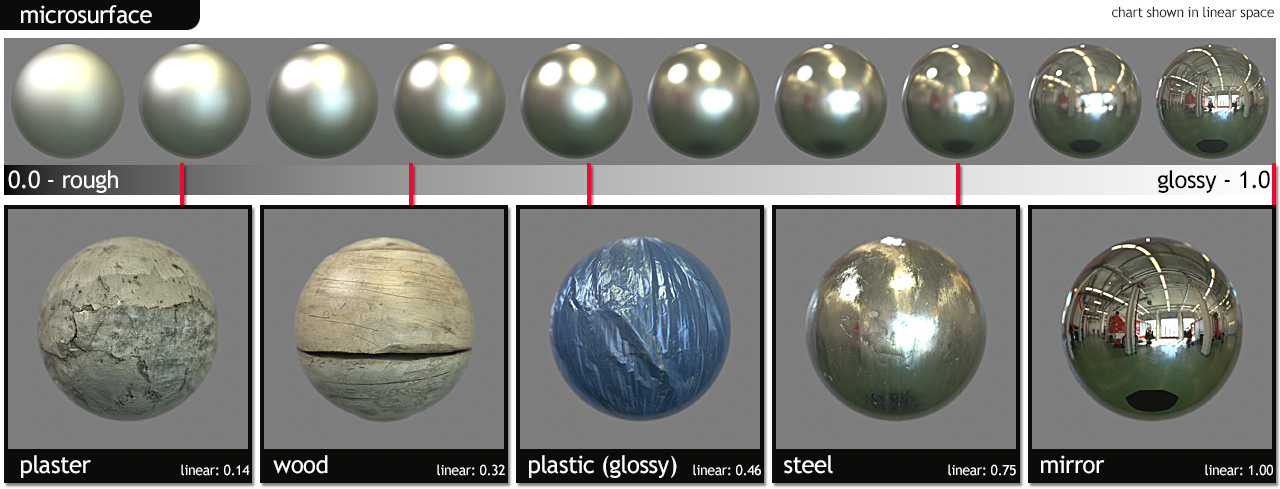
Microsurface defines how rough or smooth the surface of a material is.
(Image by marmoset.co)
Here we see the how the principles of energy conservation are affected by the microsurface of the material, rougher surfaces will show wider, but dimmer specular reflections while smoother surfaces will show brighter, but sharper specular reflections.
In PBR materials systems your texture will be called a roughness map instead of a gloss map.
Reflectivity
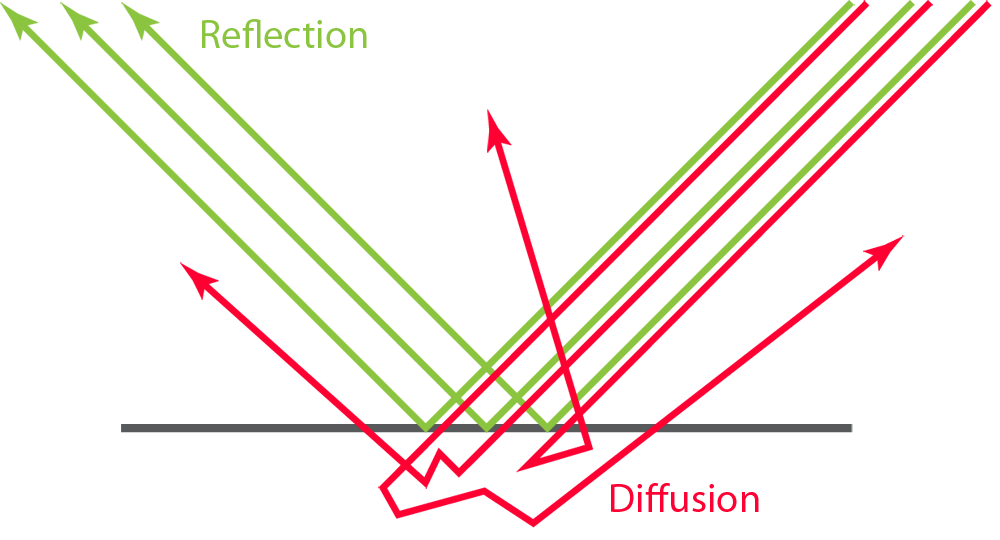
Reflectivity is the percentage of light a surface reflects.
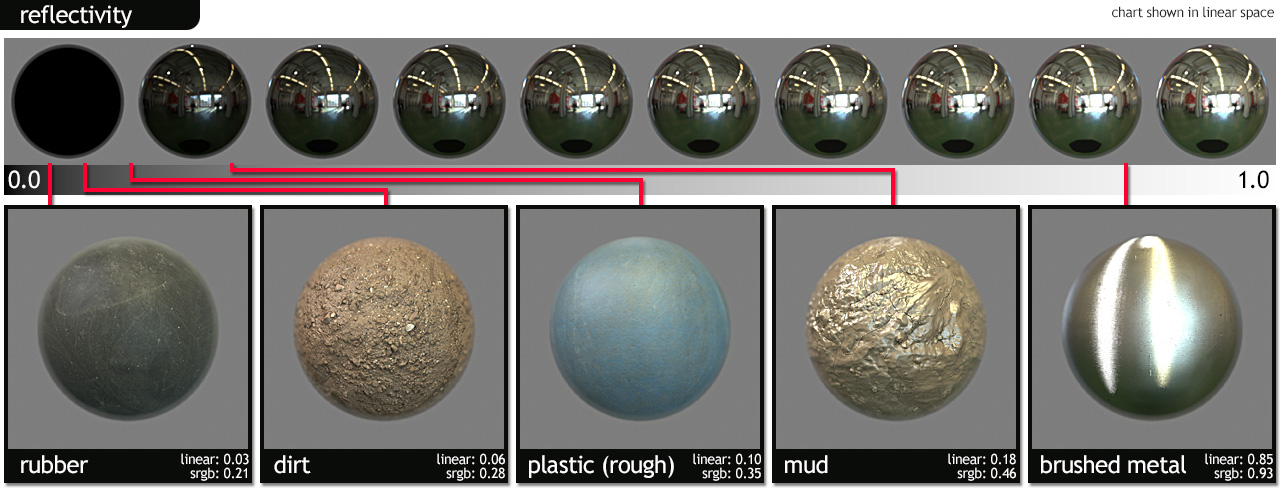
(Image by marmoset.co)
Fresnel
Fresnel is the percentage of light that a surface reflects at grazing angles.
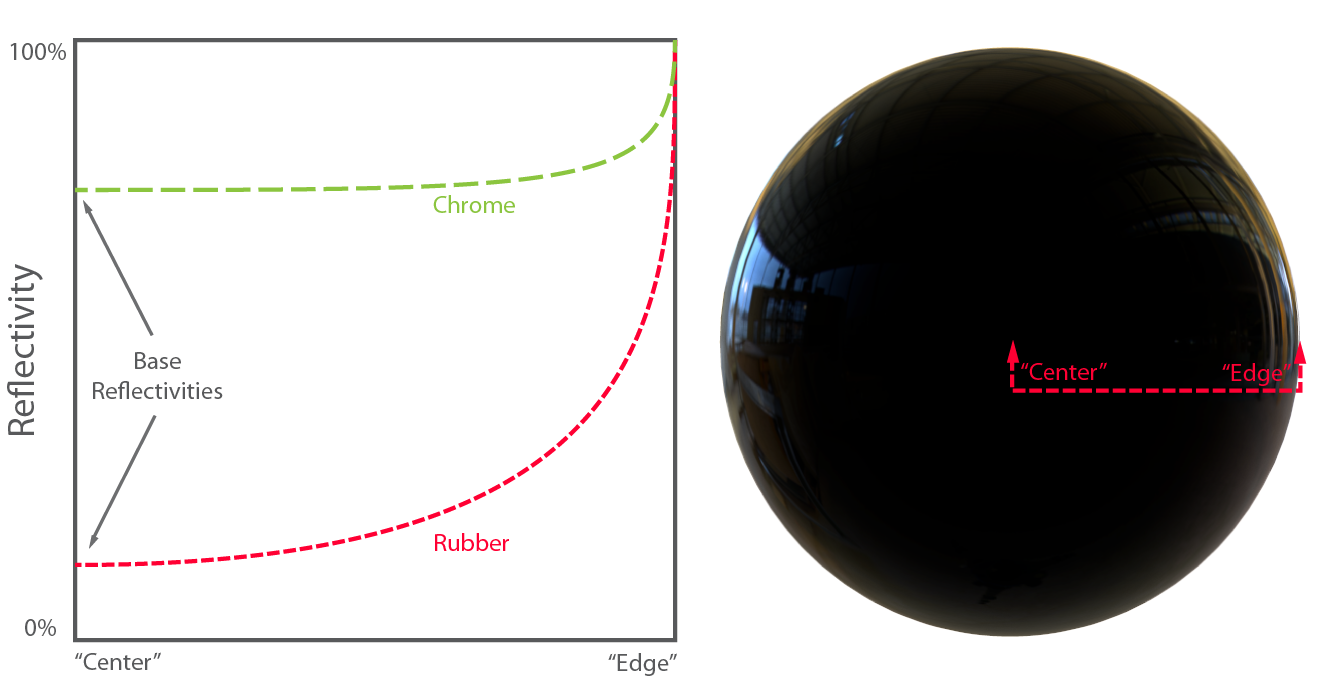
(Image by marmoset.co)
Principal Inputs within UE Material Editor
In terms of the "physically based" aspect of our Materials system, there are really only 4 different properties with which you need to be familiar. These are:
- Base Color
- Roughness
- Metallic
- Normal
All of these inputs are designed to take in values between 0 and 1. In the case of Base Color, this means a color with RGB values that fall between 0 and 1.
Base Color
Defines the overall color of the Material, taking a Vector3 (RGB) value where each channel is automatically clamped between 0 and 1.
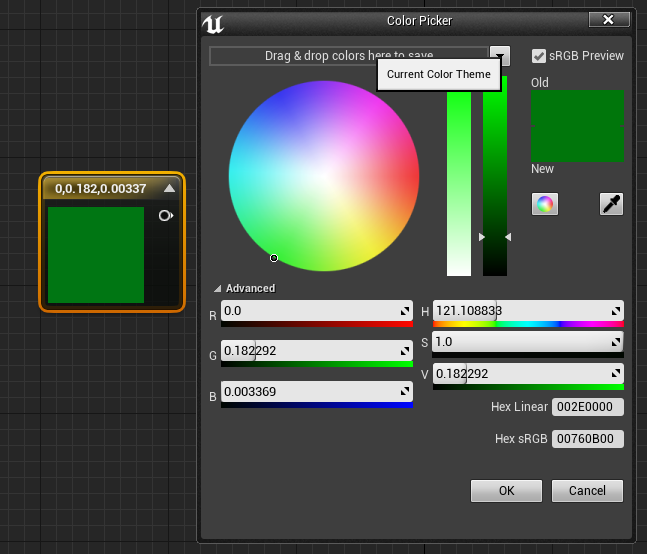
Material | BaseColor (R, G, B) |
Iron | (0.560, 0.570, 0.580) |
Silver | (0.972, 0.960, 0.915) |
Aluminum | (0.913, 0.921, 0.925) |
Gold | (1.000, 0.766, 0.336) |
Copper | (0.955, 0.637, 0.538) |
Chromium | (0.550, 0.556, 0.554) |
Nickel | (0.660, 0.609, 0.526) |
Titanium | (0.542, 0.497, 0.449) |
Cobalt | (0.662, 0.655, 0.634) |
Platinum | (0.672, 0.637, 0.585) |
Metallic
The Metallic input controls how 'metal-like' your surface will be. Nonmetals have Metallic values of 0 and metals have Metallic values of 1.
We recommend to use only 0-1 values, not to use intermediate values.
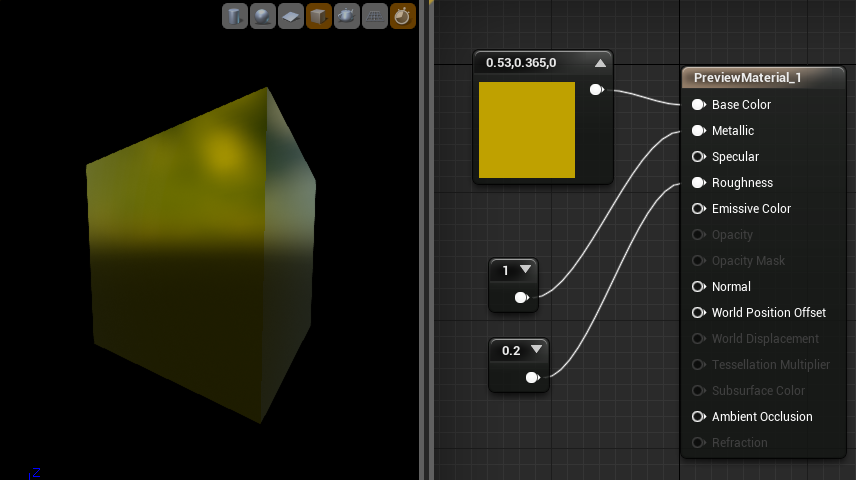
(Image by docs.unrealengine.com)
Roughness
The Roughness input controls a Material's roughness. Rough Materials scatter reflected light in more directions than smooth Materials, which is how blurry or sharp a reflection is (or in how broad or tight a specular highlight is).
A roughness value of 0 (smooth) results in a mirror reflection, and a roughness value of 1 (rough) results in a diffuse (or matte) surface.
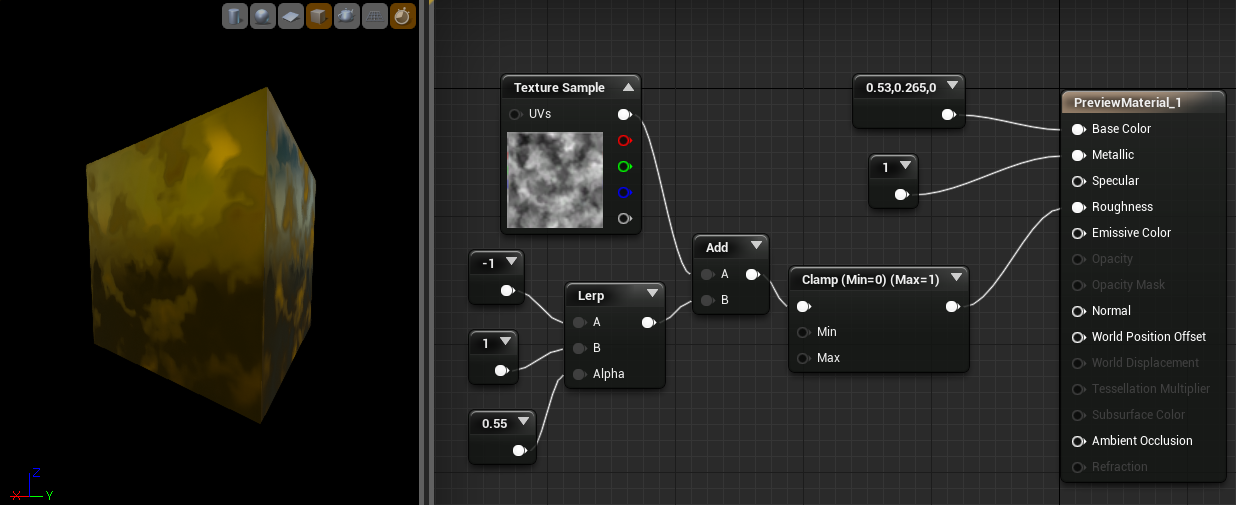
(Image by docs.unrealengine.com)
Normal
The Normal input takes in a normal map, which is used to provide significant physical detail to the surface by perturbing the "normal," or facing direction, of each individual pixel.
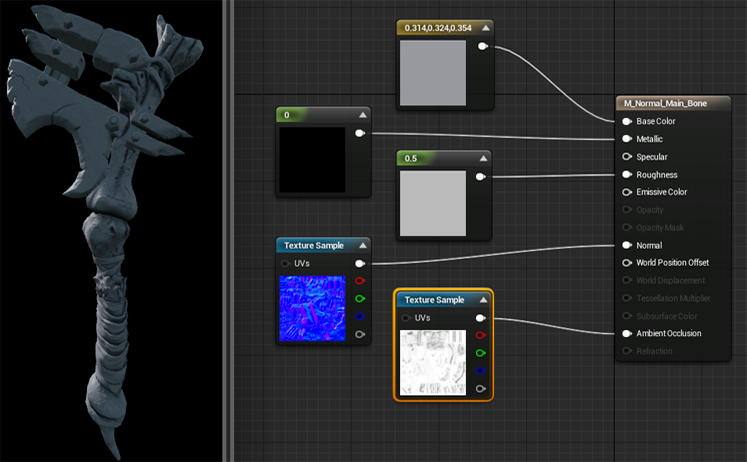
(Image by docs.unrealengine.com)
- Append: To change the intensity of the normal map
- BlendAngleCorrectedNormals: To mix two different normal maps
Secondary Inputs
Specular
It is commonly used for non-metallic surface materials, to adjust its ability to reflect light. To update a material´s specular, input a scalar value between 0 (non-reflective) and 1 (fully-reflective).
Note that a material´s specular default value is 0.5.
Emissive Color
The Emissive Color input controls which parts of your Material will appear to glow because they are emitting light. Ideally, this will receive a masked texture (mostly black, except in the areas that need to glow).
Values greater than 1 are allowed because HDR lighting is supported.
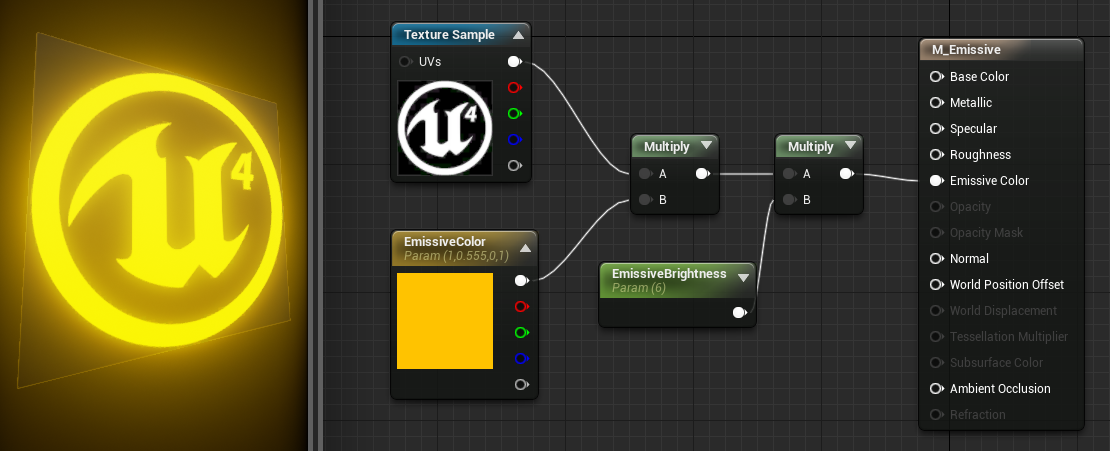
(Image by docs.unrealengine.com)
Opacity
The Opacity input is used when using the Translucent Blend Mode or one of the Subsurface Shading Modes.
You can input a value between 0 and 1, where:
- 0.0 is completely transparent
- 1.0 is fully opaque
Opacity Mask
Opacity Mask is similar to Opacity, but is only available when using the Masked Blend Mode.
As with Opacity, this takes in a value between 0.0 and 1.0, but unlike Opacity, varying shades of gray are not seen in the result.
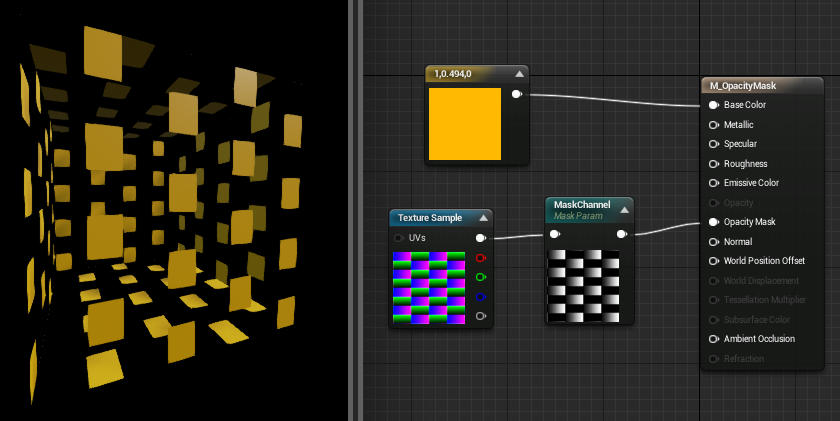
(Image by docs.unrealengine.com)
World Position Offset
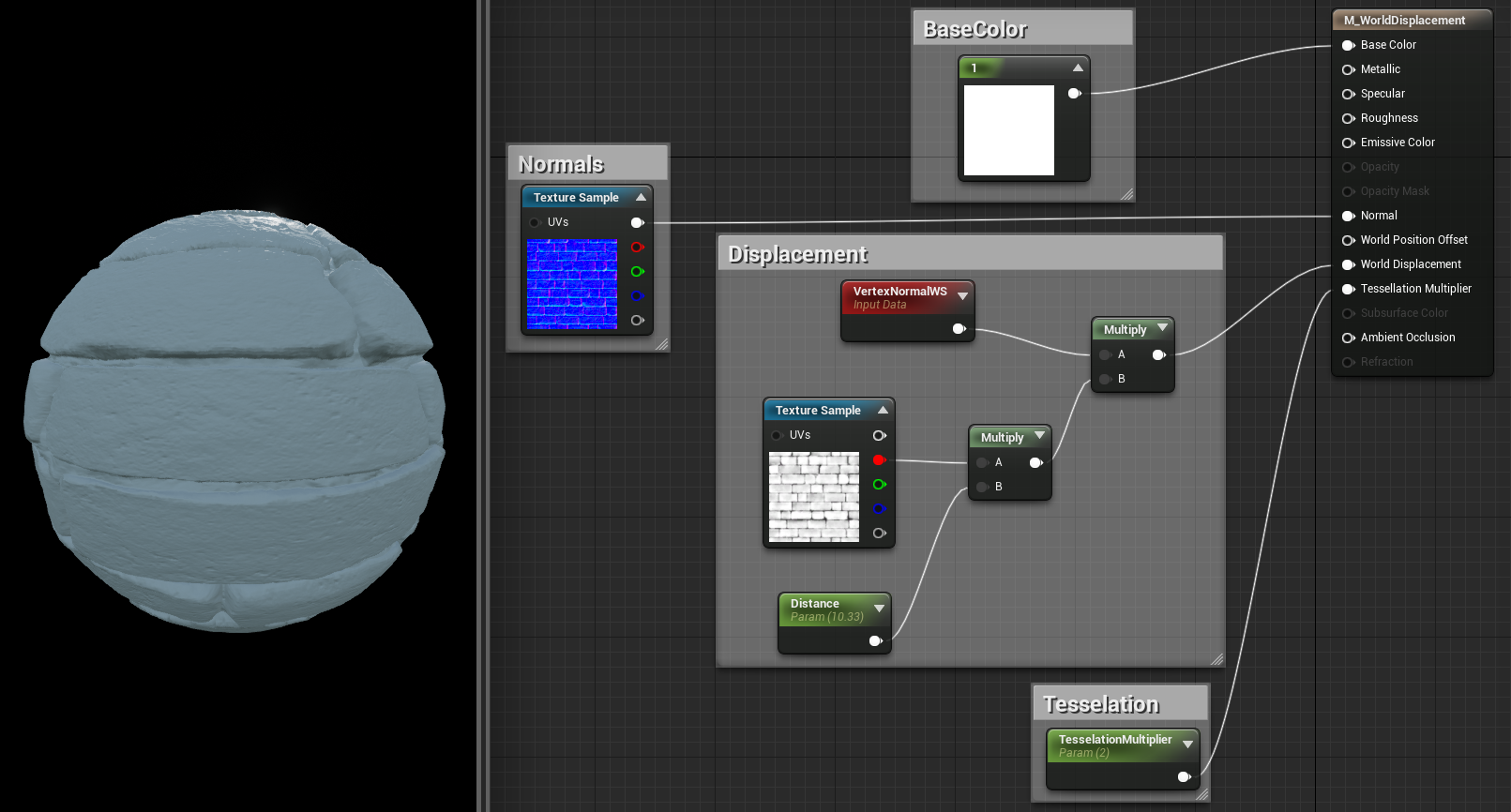
The World Position Offset input allows for the vertices of a mesh to be manipulated in world space by the Material. This is useful for making objects move, change shape, rotate, and a variety of other effects. This is useful for things like ambient animation.
World Displacement & Tessellation Multiplier
In order for this to be enabled, the Tessellation property on the Material must be set to something other than None:
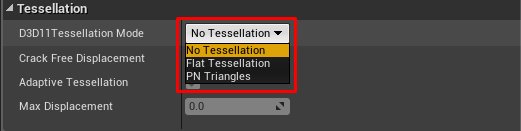
World Displacement works very much like World Position Offset, but it uses Tessellation vertices rather than the base vertices of the mesh.
(Image by docs.unrealengine.com)
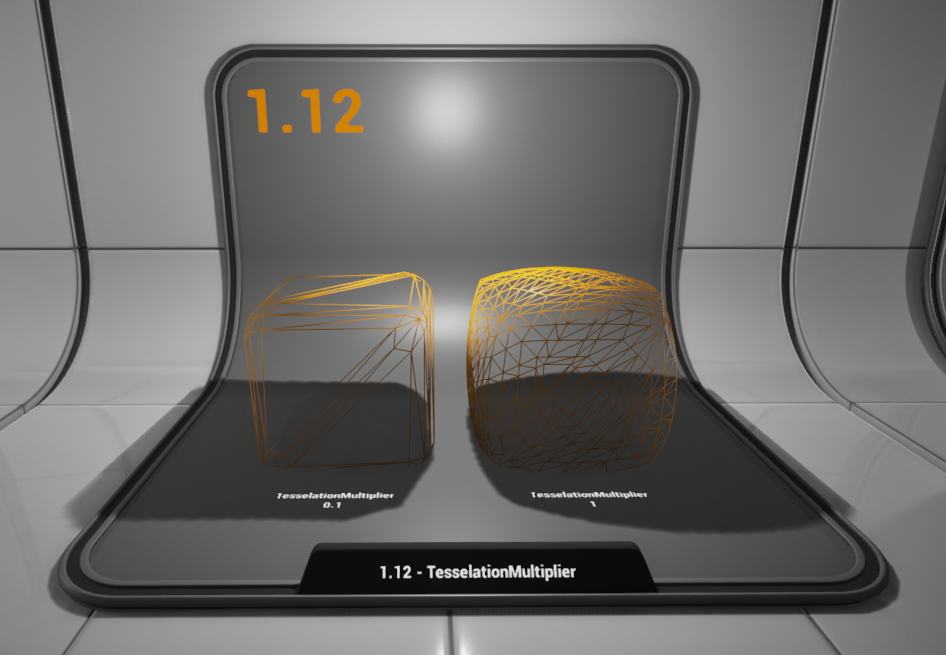
Tessellation Multiplier controls the amount of tessellation along the surface, allowing more detail to be added where needed.
(Image by docs.unrealengine.com)
Subsurface Color
The Subsurface Color input is used when enabling the SubSurface property.
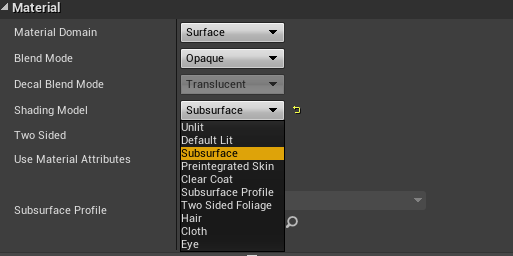
This input allows you to add a color to your Material to simulate shifts in color when light passes through the surface. For instance, human characters might have a red subsurface color on their skin to simulate blood beneath the surface.
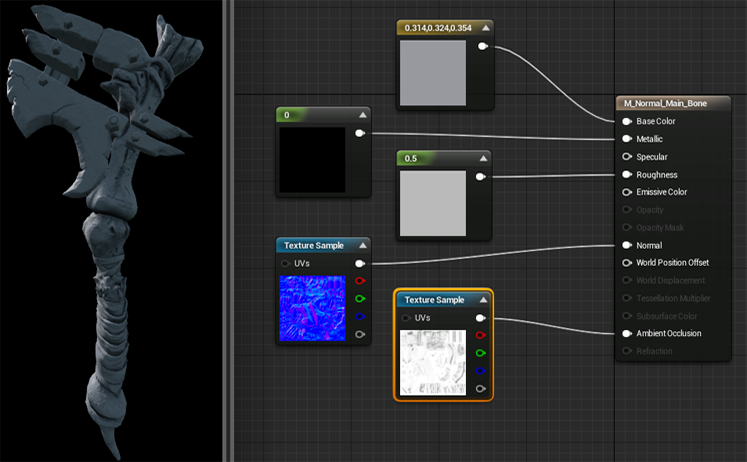
Ambient Occlusion
Ambient Occlusion is used to help simulate the self-shadowing that happens within crevices of a surface. Generally, this input will be connected to an AO map of some type, which is often created within 3D modeling packages such as 3ds Max.
(Image by docs.unrealengine.com)
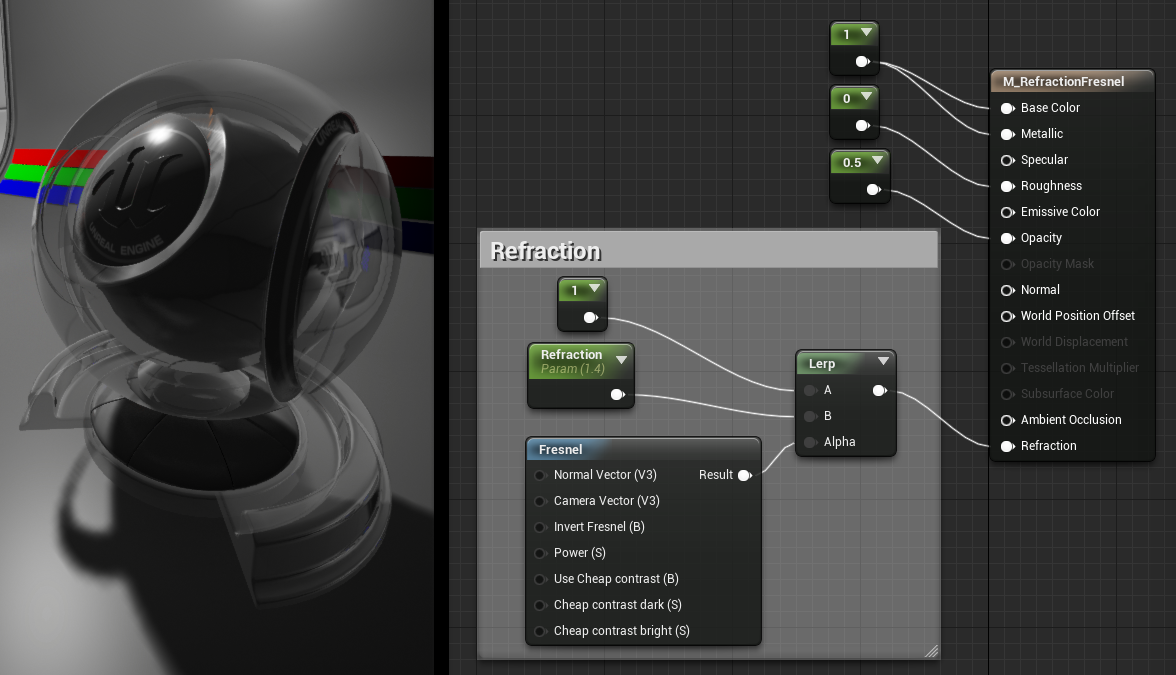
Refraction
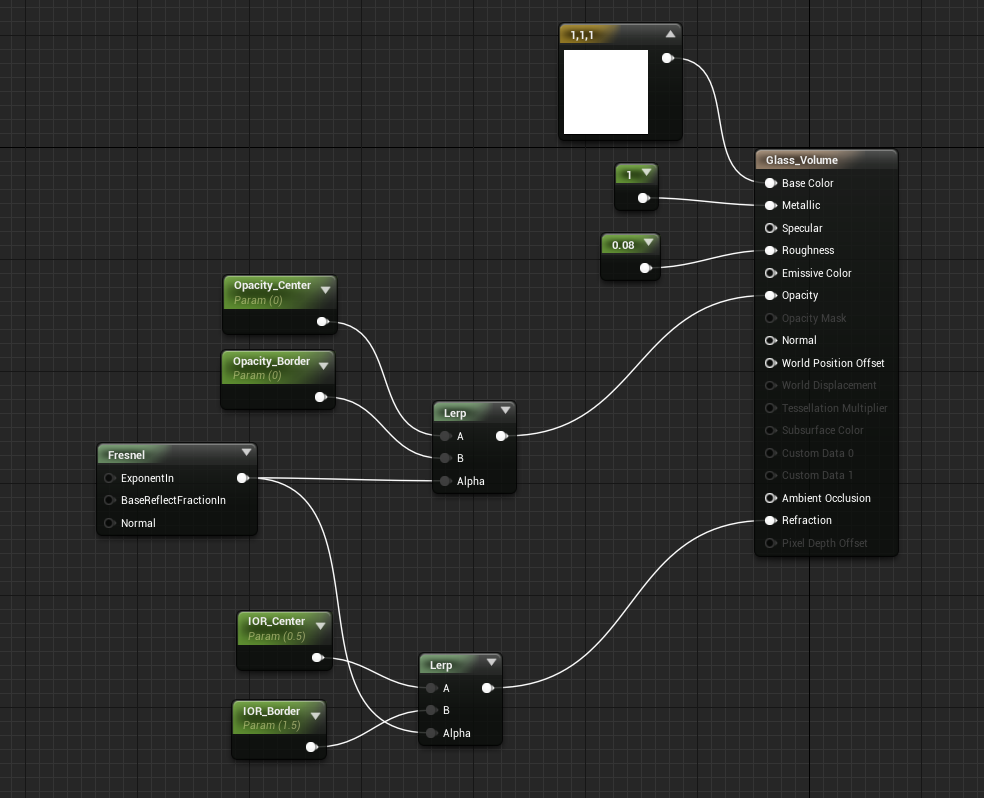
The Refraction input takes in a texture or value that simulates a surface's index of refraction. This is useful for things like glass and water, which refract light that passes through them.
(Image by docs.unrealengine.com)
Common Indices of Refraction:
- Air 1.00
- Water 1.33
- Ice 1.31
- Glass 1.52
- Diamond 2.42
Material Properties
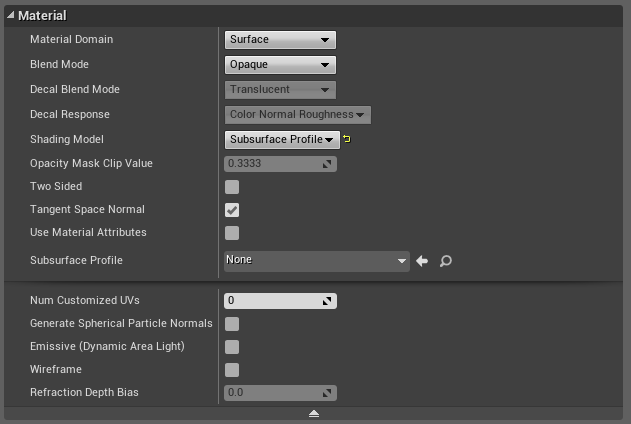
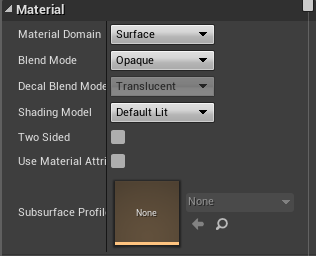
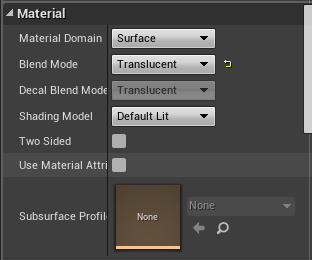
Material Domain
This setting allows you to designate how this Material is going to be used. Material Domain includes the following options:
- Surface. This is the setting you will use most of the time.
- Deferred Decal. When using a decal material.
- Light Function. Used when creating a material for use with light function.
- Post Process. Used if the material will be used as a post process material.
- User Interface. Materials that will be used for UMG or Slate UI
Blend Mode
Blend Modes describe how the output of the current Material will blend over what is already being drawn in the background.
Opaque
Final color = Source color
Masked
Final color = Source color if OpacityMask > OpacityMaskClipValue, otherwise the pixel is discarded
This blend mode is compatible with lighting.
Translucent
Final color = Source color _ Opacity + Dest color _ (1 - Opacity)
This blend mode is NOT compatible with dynamic lighting.
Additive
Final color = Source color + Dest color
This blend mode is NOT compatible with dynamic lighting.
Modulate
Final color = Source color x Dest color
This blend mode is NOT compatible with dynamic lighting.
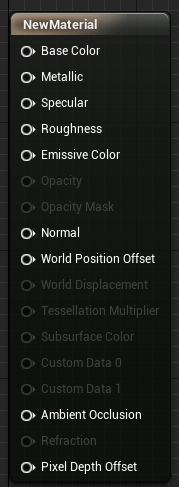
Shading Model
Shading models determine how material inputs (e.g. Emissive, Diffuse, Specular, Normal) are combined to make the final color.
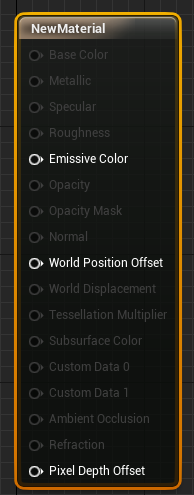
UnLit
The Material is defined by the Emissive and Opacity inputs only. It does not respond to light.
DefaultLit
The default shading model. Perfect for most solid objects.
Subsurface
Used for subsurface scattering materials, such as wax and ice. Activates the Subsurface Color input.
Preintegrated Skin
Used for materials similar to human skin. Activates the Subsurface Color input.
Clear Coat
Used for materials that have a translucent coating on top like clear coat car paint or lacquer. Activates the Clear Coat and Clear Coat Roughness inputs.
Subsurface Profile
Used for materials similar to human skin. Requires the use of a Subsurface Profile in order to work correctly.
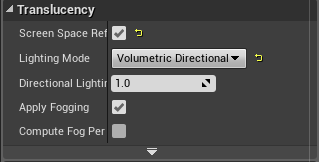
Translucency Properties
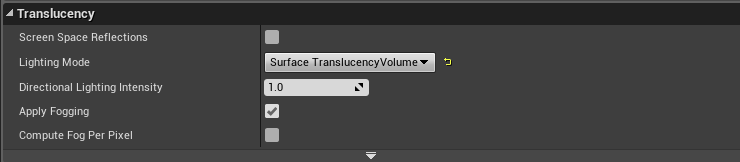
Screen Space Reflections
Activate to get better reflections
Lighting Mode
- Volumetric Non Directional:
Lighting will be calculated for a volume, without directionality. Use this on particle effects like smoke and dust. - Volumetric Directional:
Lighting will be calculated for a volume, with directionality so that the normal of the material is taken into account. - Volumetric PerVertex Directional:
Same as Volumetric NonDirectional, but lighting is only evaluated at vertices so the pixel shader cost is significantly less. Directional lights become unshadowed in the distance. - Surface Translucency Volume:
Lighting will be calculated for a surface. The light in accumulated in a volume so the result is blurry, limited distance but the per pixel cost is very low. Use this on translucent surfaces like glass and water. - Surface Forward Shading:
Lighting will be calculated for a surface. Use this on translucent surfaces like glass and water. This is implemented with forward shading. This is the most expensive translucency lighting method as each light's contribution is computed per-pixel.
Apply Fogging
When true, translucent materials are fogged. Defaults to true.
Create an Opaque Material
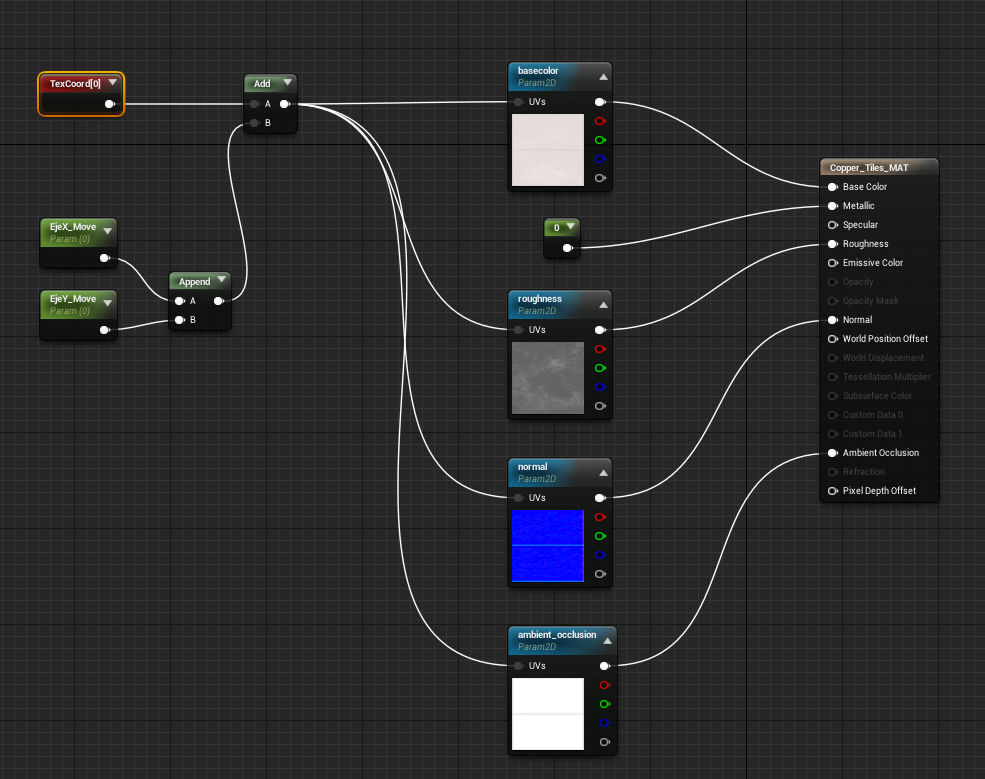
Create a Glass Material
Tricks
- If you want to become an advanced user of the material editor in Unreal Engine, don't miss out on our upcoming guidelines.