Navisworks Timeliner
How to fix lag in the animation
Are you experiencing some lag in Navisworks’ timeliner animation?
Sometimes we have some trouble trying to view the animation when we are making a time-lapse simulation in our 4D model in Navisworks. Big models are particularly sensitive to suffer an annoying lag distorting our virtual TimeLapse. This graphic failure is the result of the enormous amount of information that this kind of models have to manage recurrently.
The most effective way to tackle the problem is reducing the graphic detail. In the toolbar, Viewpoint>RenderStyle, we can make different adjustments to make our animation go smoother. Changing FullRender mode to Shaded mode usually works. In the light parameters we can also change FullLights to SceneLights.

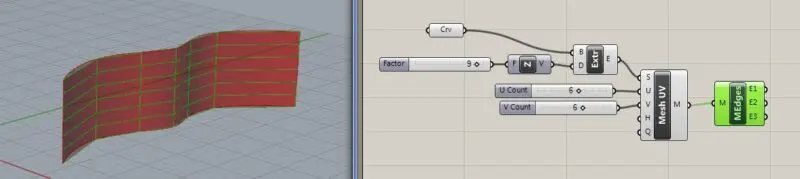
But if we don’t want to lose the detail of graphism in Navisworks, and we want to move around in FullRender we can use strategies to reduce the number of polygons in the source files, through its original software. For example, simplifying families in Revit, or changing the basis of the circular extrusions to polygonal shapes. A very effective strategy is importing a FBX from 3DSMax where we can reduce the number of polygons on the meshes with tools like ProOptimizer. In Rhino and Grasshopper we can also do the same when we limit the maximum number of UV divisions when we turn the surfaces into meshes that we want to export to our 4D.