

Civil 3D – Revit Topography Link
What is wrong with the surface positioning?
In this post the process to export a topographic surface from Civil 3D to Revit through Desktop Connector (BIM360) will be explained. Furthermore, the solution to a common positioning issue experienced by some users will be exposed.
Topography export from Civil 3D to BIM360
The process starts once we have a proper definition of the topographic surface in Civil 3D.
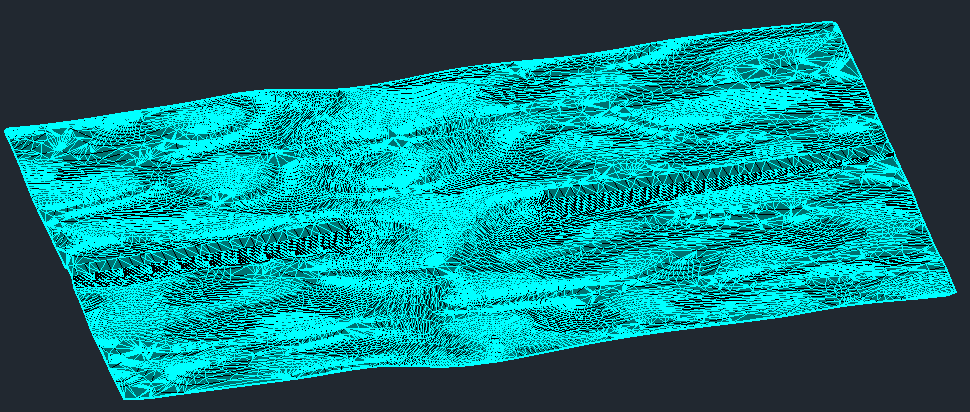
To publish the topography to BIM 360, select the surface and click “Publish Surfaces” in the “Output” tab.
In the export menú confirm the surface(s) to be exported and define filename and the BIM 360 path where the surface will be stored by clicking the browse (“…”) button.
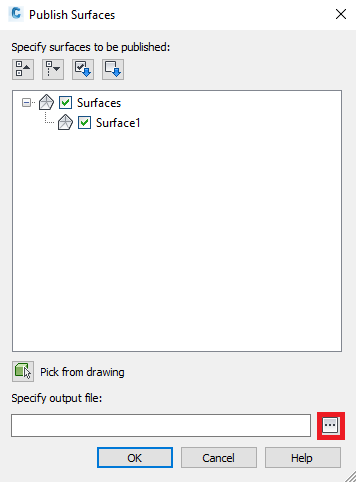
Once we accept the configuration by clicking “Ok”, the selected element starts being uploaded and BIM 360 starts processing the surface (this process is performed on the web and can take a little bit of time, but be patient, the topography will be accessible from Revit in a couple of minutes).
Link topography in Revit
Before importing the surface, the Revit model should be properly positioned in world coordinate system (WCS). In this case, after the import the surface will be positioned according to the WCS (if there are no problems like the one explained in the last point of this post). In our example, we have a bridge that has been properly positioned in the WCS.
In order to link the surface we just need to select “Link Topography” in the “Insert” tab.
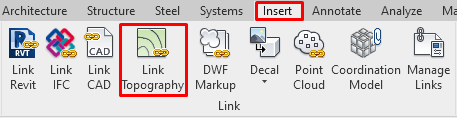
A BIM360 browser will pop up. Navigate to the location where the Civil 3D file has been stored and select it.
The following message could be displayed if the positioning of the Revit file has been done without acquiring coordinates from the original Civil 3D file.
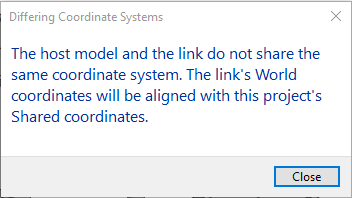
If the positioning according to the WCS is correct, there is nothing to worry about. The window can be closed and the process continues.
When the process ends, the imported surface should fit the Revit model (as long as there have been no more issues).
Topography doesn’t fit the Revit model ¿WHY?
The explained export-import process is really easy from both sides and it has been extensively explained in other publications. But, some users have experienced issues with the resulting location of the surfaces in properly positioned Revit models.
¿What is happening?
The answer in most cases can be found in the regional settings of Windows, specifically in the decimal separator. If windows has the comma defined as a decimal separator, the error may occur during import, since internally Revit and Desktop Connector understand the point as a decimal separator in some fields.
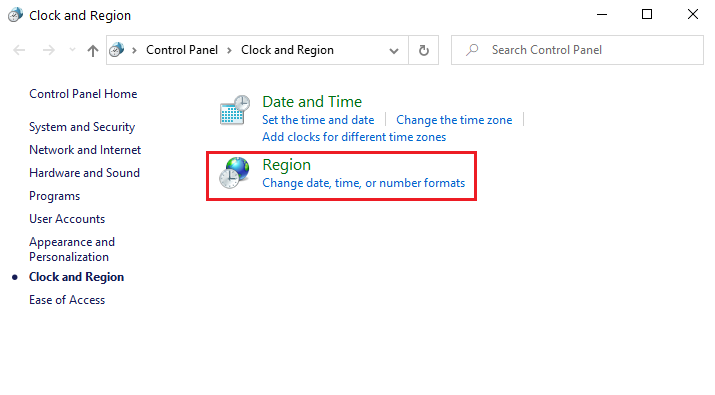
To avoid this issue, it is recommended to use the dot as decimal symbol in the advanced configuration of the windows regional settings. To do that go to “Region” in the windows “Control Panel”.
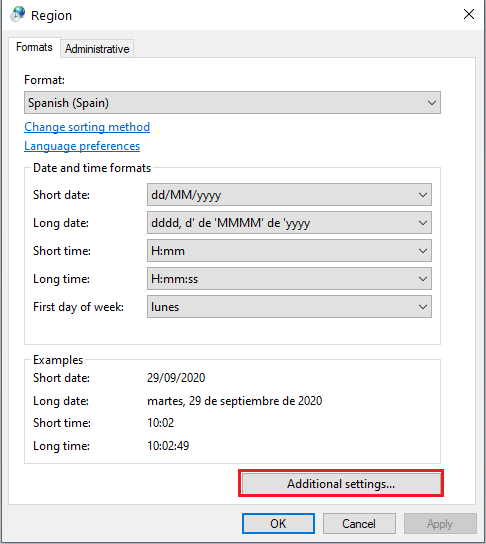
Select “Additional settings”:
And set the dot as “Decimal separator” and the comma as “Digit grouping symbol”:
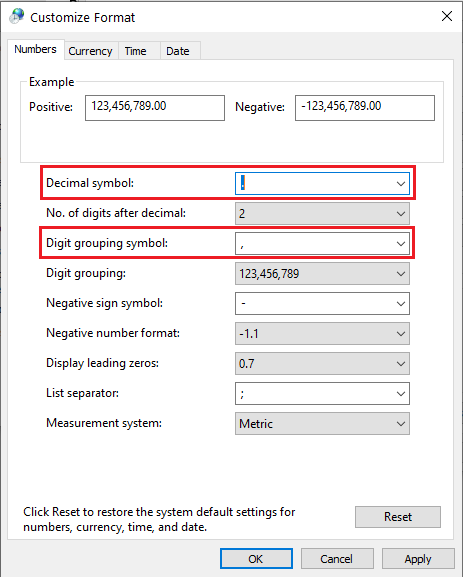
After changing these settings, the topography should be properly placed when importing from BIM 360 (Remember to restart after applying the changes).
According to Autodesk, this issue has been fixed in Revit 2020.2 but they also say that these problems may persist in some particular machines. For that reason it is recommended to set the dot as decimal symbol, whenever possible.
Author: Javier Giménez