

Nested Families
Operation in Revit
Nested Families

Objectives
- Understand what is a nested family
- Learn how to associate parameters to a nested family. Nest parameters.
Prerequisites
- User will be using Revit, any version.
- User has correctly installed Revit Family Templates.
- User has basic notions about Family creation.
Description
Nested families are families inside other families.
Nested families are often used when:
- The family has repeated elements, for instance the blinds of a window.
- There is some complex geometry that we want to control as a whole to define its position in relation to other elements.
- We want to work with families inserted into others but quantify the first ones as independent items. For instance, a set of table and chairs.
We can find an example of a nested family in a door which has nested a detail family with the leaf of the door and which at the same time has nested a detail family with a 2D representation of the door handle.
The family of the door which has two nested families is called the host family.
Nested families / Shared families / Linked parameters
When families are plain nested and positioned into host families, with no further modification, and the host family is loaded into the project, we can notice that:
- A nested family does not appear in the project as a stand-alone family. We cannot find it under the Family section in the project browser, or select it, or schedule it, or tag it. We see its geometry as components of the host family.
- We cannot access the parameters in the nested family once the host family is loaded into the project (or into another family).
If we want to change that behavior (not always necessary) we will have to rely on making the nested families shared and link the parameters of the nested family to the host family:
- Shared families: we will nest the families as shared families into the host family. Then when loaded the nested shared families will be visible as fully stand-alone families that can be scheduled and tagged.
- Linked parameters: we can nest a family into another but we can actually link also its parameters. This means that we can link the parameters in the nested family to parameters of the host family so that parameters in the host family control the properties in the nested family.
These two actions are independent.
- We can nest a family without sharing it but nesting its parameters.
- We can nest a family as a shared family but not nest its parameters.
Procedure
1 Shared families
They are used when we nest a family into another, but we want or need to keep full track of the nested family as if it were a stand-alone family.
Shared families can be scheduled and tagged independently from their hosts, using the TAB key to select them.
If the family is shared, it will appear in the project browser and can be used individually, without any relation to the family in which it is nested. For example, if we have a table family with shared nested chairs, we can place the chairs individually in the project as well.
If we want that a nested family acts as a shared family we have to open the nested family itself and change their family general settings to activate the “Shared” option.
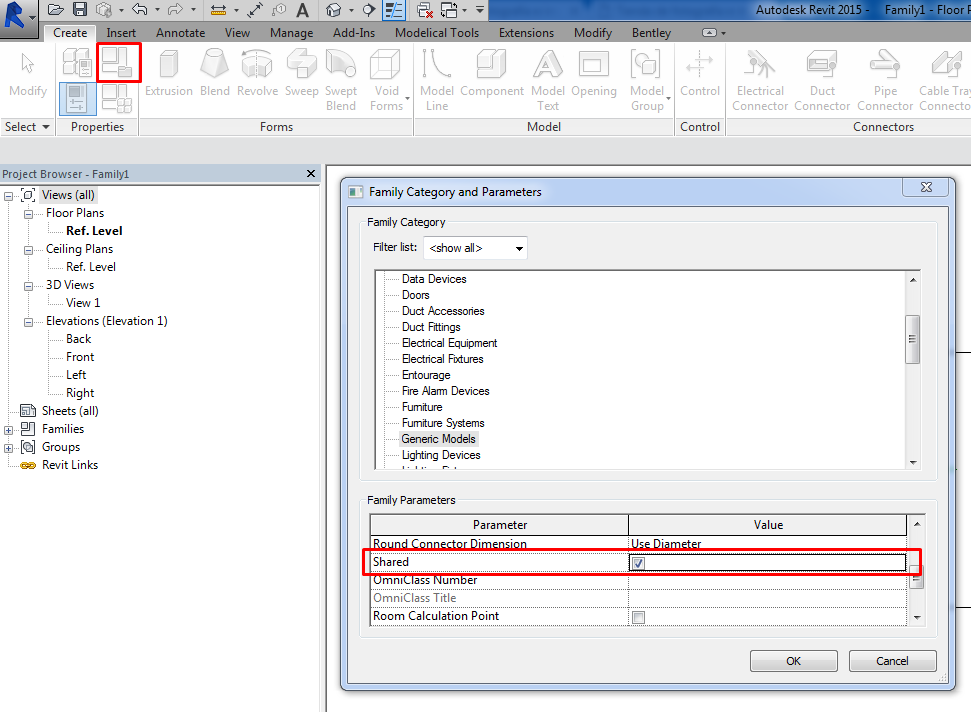
Then we reload the nested family into the host family and the host family into the project.
Be cautious with this procedure. Once we load a shared family into a host family we can not revert the action. We could unshare the nested family, but we should either:
- Load it into the host family with a different name or it will not admit it.
- Delete first the shared version of the nested family in the host family.
2 Linked Parameters
Once we have loaded a family in a host one, we have to select the nested one and search its parameters.
- If the parameters of the nested family are instance parameters they will directly appear in the properties window.
- If the parameters of the nested family are type parameters, we should open the type properties of the family.
To link the parameters of the nested family to the parameters of the host family we have to click in the right grey button next to each parameter. It will pop up a window where we can choose which parameter of the host family will be linked to the parameter in the nested one.
We can link all the parameters that we want to change accordingly with the parameters of the host family. It is not necessary to link all of them.
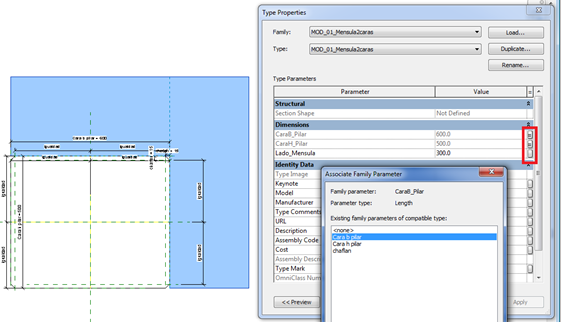
Nesting Shared Families and Type Parameters
A limitation of nesting shared families is that shared families cannot have their type parameters driven by their hosts. This is an issue that can heavily impact the strategy when modeling a complex family.
One straightforward solution is to create all shared & nested families using instance parameters for those attributes that will be driven by their host.
Tips&Tricks
- We will create a nested family to make a complex family more understandable.
- Creating nested families is an easy way to link parametrically groups of elements in a family. So, it simplifies the process of creating a complex parametric family.
MUCHAS GRACIAS POR LA AYUDA ME FUE DE MUCHA UTILIDAD……