

Reconcile models with shared coordinates
Helpdesk
Reconcile Models with shared coordinates
Introduction
When working with a project consisting of several models that communicate with shared coordinates, it may happen that you have to reset these coordinates and set new ones.
It is not crazy to think that this could happen. Here is a case study.
We will tell you how we solved it.
Question:
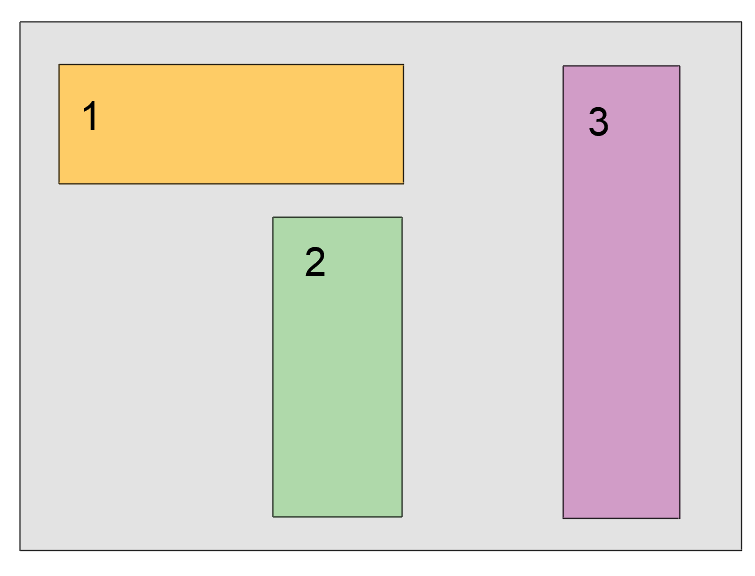
We have 3 models that had the same shared coordinates, acquired from a DWG topographic.
Now, the City Council has delivered a new topographic that does not have the same coordinates as the previous one. The project plot is also different, which modifies the position of the buildings.
How can we solve this situation? We are willing to have the three models properly placed in coordinates among them again and with the new topography in dwg.
Answer:
One way to acquire the new topographic coordinates is to acquire them from the new DWG, in the models independently (Block 1, 2 and 3).
The procedure is explained below, assuming that the two dwg files (the old topographic and the new one) do not come from each other or vice versa (i.e. are copied or saved as).
To achieve this, the following procedure must be followed:
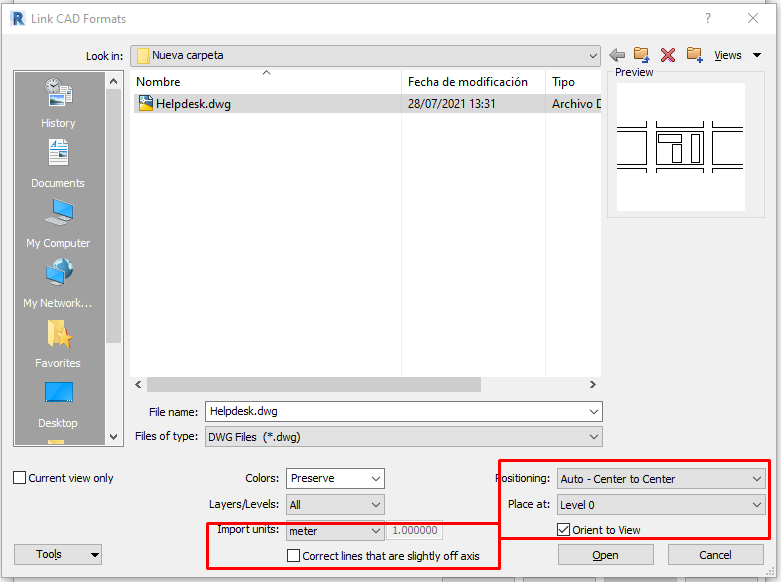
- Check that the DWG of the new topographic is in absolute coordinates, the units are in meters and link the DWG in Revit in a view in North From Project and selecting:
- Select the linked DWG, position it and rotate it to its proper place according to the plot.
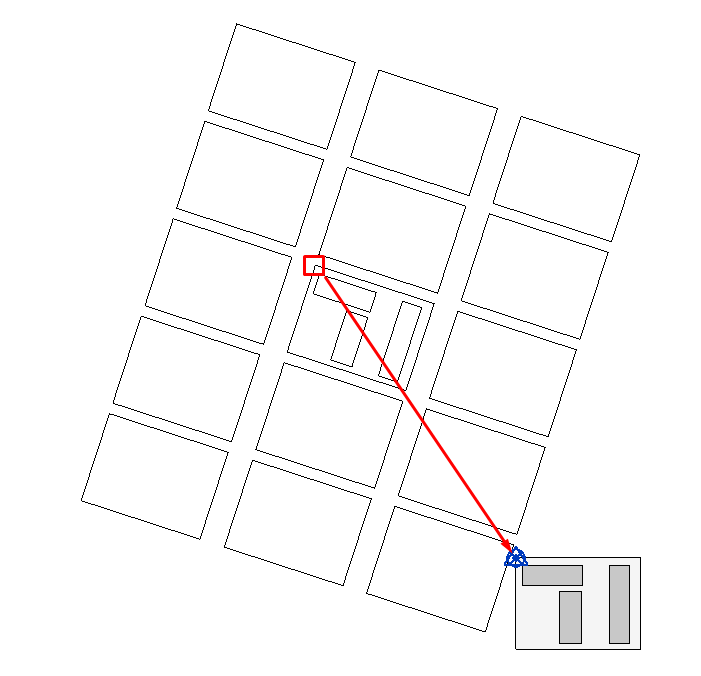
- In the properties palette, click on Shared Site, and select Acquire the shared coordinate system from [Topographic dwg name], and click on Reconcile to acquire the new DWG coordinates.
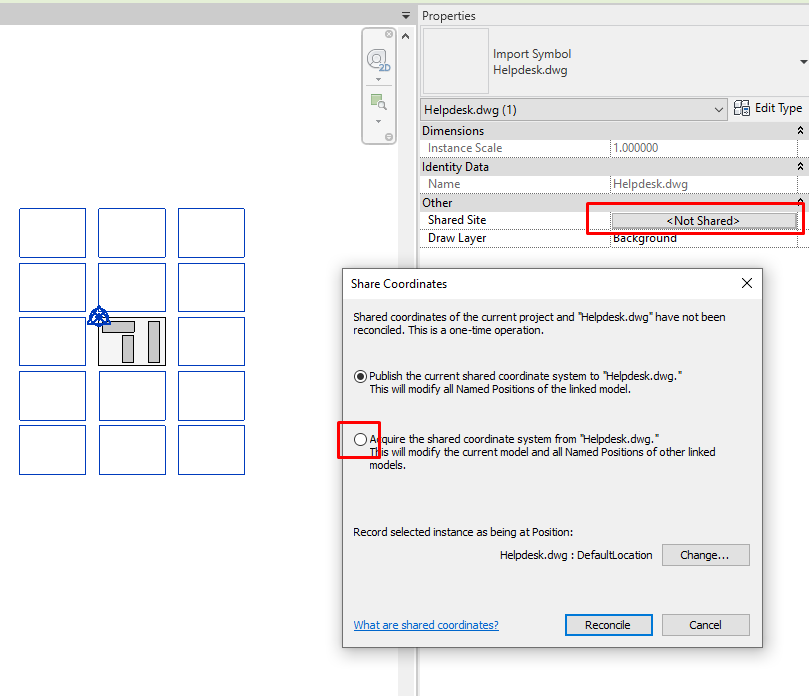
- This will move the Survey Point to the new coordinates of the new Survey.
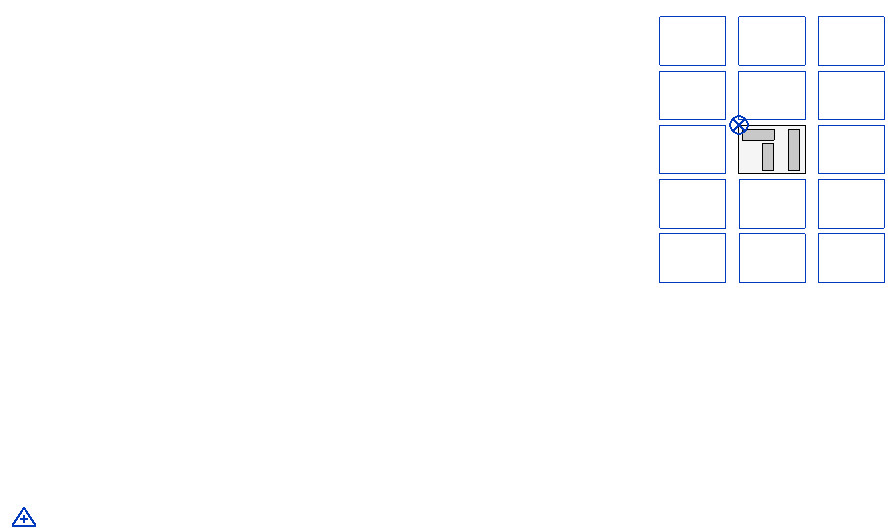
- Save
- Finally, it is important that the DWG does not move as the coordinates would move. To do this you can:
- Put a Pin in the DWG and make sure it will not move
- Delete the DWG so that it does not move by mistake
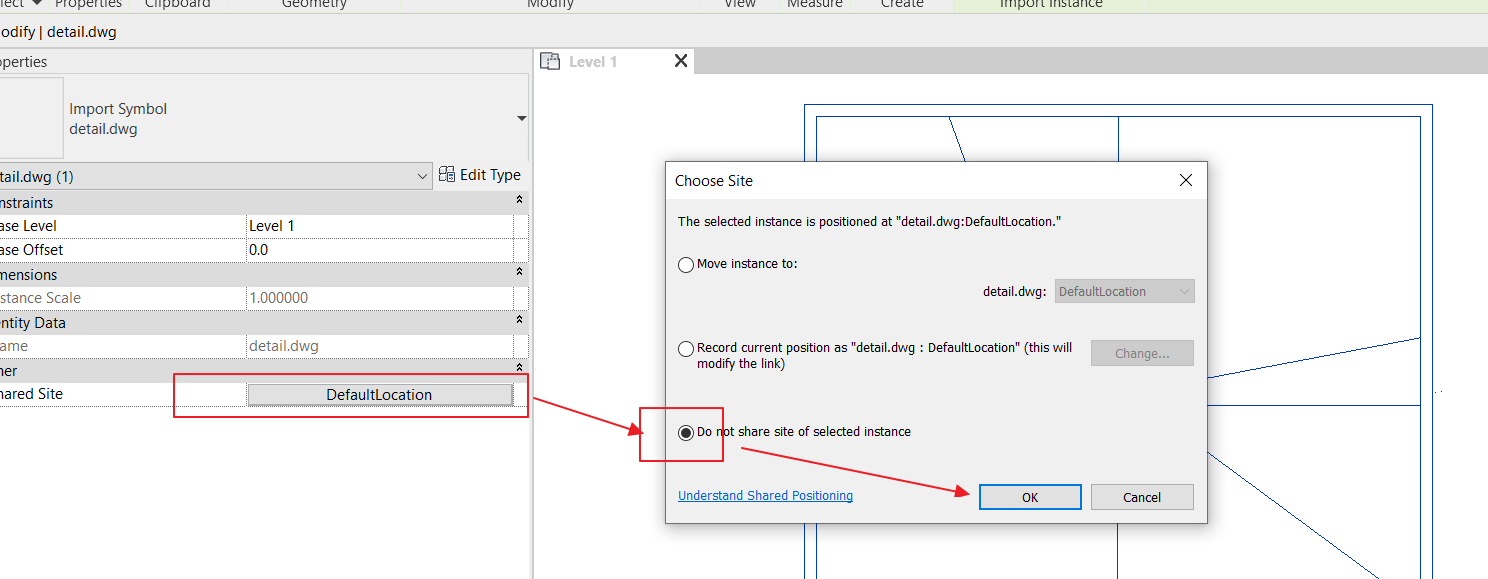
- Return to the DWG properties and in the Shared Site select: Do not share coordinates.
- By doing this procedure in each of the 3 independent Revit models, we will ensure that they acquire the coordinates of the new DWG correctly.
- Finally, each of the links in all the models must be deleted and re-linked using the By Shared Coordinates option to check that they all share the same coordinates.
In case the old dwg and the new one come from each other, first of all, you would have to reset coordinates and then start with the procedure described above.
To reset coordinates, select the .dwg and in the properties palette, change the Shared Site option, as in the image:
Bonus track
Was it useful? Leave a comment!
If you have read the post and do not understand why we are talking about survey point, project point, etc, it is time to go through the modelical website and study in depth the guideline on shared coordinates where both the concepts and the procedures for carry out good management of the coordinates of your project.
At Modelical we offer helpdesk support for businesses. We have packs that attend specific inquiries related to projects by email. With this service you will be able to attend any type of specific query, from a doubt or a problem in the development of a project to the advice and general support in any of our tools and products.