

How to Open a Project in AECOsim
Operation
AECOsim
Objectives
- To understand how to open a project in AECOsim.
Prerequisites
- User will be using AECOsim V8i SS6
- User has a project already created with this software, with all its files.
- We are going to make the examples of this guideline with FCB AS BUILT project.
Description
Sometimes we may need to work with an AECOsim bim file. In this case, there are some considerations to take into account.
AECOsim is a multifile BIM software, which means that a project is composed by several files.
Every project has a configuration file with the extension *.pcf. In this file you will find the version in which the project has been developed and the project template in which is based.
You also will need a user configuration file, with *.ucf extension, where you are going to decide where are located the projects of your company.
Procedure
1 Modify *.ucf file
User Configuration Files are located in this root:
C:\ProgramData\Bentley\AECOsimBuildingDesigner V8i Ss6\WorkSpace\Users
You can make a copy of an existing one and make modifications. In the case of FCB project, the modifications we have made are as follow:
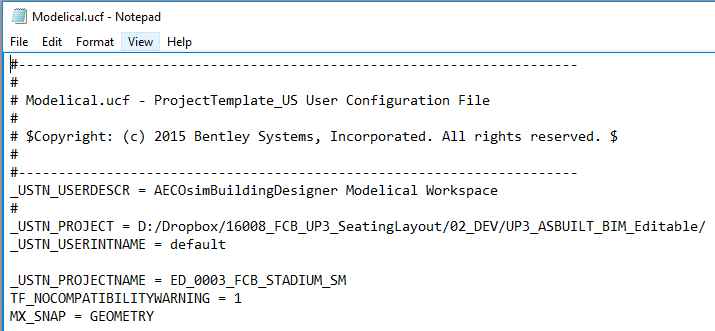
We have just indicated what is the root of the project.
Hint: be careful with the use of “ \ ” or “ / ”. Surely you will have to change them to be “ / ”.
2 Open the project
Make double click on AECOsim Building Designer V8i (SELECTseries 6) shortcut.
In user, choose Modelical (this is the new UCF file we have just created).
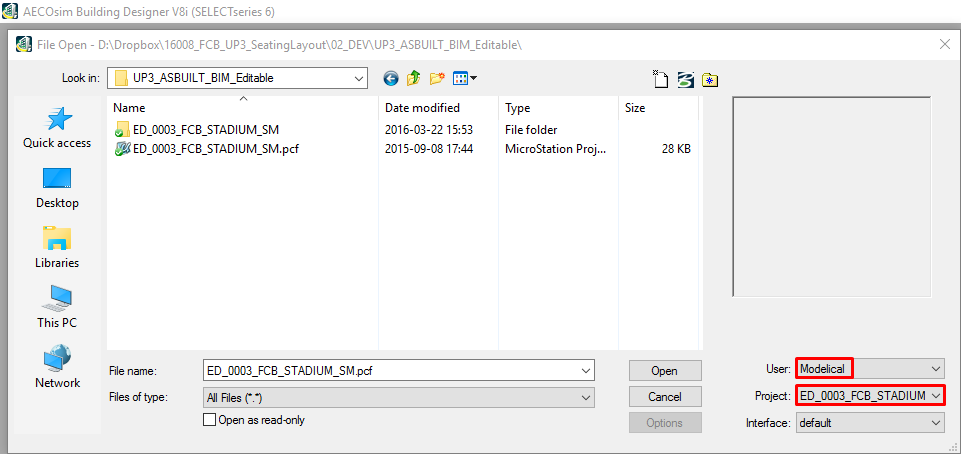
Look for a design file with *.dgn extension and open it.
Tips&Tricks
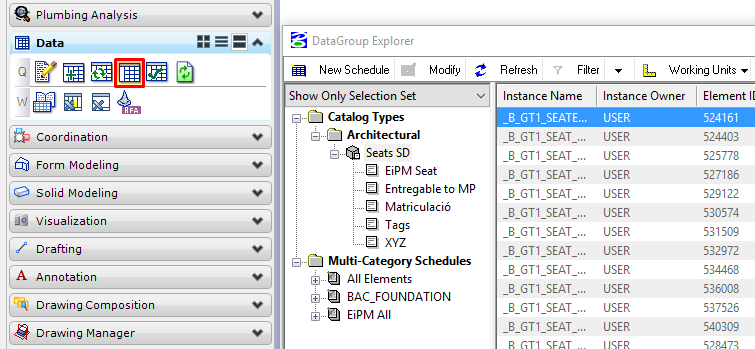
- To check and modify elements information, a good choice is the tool DataGroup Explorer. It has options to modify directly the data in Excel (Excel Exchange).
- In connect.bentley.com there are learning resources for Bentley products.
Bottom-line
Projects developed in AECOsim need a little bit of configuration to work with them if we want to modify them.