

Revit Analytical Model
Settings and interoperability
Analytical Model
File: 61000_MDL_03_RV_GDE_S_10001-AnalyticalModel
Objectives
- Understand how to set the analytical model
- Understand interoperability with analysis software
Prerequisities
- User will be using Revit 2017 or newer
- User is a nice person
Description
- Set the model
- Set boundary conditions
- Apply loads
- Run the analysis
- Results visualization
Procedure
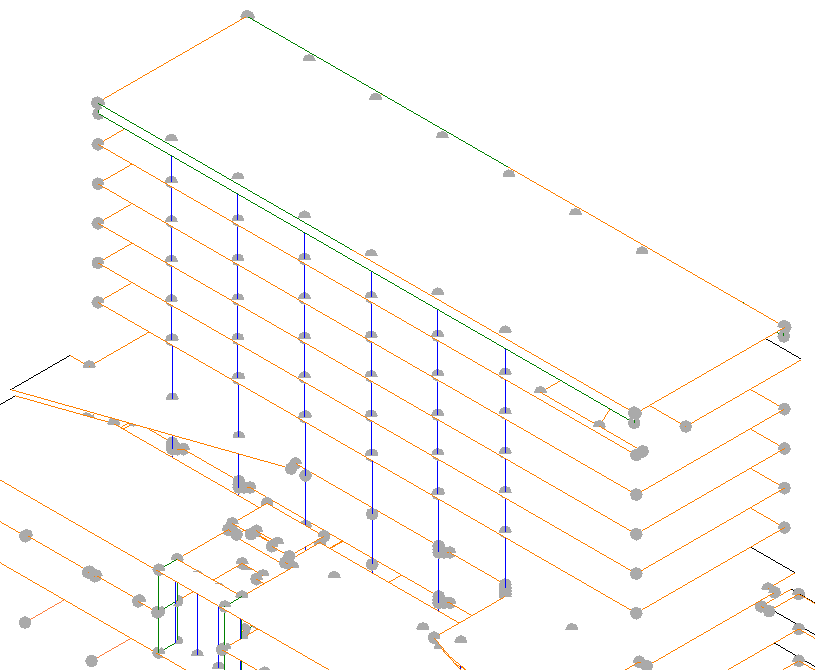
The analytical model is automatically created when the physical model is created and can be exported to structural analysis and calculation programs.
Structural elements have in their properties the parameter "Enable Analytical Model". By activating it, the element becomes considered in the analytical model. It is recommended to select this option only if the model is to be used for structural analysis, either by Revit or by exporting it to other software. Activate the analytical model lowers its handling efficiency.
Visualization
The analytical model can be displayed in all views, it is one more tab in the VV. In the views of the physical model it is usually disabled by default. You can create views only to see the analytical model. As a working view it may be useful to see the analytical model with the physical model in transparent.
The visibility of the analytic symbols works the same as the visibility of any element of the physical model: first it is controlled in general with the Object Styles, and in particular of each view with the "VV".
Boundary Conditions
Perhaps Boundary Conditions are not loaded in your working model. In that case, they can be loaded like any other family, then they must be selected in the Structural Settings / Boundary conditions settings window. It is recommended to create a template with all families and conditions established.
Apply Loads
Point, linear and area loads can be applied in the analytical model: Click Analyze tab, Loads panel, Loads. Loads are families that contain type and instance parameters. Load Cases can be modified and different combinations of loads can be made.
You can place loads hoisted to elements. Hoisted loads will be attached to the element in case of variation.
Interoperability with analysis software
Set the analytical model
It may happen that the analytical model turns useless to perform an integration with calculation software due to its configuration. Therefore, some adjustments must be made before exporting, typically in the connection of supports with beams and slabs, as well as the walls with each other and the support slabs.
- Click Analyze tab, Analytical Model Tools panel, Analytical Adjust to manually adjust the analytical model. From here you can also eliminate voids that are not to be considered in the analysis. This does not change the physical model.
- To "reset" the modifications made: Click Analyze tab, Analytical Model Tools panel, Analytical Reset. The element will return to its original shape or situation according to the physical model.
Before exporting the model, check it: Click Analyze tab, Analytical Model Tools panel, Consistency Checks. A series of warnings will appear indicating possible errors or inconsistencies in the model. The checks can be activated manually or by default: Structural Settings, Analytical Model Settings, Automatic Checks. Better to activate them by default when the model is practically finished.
Revit-ROBOT Link
The link between Revit and Robot is done by means of a "button" between both programs. To do this you must install the Structural Analysis Toolkit for Autodesk® Revit® software. This links to the two programs allowing two-way communication.
By using it you can:
- Send the model from Revit to ROBOT for structural analysis
- Update the Revit model from ROBOT modifications after running analysis
- Update as latter and bring the results to Revit: by doing so, you can watch stress and strain laws on Revit, and quantify displacements. Results visualization parameters can be modified.
Revit-SAP2000 Link
CSiXRevit is a link that allows data exchange between CSI analysis software (ETABS, SAP200, and SAFE) and Revit (for versions of SAP from V15.1.0 / 1 and ETABS 2013, for previous versions you can use the IFC format).
CSiXRevit supports the following exchange workflows:
- Export from Revit to ETABS / SAP2000 / SAFE
- Export from Revit to update an existing model in ETABS / SAP2000 / SAFE
- Import from ETABS / SAP2000 / SAFE to create a Revit model
- Import from ETABS / SAP2000 / SAFE to update a Revit model
Tips & Tricks
Another option is to only use Revit to export the analytical model and use it as the basis for the model to be developed in the analysis software without any attempt to import back to Revit possible changes made in the calculation model.
Another option is to use the Structural Analysis for Revit 360 "in the cloud". To avoid overloading a model where the architecture is also being worked on, a new model, STR, where the ARC model is linked, is created. In STR model you can find copy / monitoring levels, grids and structural elements, and there you can add loads and carry out the structural analysis.
- Abstract description Structural Analysis for Revit: allow structural engineers to perform cloud-based analysis as part of the BIM process. With Structural Analysis, engineers and designers can extend Revit Structure design models directly to the cloud to reduce workflow disruption and allow users to continue designing while analyzing. Once the analysis is complete, the results can be viewed and explored in Revit Structure.
Conclusion
Activate the analytical model lowers its handling efficiency, use it when necessary. Modelical has a Macro to activate or deactivate the option "Enable Analytical Model" in all the elements of the model at the same time.