Materials II
Material functions
MATERIALS II
File: VR_UE_Materials_II
In the Material Editor within Unreal Engine we can find a huge variety of functions. In this guideline, we have selected the most useful functions within Modelical workflow and we have make a short explanation of each one. Use this guideline as a library of functions, you may find here any function that you need while creating a material within unreal engine.
Math Functions
* Do not forget that Black Color is RGB(0,0,0) and White Color is RGB(1,1,1)
Add
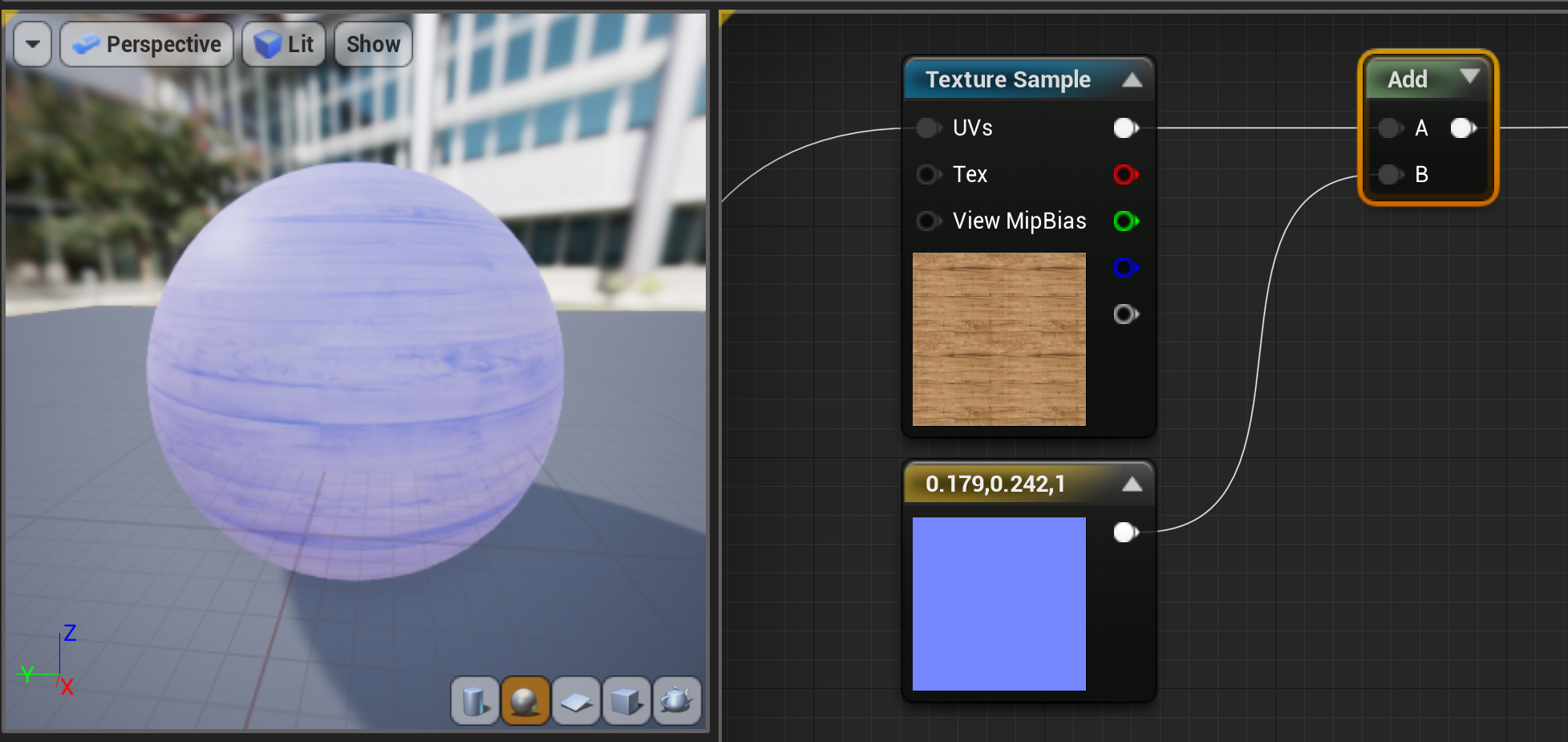
Outputs the sum [A] + [B]
“Add” function make the sample image clearer than before.
Subtract
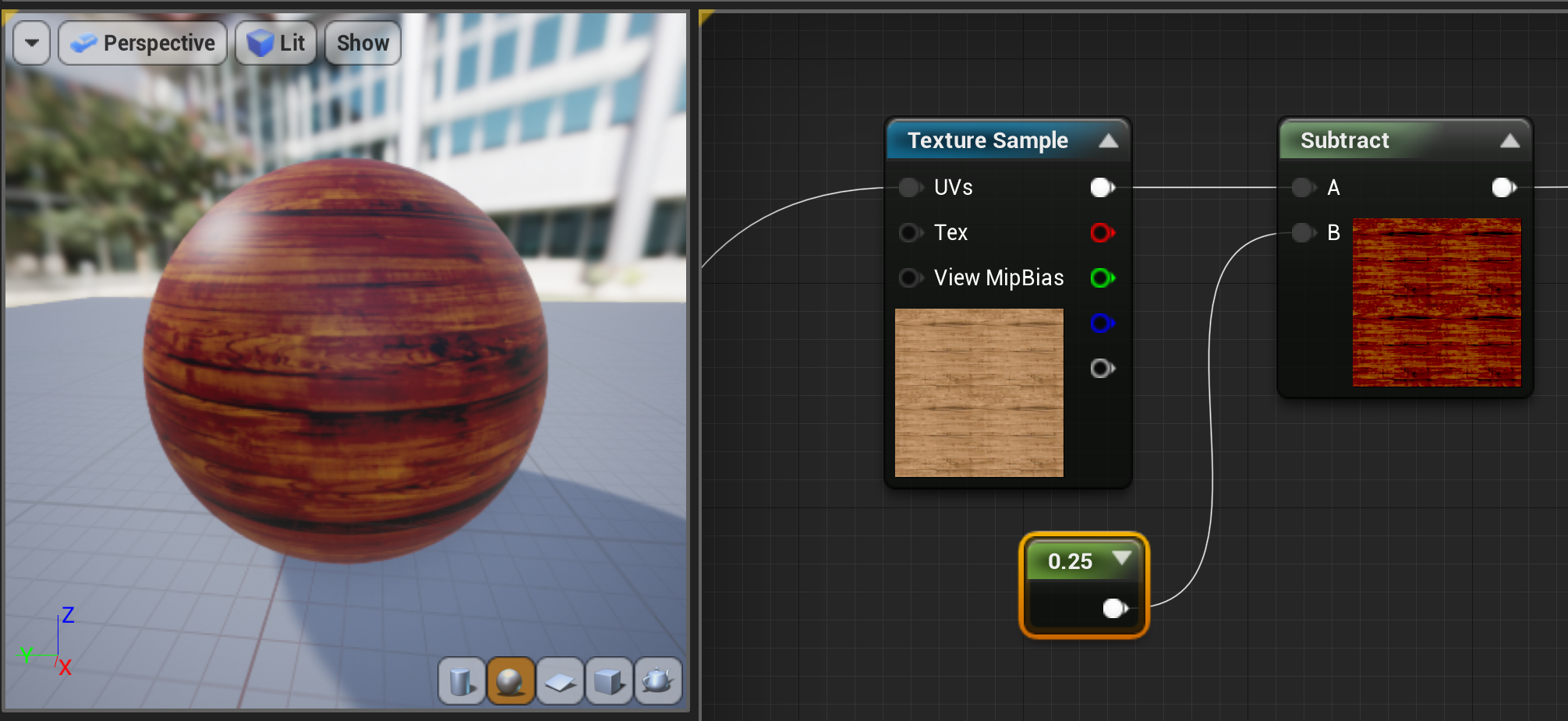
Outputs the difference [A] - [B]
“Subtract” function make the image darker than before.
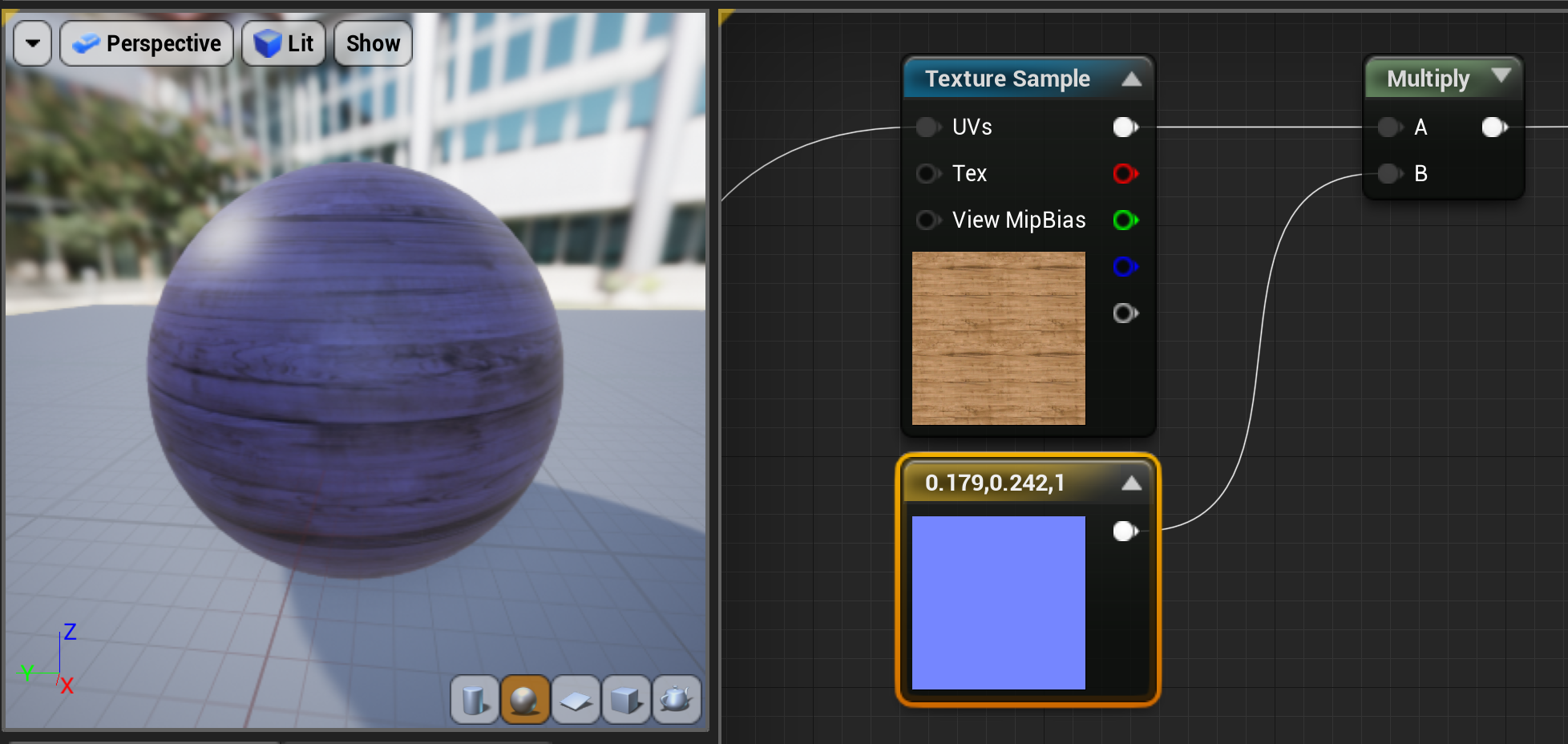
Multiply
Outputs the product [A] * [B]
“Multiply” makes a mixture between two inputs.
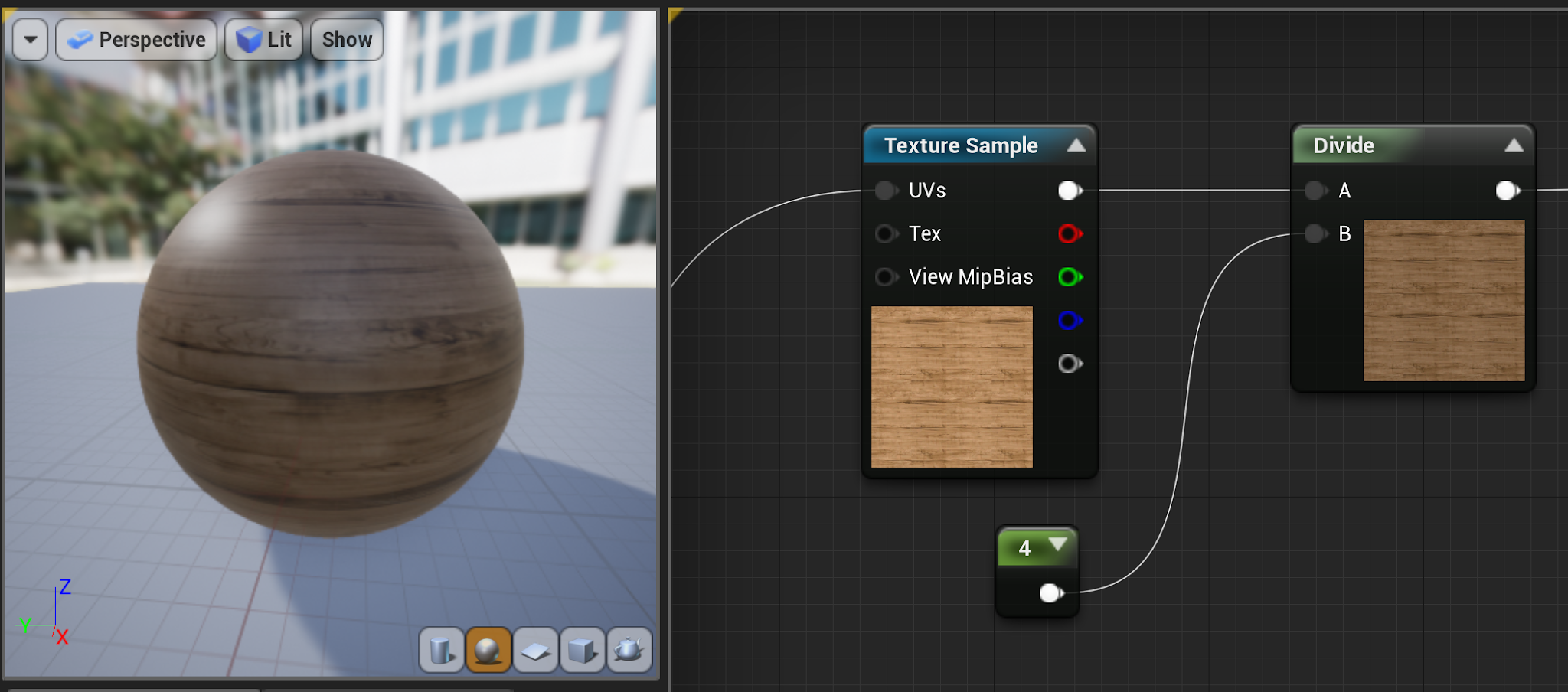
Divide
Outputs the quotient [A] / [B]
“Divide” makes the image much darker than before.
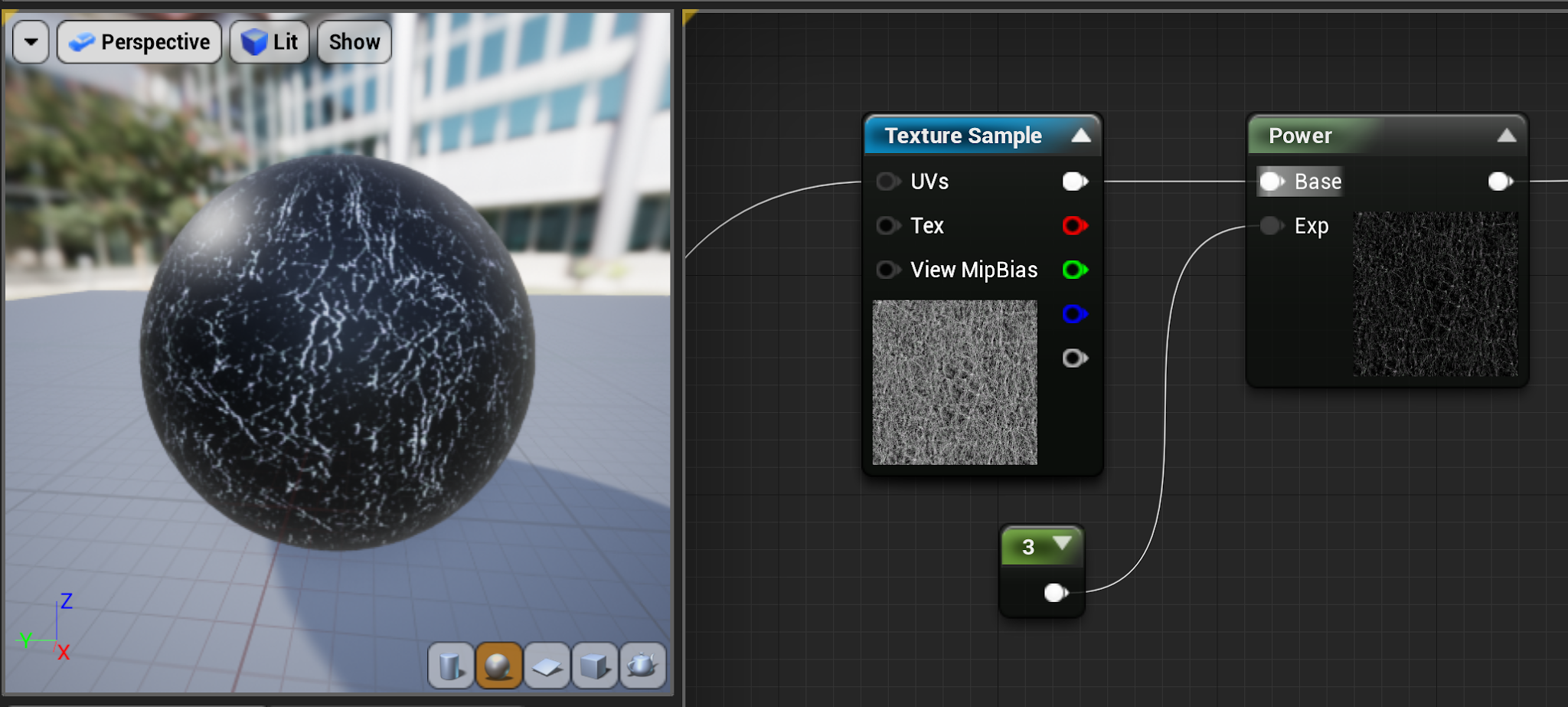
Power
Outputs the quotient [A] ^ [B]
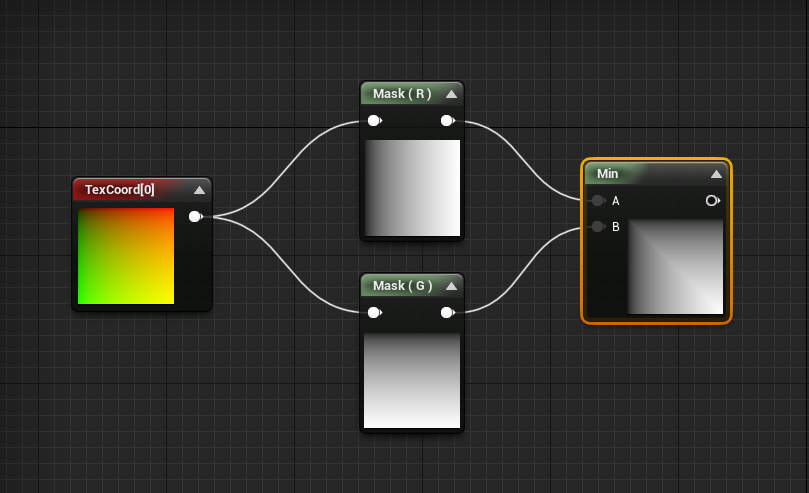
Min
Outputs the minimum of [A] and [B]
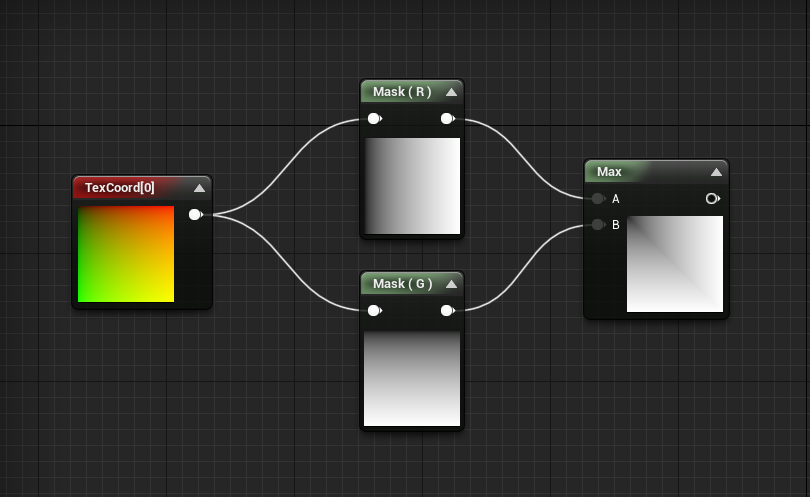
Max
Outputs the maximum of [A] and [B]
Abs
Outputs the absolute value of its input. Essentially it makes negative values positive.
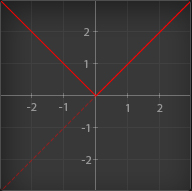
(Image by acegikmo.co)
Sign
Outputs the sign of its input. Values greater than 0 outputs 1. Values equal to 0 outputs 0. Values less than 0 outputs -1.
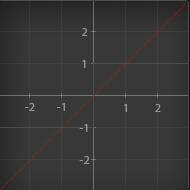
(Image by acegikmo.co)
Round
Outputs its rounded to the nearest integer.
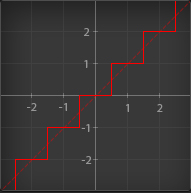
(Image by acegikmo.co)
Clamp
Outputs its main input value, no less than [Min] and no more than [Max].
Example Clamp 0-1
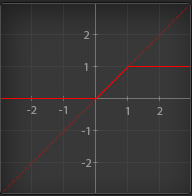
(Image by acegikmo.co)
Lerp
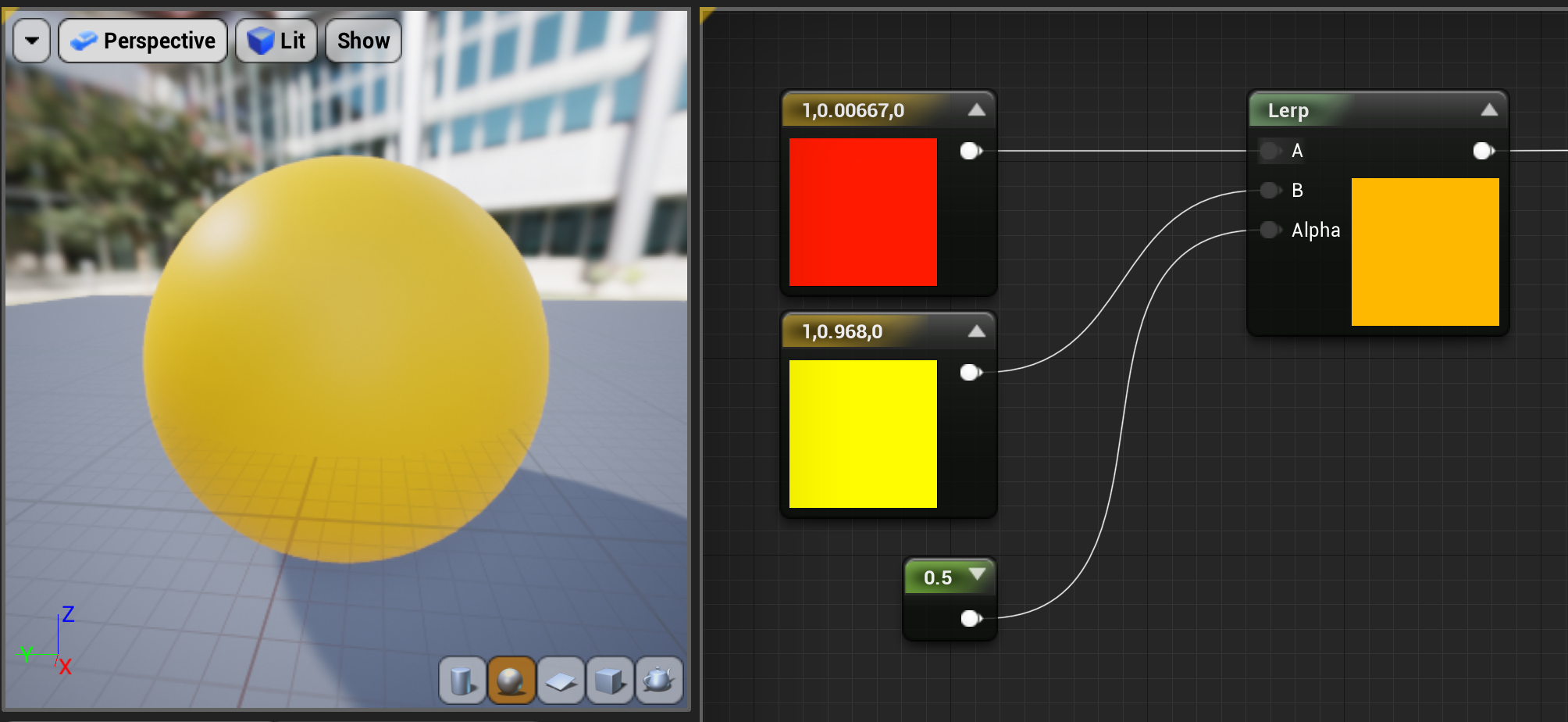
“Lerp” is used to blend between two values or colours.
- If [T] is 0, it will output [A]
- If [T] is 0.5, it will output a halfway blend between [A] and [B]
- If [T] is 1, it will output [B]
- If [T] is any other value, it will output a linear blend of the two
Blend Functions
A Blend is a type of function that performs mathematical calculations in the color information of a texture so that one texture can blend into another in a particular manner.
Blends will always have a Base and a Blend input, both of which are Vector3. These will each take in a texture and the two will be blended in some way. The manner in which the blend takes place depends on the type of blend function used.
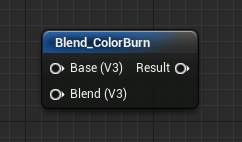
Below is a list of some of the most useful blend material functions:
- Blend_ColorBurn

- Blend_Darken

- Blend_Difference

- Blend_Exclusion

- Blend_HardLight

- Blend_Lighten

- Blend_LinearBurn

- Blend_LinearLight

- Blend_Overlay

Image Adjustment Functions
The Image Adjustment functions exist as a way to perform basic color correction operations on textures. They are useful in that they allow corrective actions or variations on a texture without having to worry about the overhead of loading a separate version into memory.
Below is a list of some of the most useful blend material functions:
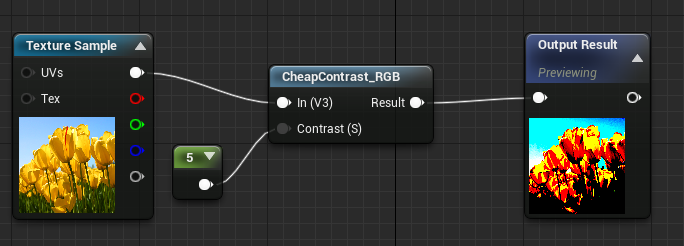
Cheap Contrast and Cheap Contrast RGB
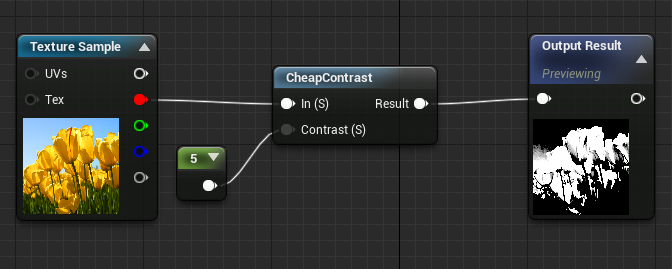
The “CheapContrast” function boosts the contrast of an input by remapping the high end of the histogram to a lower value, and the low end of the histogram to a higher one. This is similar to applying a Levels adjustment in Photoshop.
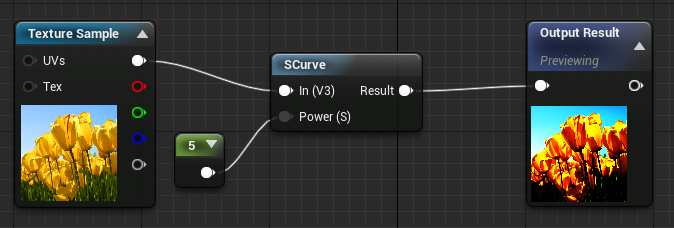
SCurve
The “SCurve” function boosts contrast of an image by interpolating the values of each channel values of an image along an S-curve. This is similar to applying a Curves adjustment in Photoshop.
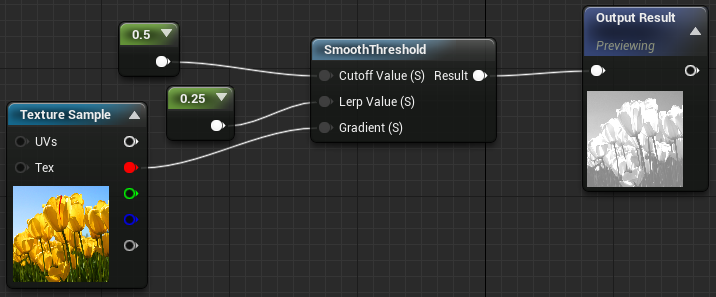
Smooth Threshold
The “SmoothThreshold” function takes in a gradient, an interpolation rate, and a threshold value (Cutoff Value). It then applies a smooth contrast to the gradient, based on the inputs.
Recurring Functions
Vector 1,2,3,4
We can find them inside the Vector functions.

- Value/Vector 1: A numerical value
- Vector 2: A vector with two components/values. Usually with UV coordinates.
- Vector 3: A vector with three components/values. Usually used as a color, position or direction
- Vector 4: A vector with four components/values. Usually used as a color with an alpha channel. There are two parameters to expose in the inspector available.
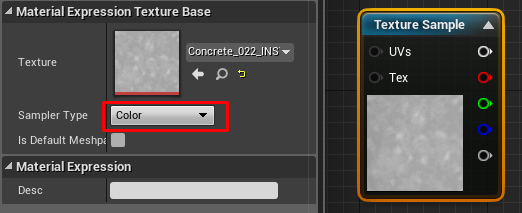
Texture Sample
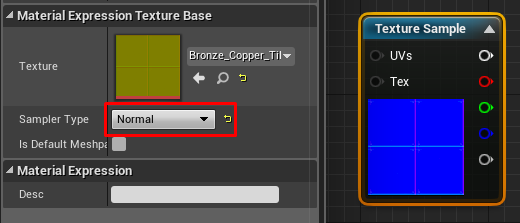
The “TextureSample” expression outputs the color value(s) from a texture. This texture can be a regular Texture2D (including normal maps), a cubemap, or a movie texture.
Textures Coordinates
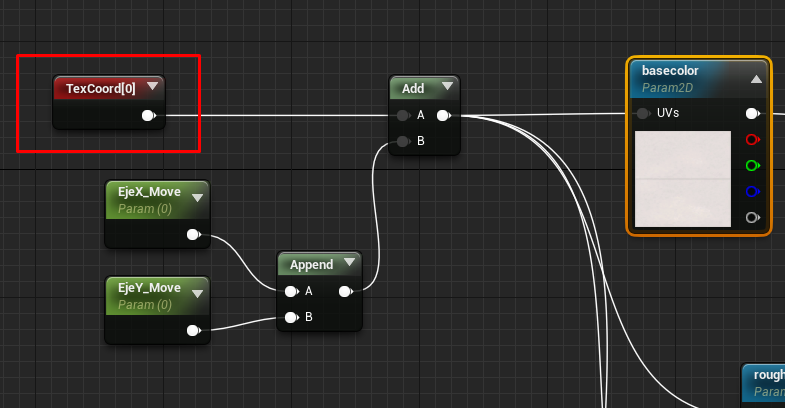
The “TextureCoordinates” expression outputs UV texture coordinates in the form of a two-channel vector value allowing materials to use different UV channels, specify tiling, and otherwise operate on the UVs of a mesh.
World Position
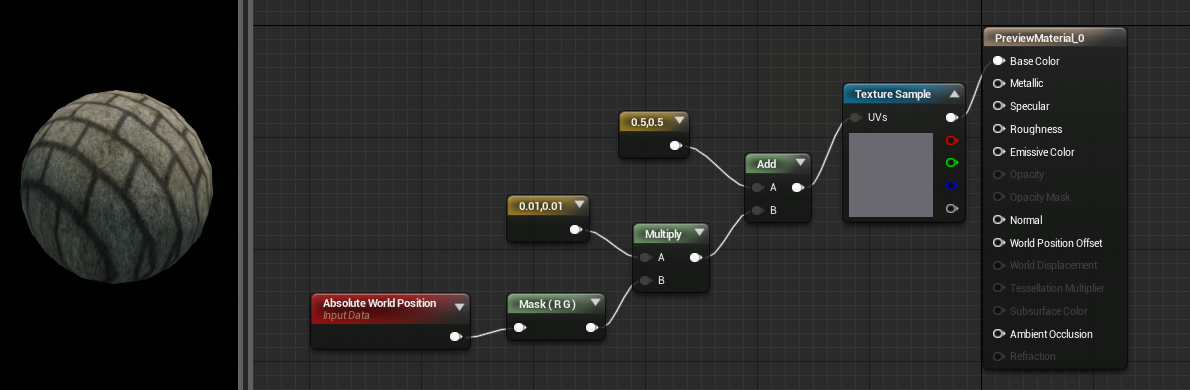
The “World Position” expression outputs the position of the current pixel in world space. World position is useful to use as a texture coordinate and have unrelated meshes using the texture coord match up when they are near each other.
Camera Position WS
The CameraWorldPosition expression outputs a three-channel vector value representing the camera's position in world space.
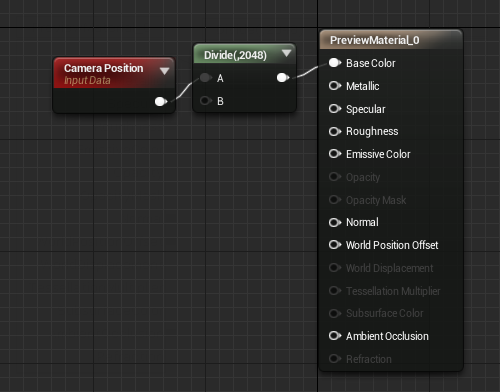
The preview sphere changes color as the camera rotates.
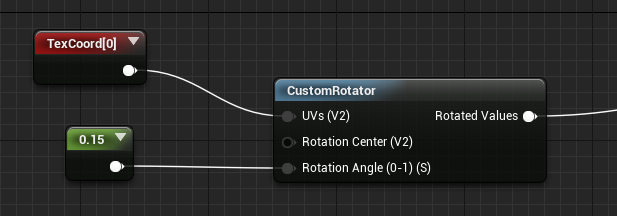
Custom Rotator
The “Custom Rotator” expression outputs UV texture coordinates rotated from a center exposed and a rotator angle (0-1). A rotator angle value of 1 is equal to one full rotation.
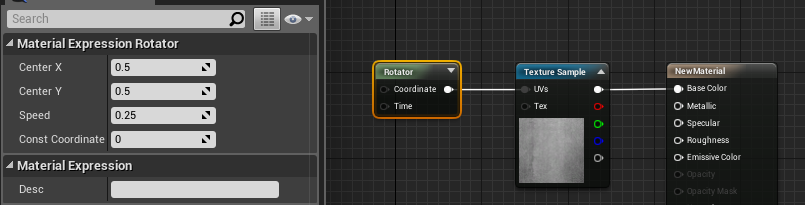
Rotator
The “Rotator” expression outputs UV texture coordinates in the form of a two-channel vector value that can be used to create rotating dynamic textures.
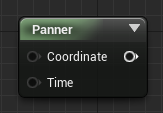
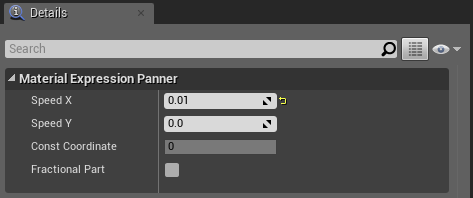
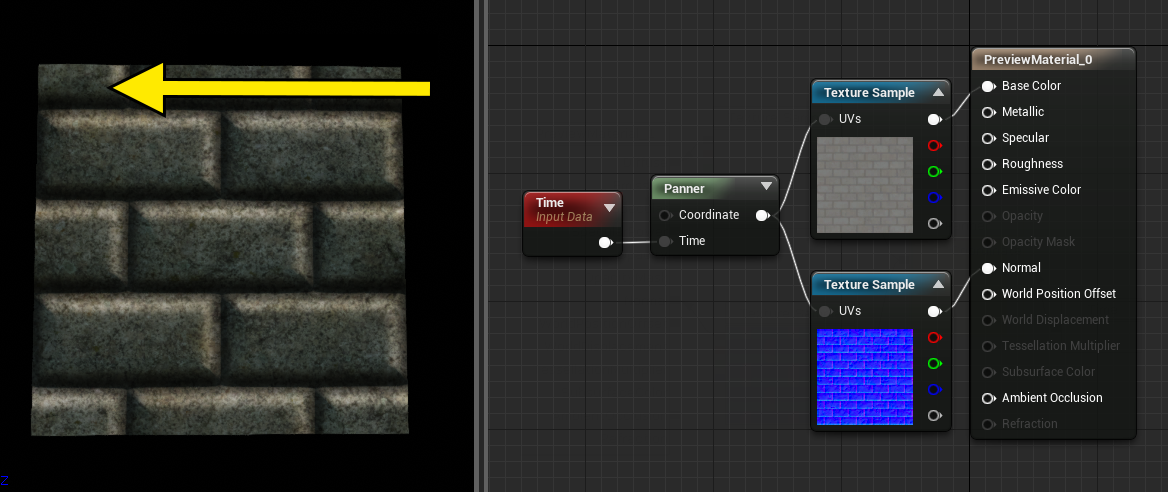
Panner
The “Panner” node takes in two inputs, Coordinates and Time, and outputs a dynamic texture. Panner generates UVs that change according to the Time input.
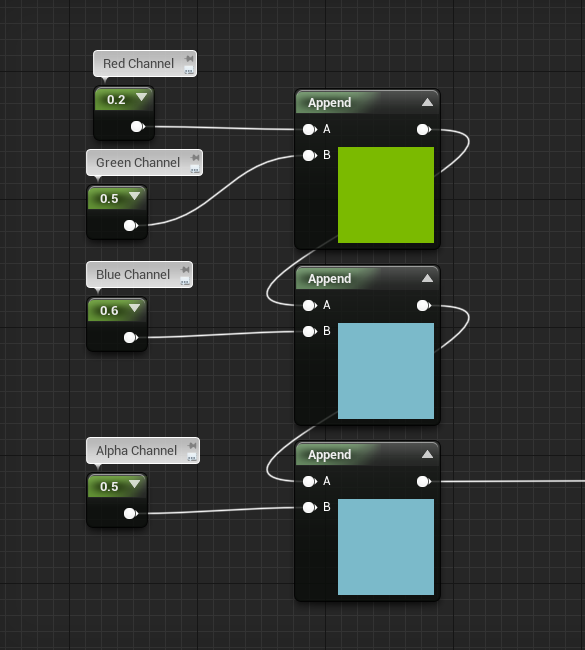
Append
Outputs a single vector from multiple input values/vectors.
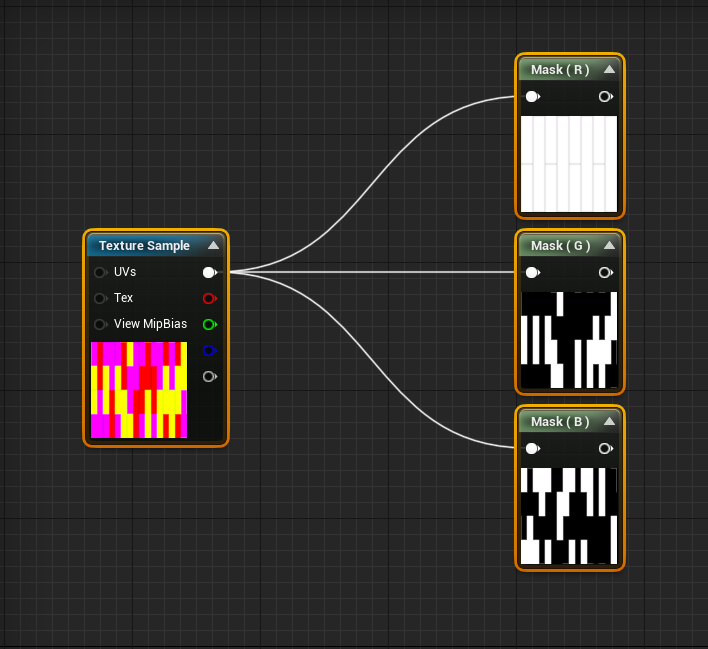
Mask
A Texture Mask is a grayscale texture, or a single channel (R, G, B, or A) of a texture, used to limit the area of an effect inside of a Material. The component mask can be used to reorder or extract channels of a vector.
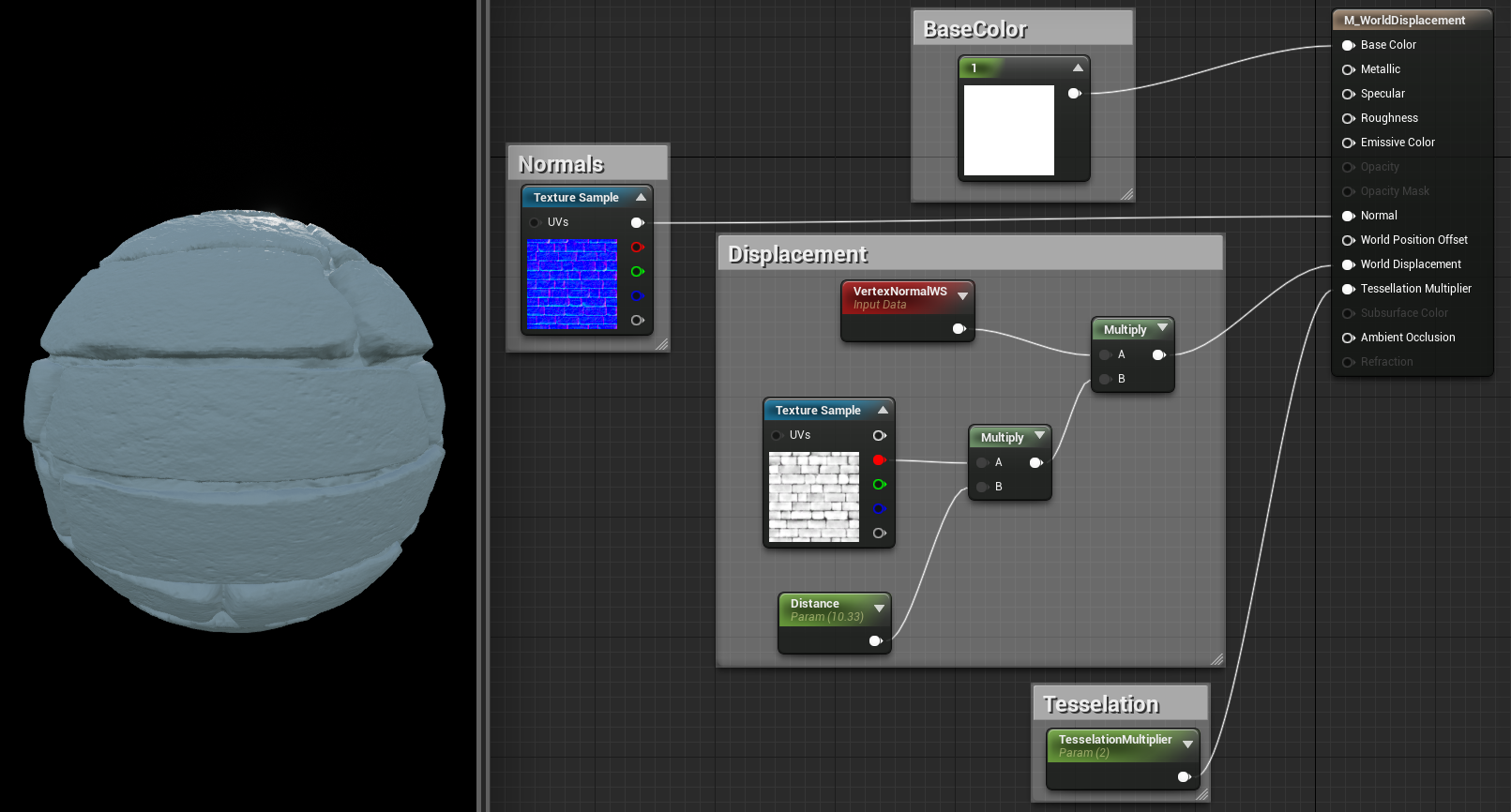
Vector Normals
The VertexNormalWS expression outputs the world-space vertex normal. It can only be used in material inputs that are executed in the vertex shader, like WorldPositionOffset or WolrldDisplacement.
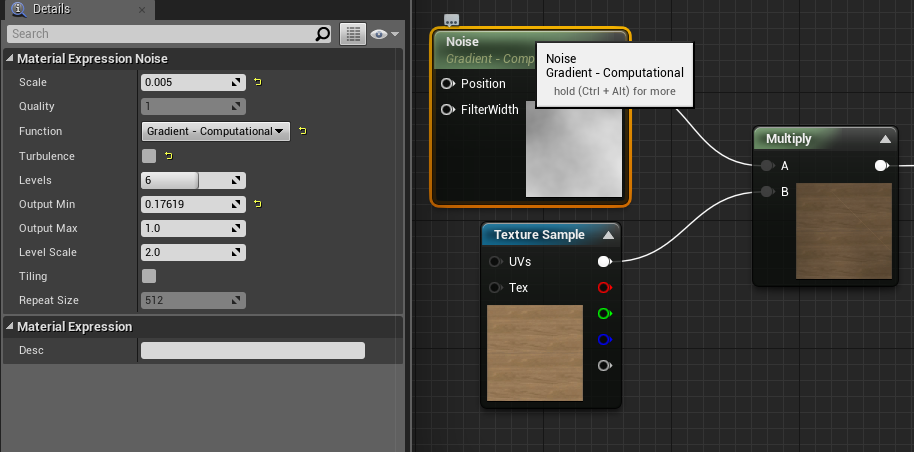
Noise
Generates pseudorandom numbers based on a two-component input (such as UV coordinates)
Remap
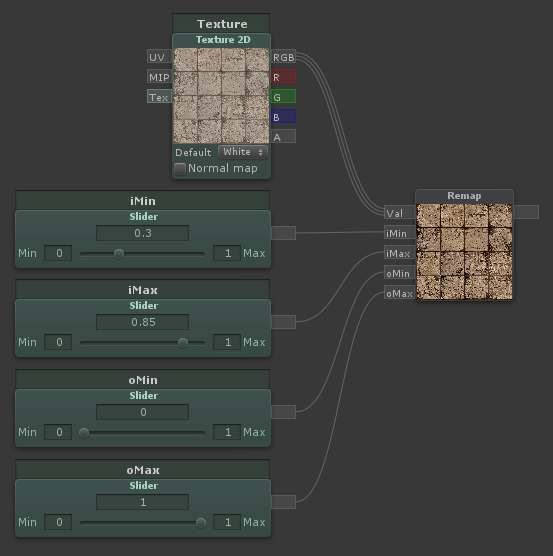
“Remaps” a value from one range to another.