

Annotation Families
Operation in Revit
Annotation Families
File: OPE_Annotation Families
Objectives
- Learn what is an annotation family
- Be able to create a custom annotation in order to document and show information contained in the model.
Assumptions
- User will be using revit 2015
- User has correctly installed Revit´s Family Templates.
- User has basics skills in modelling.
- User has notions about how parameters in Revit work.
Description
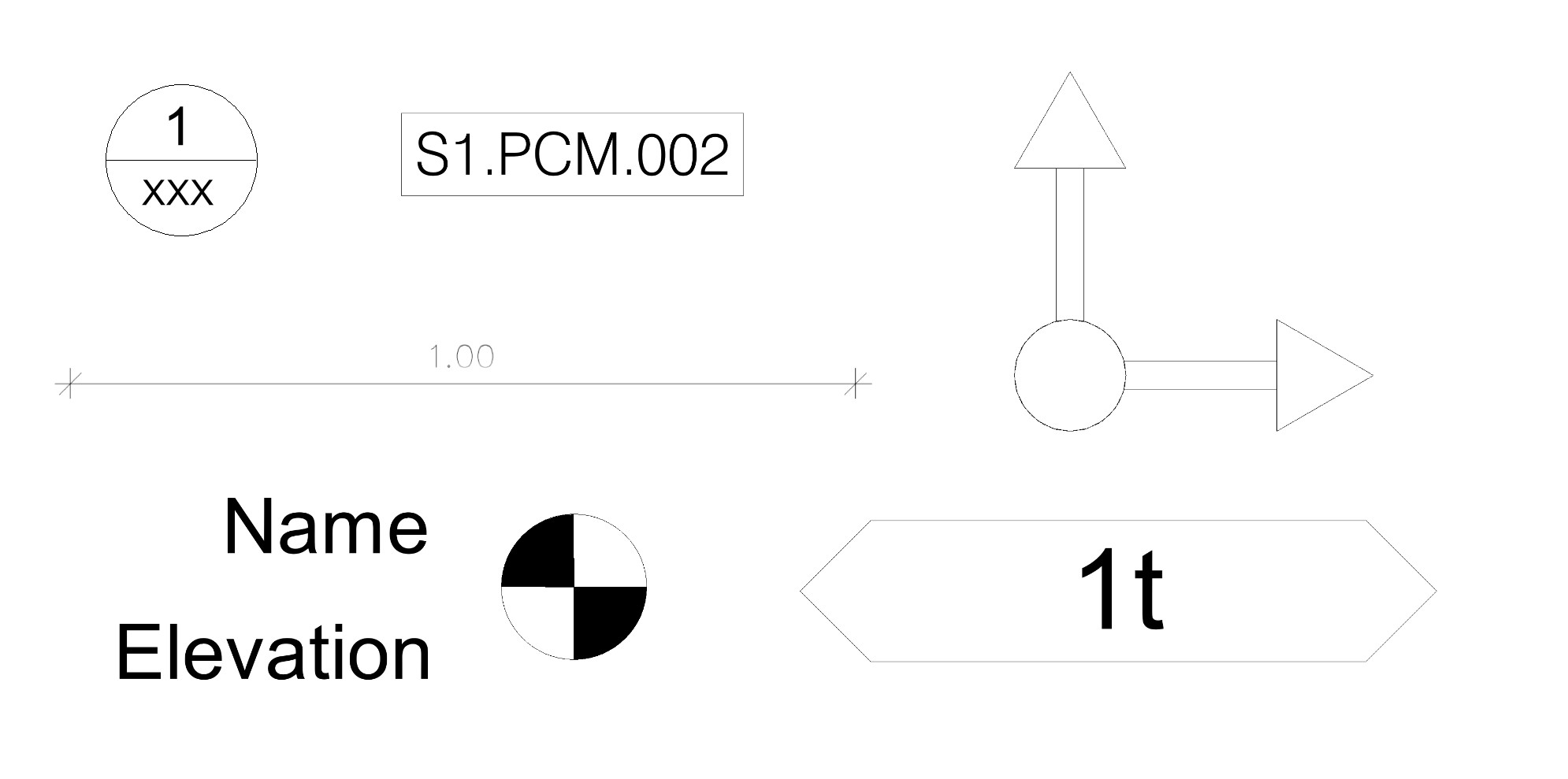
Annotation families can be any graphic or symbol that are used repeatedly in your project. We can break this down into two basic classifications:
- Annotations that report data from the model. A door tag would be a good example of one that does report data from the model.
- Annotation that does not report data. A north arrow would be a good example of an annotation family that is static and does not report data from the model.
An annotation is always a view specific element in 2D. They live in views but don’t exist in the 3D model like floating elements.
We can distinguish four main blocks of annotation families:
- Generic annotations (mainly symbols)
- Tags
- Detail Items
- Title Blocks
Both generic annotations and tags have in common that their size is fixed and related to printing sizing while detail Items change of size depending on the scale of the project (they have model dimensions).
1 Generic Annotation
A generic annotation is a symbol that can either be static graphical information or contain a label. A label is a piece of text that is parametric and will update according to the project final information.
In generic annotations labels are just a placeholder to type anything. Labels in generic annotation are not attached to specific properties of elements, so cannot read information from them.
But in advanced family modelling, generic annotations can be nested into model families and work as nested annotations that show directly family information.
Probably the most challenging aspect of working with generic annotation is the terminology. We load a generic annotation symbol or we create a generic annotation family but we use the “Place Symbol” tool in order to actually place it in our projects.
2 Tags
A Tag is an Annotation Family that reports data embedded within a Model Element.
Construction documents use all kinds of tags; Door tags, Window tags, Wall tags, and so on. Tags also use labels. Labels in tags point to the information of the host holder. The labels are a piece of text that actually are linked to some properties in the model.
3 Detail items or detail components

Detail elements are families or objects consisting of 2D elements. Detail elements are only shown in the view in which they are placed.
Detail item families are generated in the same way as model families (with reference planes controlling geometry). They are 2D element but with model dimensions and therefore react to scale changes.
Mask regions generate a white shade while a fill region generate fill patterns.
3.2 Repeating detail components
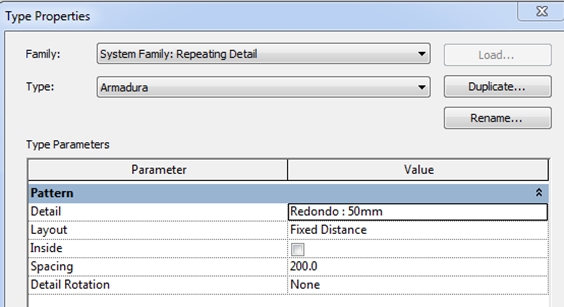
Repeating detail components are an specific way of nesting detail elements in a project. They are a kind of structured arrays and its function is to help detail constructive drawings in projects.
Components are system elements that apply some rules to loaded detail components. They are created directly in a project.
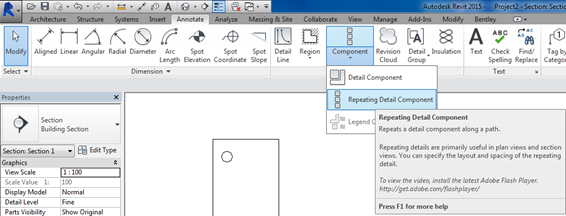
If we have already loaded a detail family we can use the “Repeating Detail Component” tool to create a line of repeated elements which is very useful when creating detail views.
For example, a detail family of a brick and repeating detail component of several bricks in a line.
4 Title Blocks
Title Blocks are annotation elements that inside Revit have their own category (same name: Title Blocks), and are meant to be the layout template for sheets.
They are custom annotation families with one special feature: the external lines of the format define the boundaries or borders of the sheet. They generally include information about the design firm, client, and about the project.
As custom families we can create them with any appearance that is required in project.
It could be said that Title Blocks are the tags of following categories:
- Project Info
- Sheets
Procedure
In most aspects, annotation families work as model families. They can be created following the same steps, rules and recommendations.
What is different in annotation families are texts and labels.
As it has been said before, it is important to understand the difference because this is the key to parametric annotation:
- The labels are a piece of text that actually are linked to some properties of the model elements.
- Texts are plain fixed texts that remain the same unless the user wants to intentionally change it in the family.
They work in the same way in all the annotation families.
1 Create a family
New > Family > Choose the correct template depending on the family we want to create.
1.1 Create a label
To create a label inside an annotation family go to Create Tab > Text Panel > Label

And click on the location we want to place the label on. When we have selected the Label tool we can notice that there is another tool called Text for fixed text.
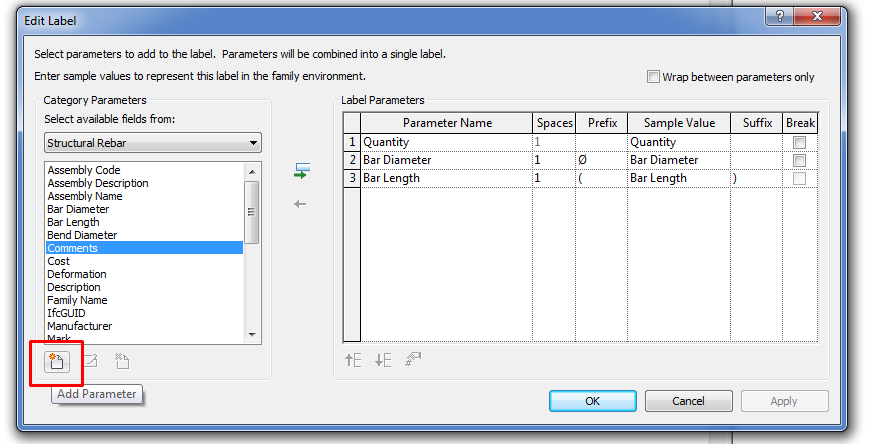
After clicking a dialog will prompt and there we decided which info we want to show in the parametric label.
We can decide if we will have:
- several parameters are shown in the same label.
- one label per parameter to be shown.
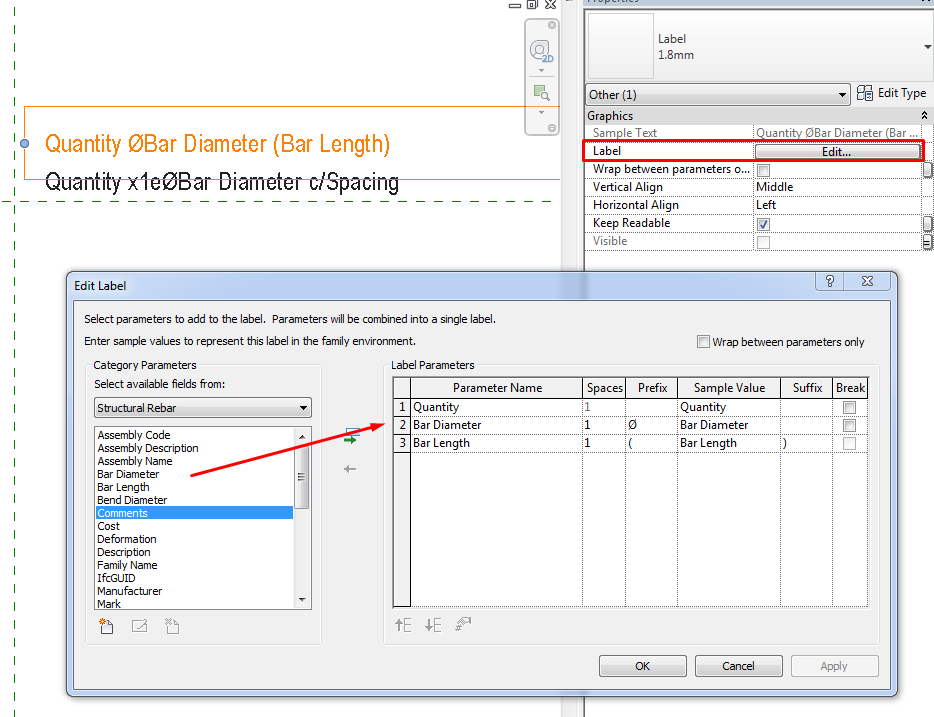
The available fields in the column to the left are the system parameters of the element category that we have selected. Let´s say, the out of the box parameters that exist by default for every category.
(See Parameters Guideline)
If in the tag we would want to show any custom parameters user-defined, the procedure should be as follows:
- Create the parameter as a shared parameter
- First be sure that we add it to the model family or category we want to tag.
- Add it to the tag family in which we have created the label text. We will select it from the Shared Parameter File and will be the same as in the model family.
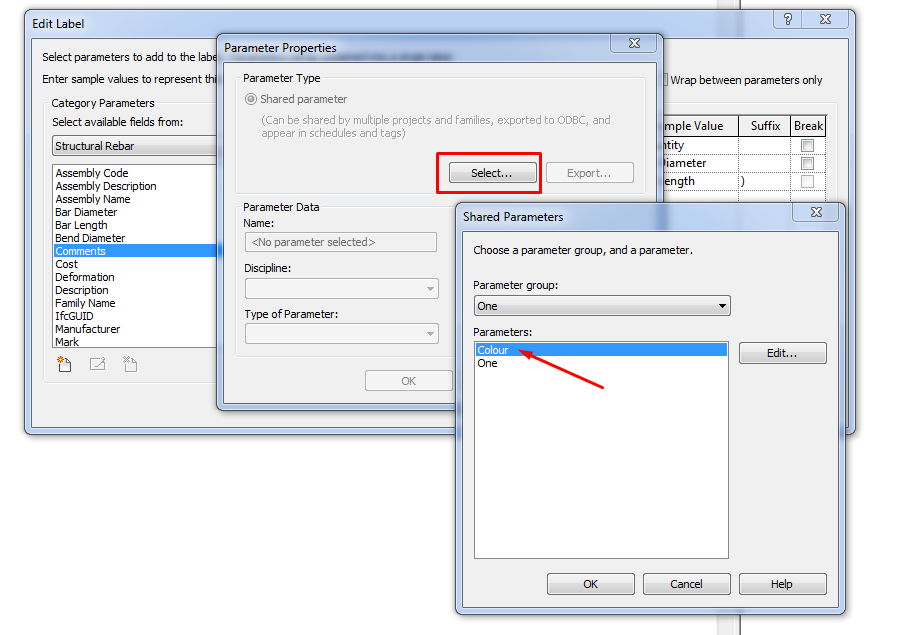
And then we proceed to add it finally to the label:
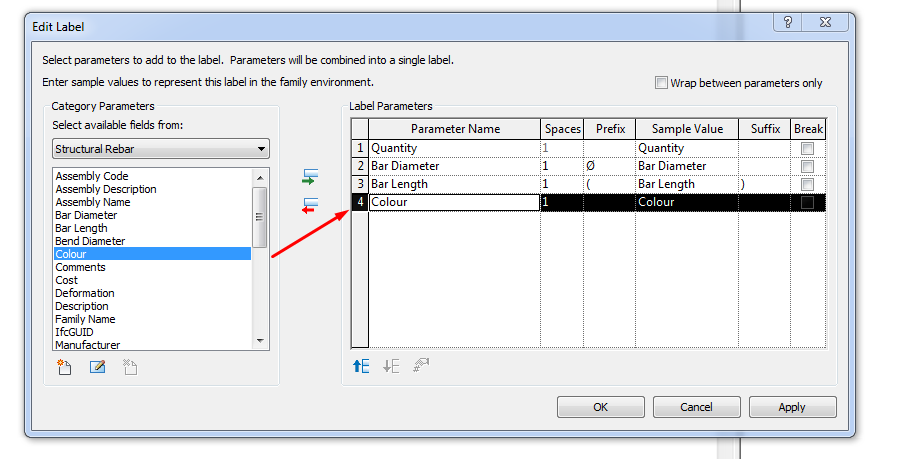
Then we will load the annotation family into the project, and the tag family when placed will be collecting data from the object that it is pointing to, so that if the object changes the information will simultaneously be updated.
1.2 Format the label
Additionally, we can format the label to be shown with different graphical aspects.
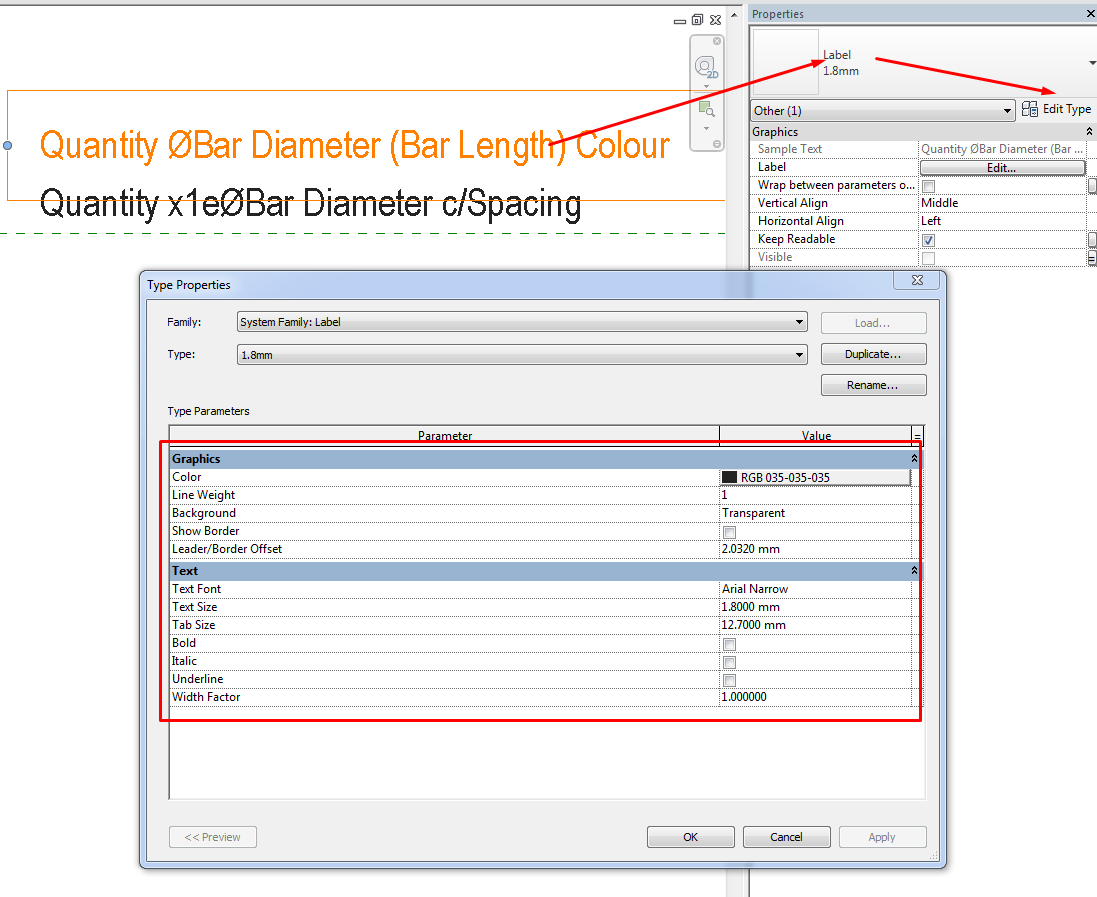
Labels as any other object in Revit respond to the already known data structure:
Category > family > type > instance.
Each label will be an instance of a certain type of label, that will have some specific properties.
We can get any combination of:
- Colour
- Font
- Size
- ...
Tips&Tricks
- An annotation is always a view specific element in 2D
- Both generic annotations and tags have in common that they have a fixed dimension (absolute printing size) in the project while detail Items change of size depending on the scale of the view.
- Annotation families can be classified into two groups: annotations that report data from the model (tags) and those that do not (generic annotations and detail items).
Bottom-line
It is very common that 3D modelling focuses all the effort when creating BIM Models. But Annotation elements are essential for correct BIM documentation of the project.
Associated Files
- OPE_Families_Detail Item.rvt
- OPE_Families_Detail Item.rfa
- OPE_Families_Tag_Stirrup.rvt
- OPE_Families_Tag_Stirrup.rfa
- Parameters Guideline
- Families Guideline
Hi, This is very helpful for me
Thank you so much
Excelente