

Simultaneity of Revit versions
Helpdesk
Simultaneity of Revit versions
Introduction
It is very common to work on projects that have been started in different periods of time, and therefore, each one is carried out with a different Revit version.
Therefore, we will have to live with several versions of the same program installed on our computer, and this generates doubts for our users.
Question:
If we want to update the Revit version, what do we have to take into account? Is there a problem with having two versions of Revit installed on the same computer?
Doing a test with a computer that has two versions of Revit installed, the following problems are found:
When you double-click on the file, it always opens with the latest version of Revit (2019), making it impossible to choose a lower Revit version.
We are not able to control when a model is updated and which version to open it with.
Answer:
There is no problem in having two Revit versions on the same computer.
As with any software, having two or more versions installed, one of them will be set as the default one to open .rvt files. That is why on a computer that has 2017 and 2019 installed, for example, when you double click on a file, it uses the version set as default to open the Revit files.
To properly explain how to update a Revit model, it is first necessary to review how to open a Revit model and how to detach it.
PROCEDURE TO OPEN Revit FILES
It is VERY IMPORTANT to remember that Revit files should NOT be opened by double clicking on the file, but rather accessed from within the program once opened.
- Open the desired Revit version.
- Open project
- Find the file in its save path.
- Proceed to open the desired file, which can be done in three different ways:
- As a LOCAL file.
- Directly opening the central model.
- Opening the file detaching it.
PROCEDURE TO DETACH REVIT FILES
In line with how to open Revit files correctly, to unlink it, follow these steps:
- Open theRevit version you want to work with.
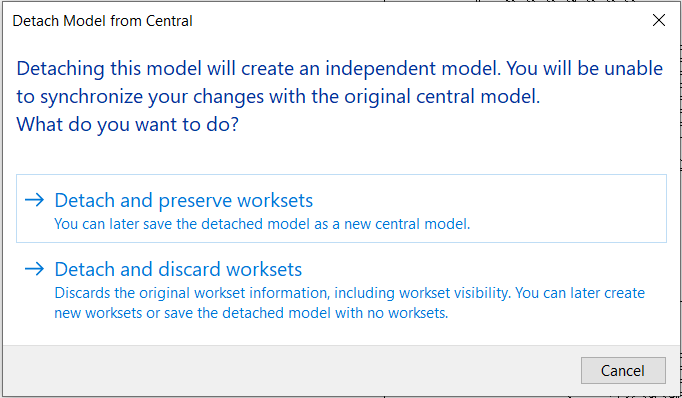
- In Revit click Open, find the file and click Detach from central before opening.
- Click on detach and preserve worksets, if you want to preserve the worksets.
- Save as> save it where necessary, even overwriting a file.
When detaching a file, if in step 3 you select "Detach and preserve Worksets", the file WILL STILL be a collaborative mode file, or Central Model, when saved.
PROCEDURE TO UPDATE A REVIT MODEL
- Create backup files of those models that you want to update. It seems obvious, but better to say.
- The files must be upgraded without skipping versions: first from 2017 to 2018, then 2018 to 2019, etc. This produces fewer errors. It is important to have the most up-to-date Revit versions (all software updates) in each case.
- The central model (not local) is updated being sure that all users have synchronized and transferred ALL their elements and worksets.
- If you have linked Revit files, they are updated separately.
- The original CENTRAL model is opened from the version of Revit to be updated ("Detach" and "Local copy" boxes unchecked) auditing.
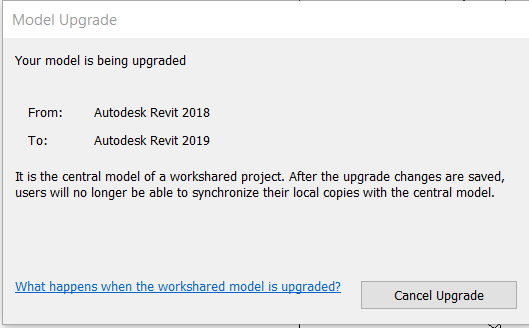
- At this time a dialog box will appear that will indicate that the model is updating. Once opened > Save as.
- You may see some errors, Revit produces a "Report" that can be exported, to see the elements that may have been lost in the update.
- Remember, if there are links, they are updated separately, following the same procedure. Afterwards, it must be re-linked following the path of the folder where they are located.
For points 5 and 6 another option is possible.
5. A local or detached file is opened, from the version to be upgraded to, also auditing.
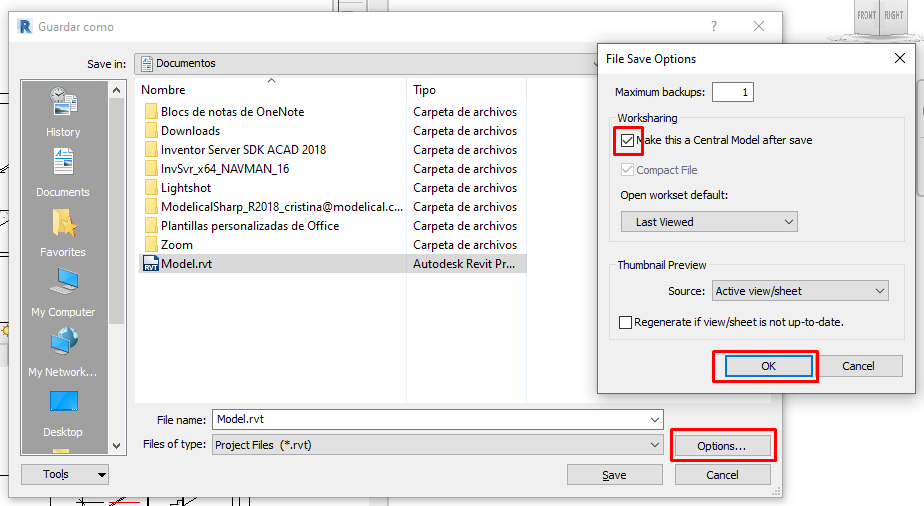
6. At this time, a dialog box will appear that will indicate that the model is updating. Once open> Save as> Options> Make this a central model after save.
Bonus track
Was it useful? Leave a comment!
If you want to know more about collaborative models and worksets, visit our website!
At Modelical we offer helpdesk support for businesses. We have packs that attend specific inquiries related to projects by email. With this service you will be able to attend any type of specific query, from a doubt or a problem in the development of a project to the advice and general support in any of our tools and products.